What Kimonix does for your collections, and how Sledge sorts them

Data as of November 2026. Features and prices come from each app's own pages and Shopify App Store listing, read November 11, 2026.
Summarize with AI
You want the products that sell at the top of every collection, and sold-out ones out of the way. Kimonix gets there by scoring every product, and Sledge with the pins and rules you set.
Pinned products, sold-out products last, products lifted by sales or conversion, A/B tests and dated orders can all be set up in Sledge. Sledge's Advanced settings add a different order for each filter a shopper picks, and tabs inside one collection, on flat plans from $29.99.
Feature by feature
What does Kimonix do, and what does Sledge do for each job?
| In Kimonix | In Sledge |
|---|---|
| Sorting on more than 100 signals, such as revenue, conversion and inventory | Boost or Demote by product details, or by Best sellers, Most viewed, Most clicked, Highest conversion rate and Highest add-to-cart ratio over 7, 14 or 30 days |
| Pinning and drag and drop | Pin: type each position or drag the order |
| Sold-out items moved down by live stock for each size and color | “Move Sold Products to the end of product listing”, on from install |
| Balancing sales and inventory | Boost Best sellers, and Demote the products you tag as overstock |
| Margin, returns and reviews in the score | Tag those products in Shopify, then Boost or Demote the tag. Sledge has no margin score |
| Segmented sorting, such as by type or color | A custom rule for each filter a shopper picks, or tabs that split one collection, each with its own order (Advanced) |
| Product grouping, such as shop the look | A bundle card in the grid with “Bundle, Discount & Upsell”, or products from another collection with Inject product |
| A/B testing of sorting strategies | An A/B test on any strategy, up to four versions |
| New arrivals pushed up automatically | Boost new arrivals, and “Set active date” for an order with a start and an end |
| 1:1 personalized collections | Personalization for all shoppers or for returning shoppers only, with no customer segments |
| An order per market | One order across all markets |
| Performance analytics | Visitors, Clicks, CTR and Total rev. for each strategy |
| Collections built from rules | Sorts your Shopify collections. To build one by rules, use a smart collection in Shopify |
| Agentic Search, a separate Kimonix app | Search in the same app, through a second strategy on “Search Page & Instant Search” |
Advanced settings
What can the Advanced settings do for one collection?
Under Specific collection, each collection you add has an Advanced button with two choices, Create Custom Rule and Create Tab. Under All collections, one Advanced button opens Create Custom Rule alone.
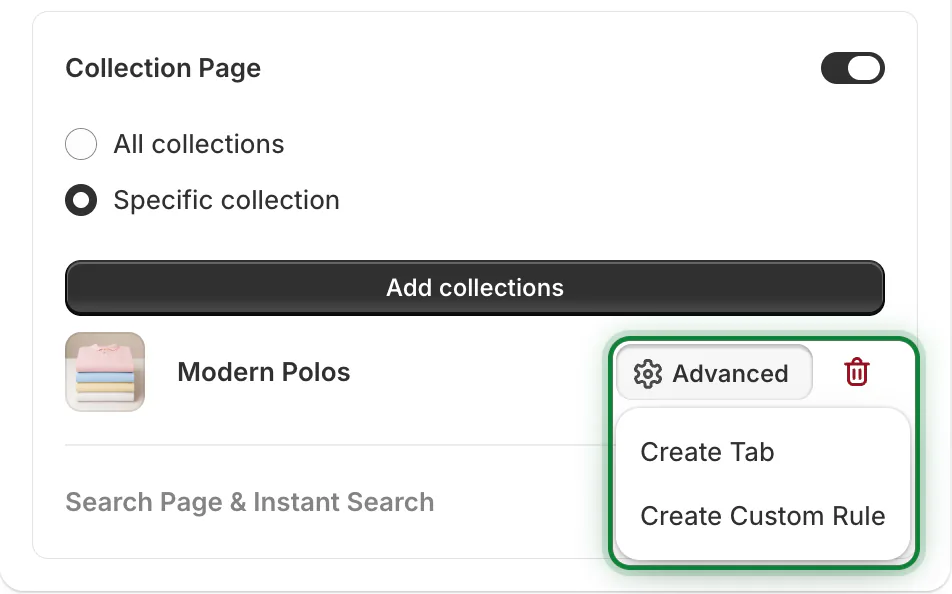
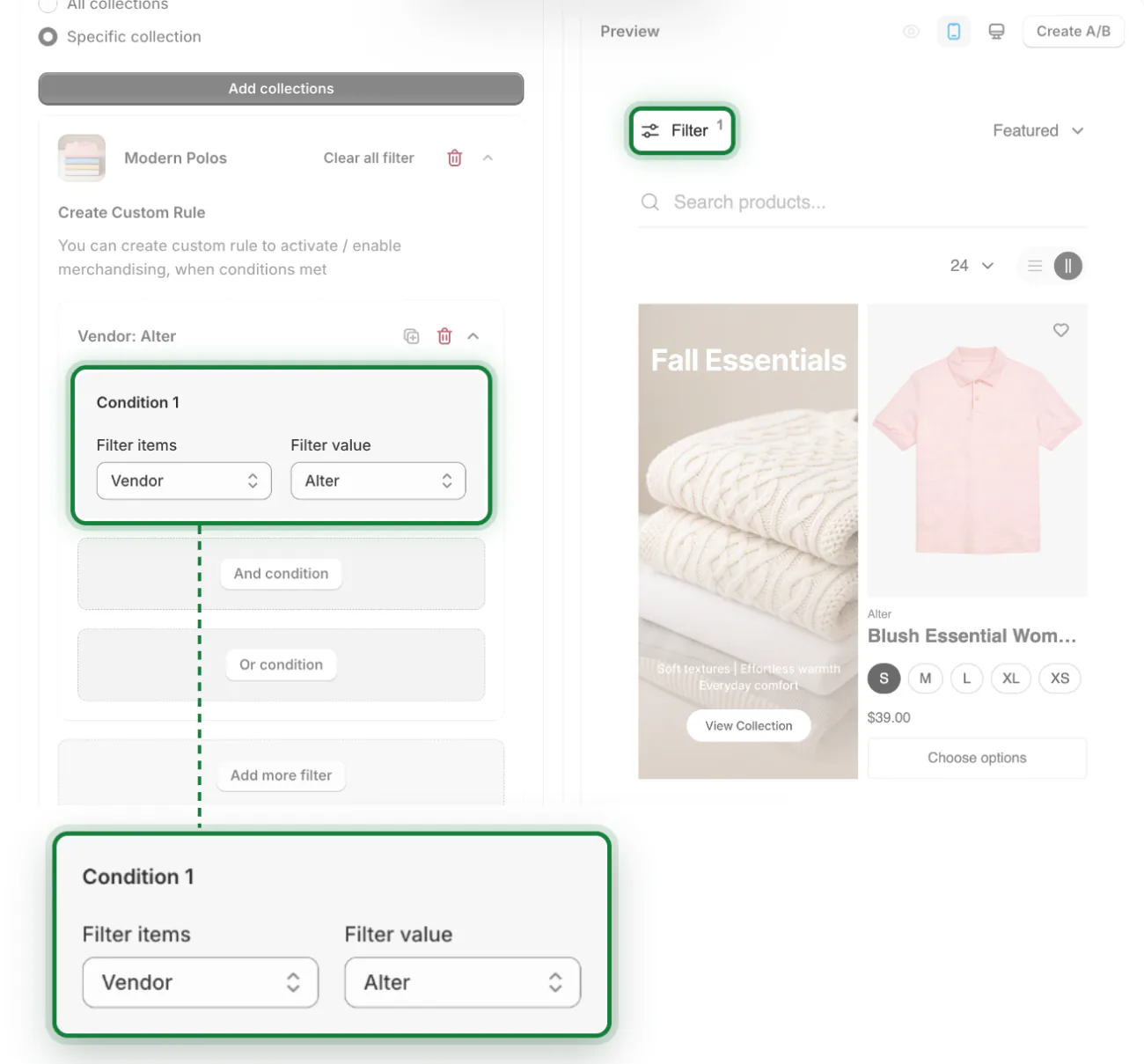
Custom Rule: a different order for each filter
A custom rule switches the order when a shopper picks a filter value. Say a shopper filters Modern Polos by Vendor: Alter. The rule can pin that brand's best seller to the top for that view, and the Default order returns once the shopper clears that filter.
- In the strategy, turn on Collection Page, choose Specific collection and add the collection.
- Click Advanced beside it, then Create Custom Rule.
- In Filter items, pick a filter, such as Vendor, and in Filter value, pick its value, such as Alter. Use And condition to require two filters together, and Or condition for either one.
- Click Add more filter for a second rule.
- Under Strategies, click the rule's name, such as Vendor: Alter, beside Default, and add its Pin, Boost or any other strategy. Default holds the order for every other view.
- In Preview, pick the same filter to check the order, then set the strategy to Enable.
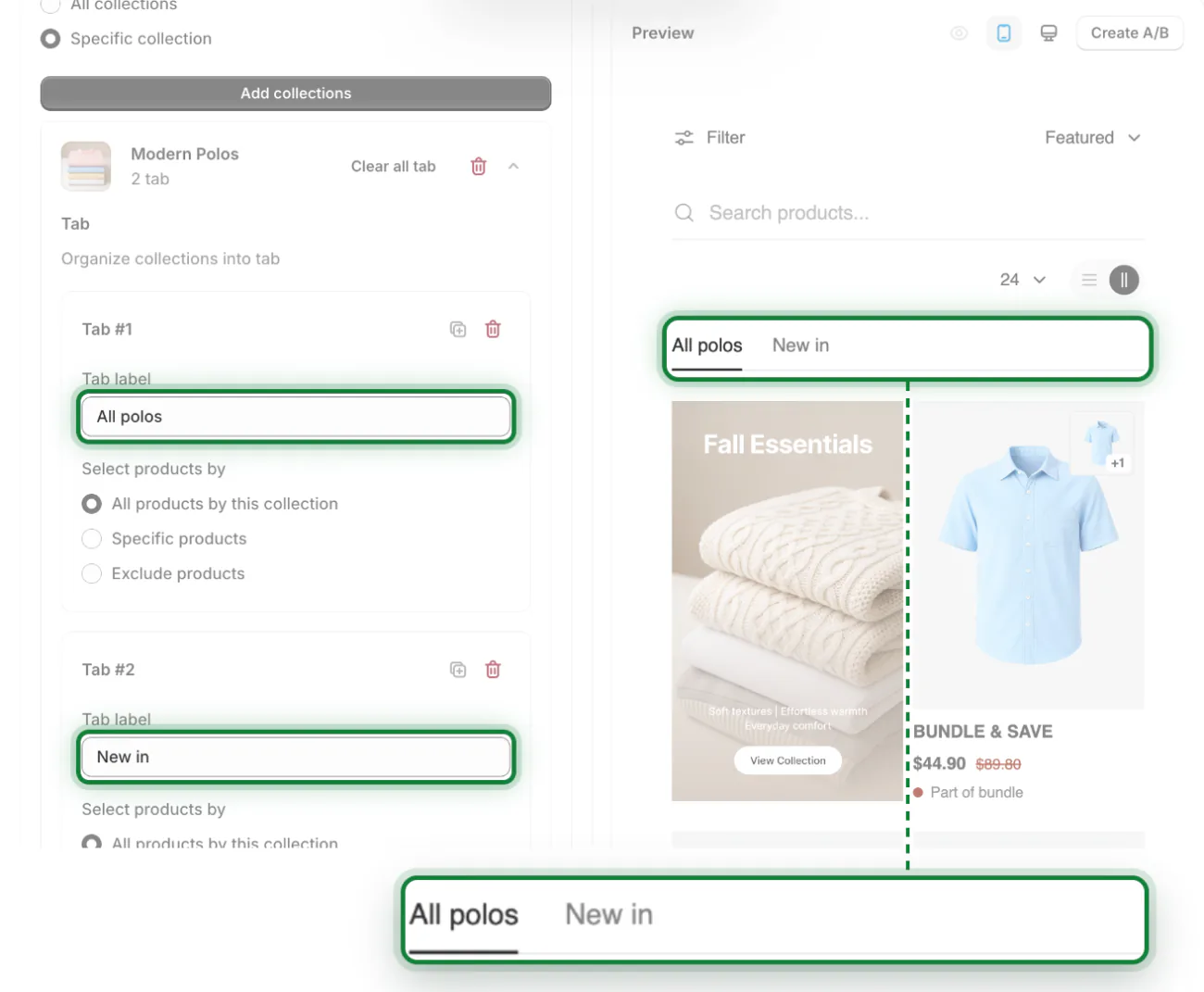
Tabs: several shelves in one collection
Tabs split a collection page into named tabs above the grid, such as All polos and New in. Each tab holds the whole collection, chosen products, or everything but a few, with its own pins and boosts.
- With the collection added under Specific collection, click Advanced beside it, then Create Tab.
- Type a Tab label.
- Under Select products by, choose All products by this collection, Specific products or Exclude products.
- Click Add more tab for the next one.
- Under Strategies, choose each tab and set its own pins and boosts, then check the tabs in Preview and set the strategy to Enable.
Limits worth knowing
| Setting | Where it works | How many | Good to know |
|---|---|---|---|
| Custom Rule | Collection pages, in All collections or Specific collection | Up to 20 per collection | Fires on filter values a shopper picks: vendor, tag, product type, collection, options such as size or color, custom product details. Not price ranges |
| Tab | Collection pages, in Specific collection | Up to 10 per collection | A collection holds tabs or custom rules, not both |
More control inside a strategy
- Add new group gives Boost a second set of conditions, and earlier groups rank higher.
- On “Search Page & Instant Search”, Specific keywords with Contains or Exact gives one search term its own order.
- When Pin, Boost and Inject product sit in one strategy, Pin goes first, then Boost, then Inject product.
- Set active date, A/B test, Draft and Duplicate work on every strategy, on every plan.
How each works
How does each app set the order of a collection?
Kimonix gives each product a score from more than 100 signals, such as revenue, conversion, margin and inventory, and orders the collection by that score. It re-sorts four times a day on its pay-as-you-go plan and can build the collection itself from rules.
Sledge starts from the sort each collection already has in Shopify, whether that is Manually, Best selling or another option, and your strategies act on top of it.
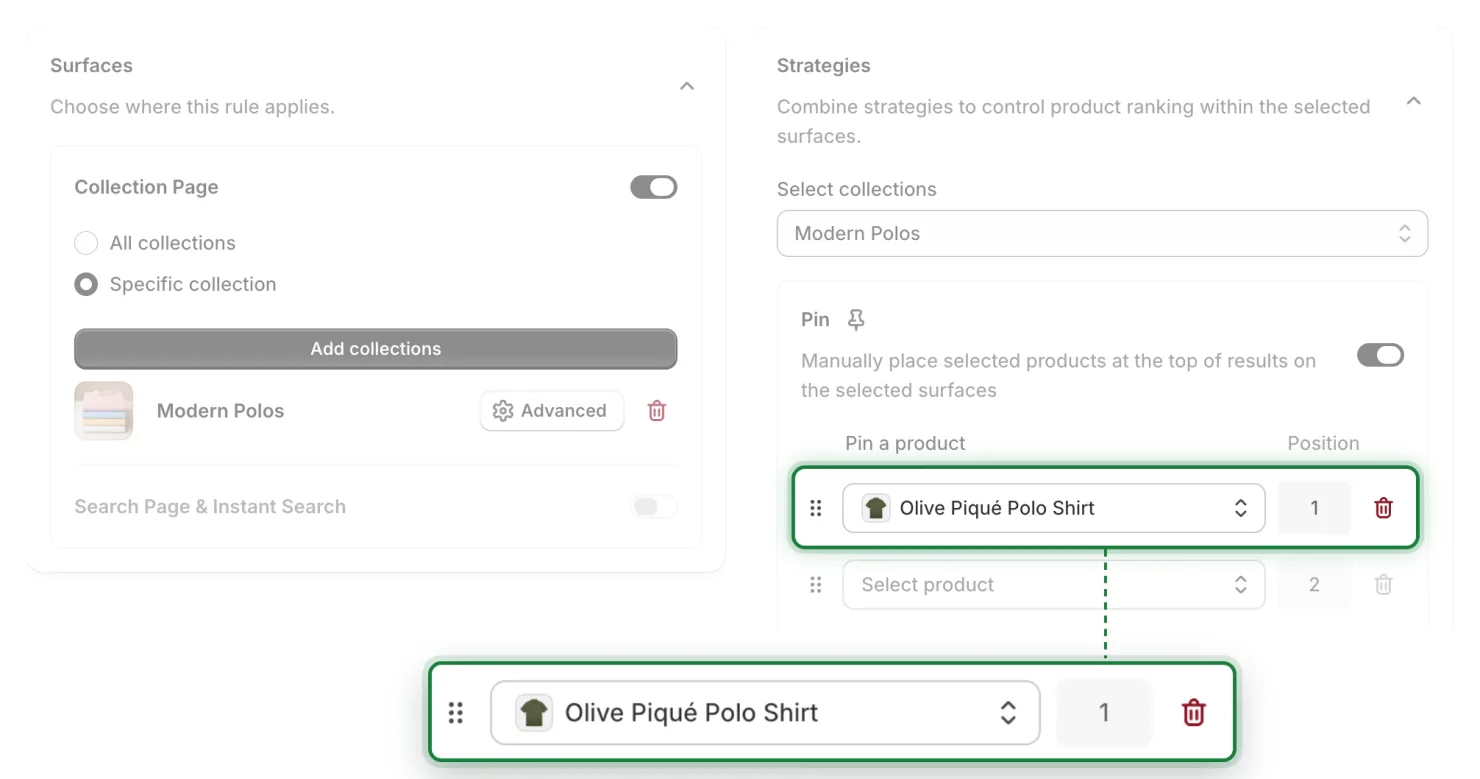
Pin holds products at the positions you type. Boost and Demote lift or lower products by product type, vendor, tag, price or stock, or because they are new arrivals or on sale. They can also follow your store's own sales, views, clicks and conversion over the last 7, 14 or 30 days.
The new order shows in Sledge's collection grid, which your collection pages use once you turn Sledge on in your theme. Your Shopify admin keeps its own order. When a shopper picks a sort of their own, such as Lowest price, their choice wins for that view.
Sledge is a Shopify app that sorts collection pages and search results by hand or by rule, with pins and boosts, plus a rule per filter and tabs on collection pages, on a flat monthly plan from $29.99.
Cost
What does each cost at your traffic?
Kimonix counts a view each time a shopper opens a collection page whose order it manages. The $19 a month comes back as credits toward those views. The table uses Kimonix's published rates on November 11, 2026.
| Collection views a month | Kimonix merchandising | Sledge |
|---|---|---|
| 10,000 | About $60 | From $29.99 |
| 50,000 | About $300 | From $29.99 |
| 100,000 | About $400 | From $29.99 |
| 250,000 | About $700 | From $29.99 |
Say your collections draw 100,000 views in a month. On Kimonix the first 50,000 cost $300 at 0.6 cents, and the next 50,000 cost $100 at 0.2 cents.
Sledge's plans are $29.99, $89.99, $199 or $399 a month. Each covers a set amount of sales made through Sledge, from $8,000 to $300,000 a month, and past that cap the price stays the same while merchandising keeps running. See every plan.
Setting it up
How do you set up collection sorting in Sledge?
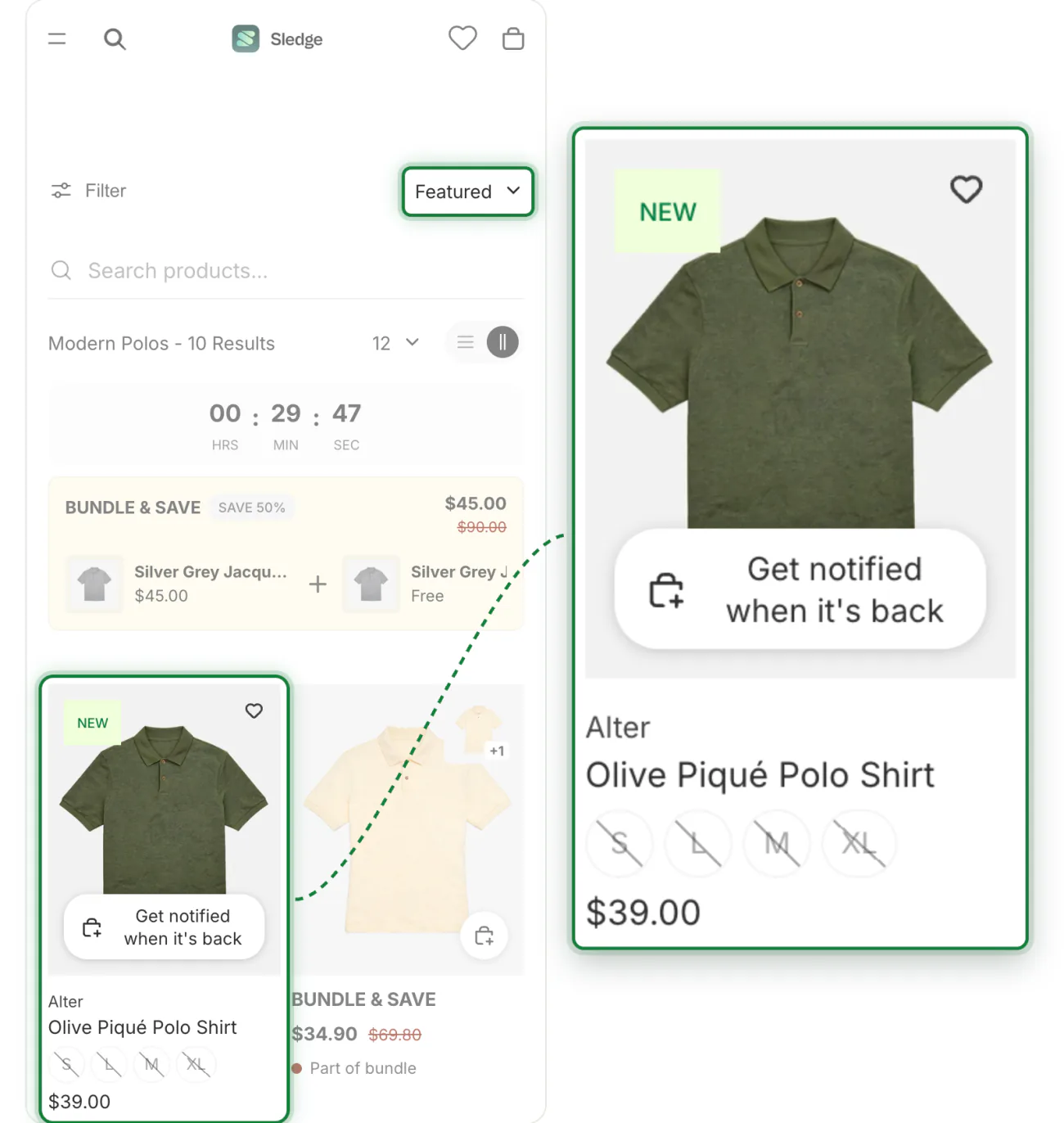
- Duplicate your live theme (Online Store, Themes, Duplicate) and turn Sledge on in the copy, so your live store stays as it is while you build.
- Open Merchandising and create a strategy for Collection Page. Add your pins first, then the boosts and demotes.
- For an order per filter or per tab, click Advanced beside the collection, as shown above.
- Open Settings & Support, then Global Settings, then Product list, and check that “Move Sold Products to the end of product listing” is on.
- Repeat your key rules in a second strategy on “Search Page & Instant Search”.
- Check each collection in Preview, then publish the theme copy.
- Run an A/B test on your busiest collection and keep the version that sells.
The Sledge docs have a guide with screenshots for pin, boost, demote and A/B tests.
FAQ
Questions, answered
-

14-day free trial
Explore Sledge on your store before you decide to commit.
-

No credit card required
Start improving your store with no upfront commitment.
-

Setup in minutes
Get Sledge running without a lengthy setup process.
-

Built to grow sales
Turn shopper behavior into actions that help you sell more.
Can Sledge do what Kimonix does?
For many of the same jobs, yes. Pins, sold-out products last, products lifted by sales or conversion, dated orders, A/B tests, an order for each filter a shopper picks and tabs inside a collection each have a place in Sledge. Sledge has no margin score or customer segments, keeps one order across markets, and leaves building collections to Shopify.
Can a collection change its order when a shopper picks a filter?
Yes, with a custom rule. In a strategy, click Advanced beside a collection, then Create Custom Rule, and pick a filter and value, such as Vendor: Alter. Give that rule its own pins or boosts; the Default order applies when no rule matches. A collection takes up to 20 rules, on collection pages only.
Can I split one collection into tabs?
Yes. Click Advanced beside a collection, then Create Tab, and name each tab, such as All polos and New in. Each tab shows the whole collection, chosen products, or all but a few, with its own pins and boosts. Tabs work on collections added under Specific collection, up to 10 each, and a collection holds either tabs or custom rules, not both.
Does Sledge change the product order in my Shopify admin?
No, your admin keeps its own order. Sledge reads each collection's sort from Shopify and applies your strategies in its own collection grid on the storefront. So the collection shown anywhere else in your theme, such as a section on your home page, won't show Sledge's pins or boosts, and neither will any app that reads the admin's order.
Can Sledge keep sold-out products at the bottom?
Yes, on every plan. “Move Sold Products to the end of product listing” is on from install, so sold-out products sit after in-stock ones on your collection pages and search results. The setting covers the whole store, and a product returns to its place once it is back in stock.
Can Sledge sort a collection by margin or revenue?
Not directly: Sledge has no margin or revenue ranking. It ranks by Best sellers, Most viewed, Most clicked, Highest conversion rate and Highest add-to-cart ratio over the last 7, 14 or 30 days, counted from the day you install it. For margin, tag your high-margin products in Shopify and boost that tag.
Does Sledge order search results too?
Yes, with a second strategy, because each one runs on collection pages or on “Search Page & Instant Search”. Choose Specific keywords to give one search term its own order. Search, filters and search merchandising come in the same app as collection sorting.
Can I A/B test a collection order?
Yes. Any merchandising strategy can run as an A/B test with up to four versions, split evenly or by weights you set. Sledge reports visitors, clicks, CTR and revenue for each version. The 14-day trial allows three active tests per tool, and paid plans have no test limit.
How do Kimonix and Sledge charge for collection sorting?
As of November 2026, Kimonix merchandising is $19 a month in credits toward views, then 0.6 cents per collection view for the first 50,000 and 0.2 cents up to 250,000. That is about $300 at 50,000 views a month. Sledge's plans are flat, from $29.99 a month, whatever your views.
Can I try Sledge without changing my live store?
Yes. Turn Sledge on in a copy of your theme, build your strategies there and check each collection in Preview. Your live store keeps its current setup until you publish that theme copy, and the 14-day trial covers every merchandising strategy, the Advanced settings included.
Keep the order that sells, at a flat price.
Start the 14-day trial and preview your collection order before it goes live. On any paid plan, Growth Intelligence then names fixes for your collections and shows the sales they could add each month as one total, labeled “Est. potential”.