These ecommerce website design examples cover the seven pages of a store worth designing on purpose: the home page, a collection page with filters, a product page, the cart, search results, the phone menu and a policies page. Each has one job, its parts in a set order, and the Shopify clicks that build it.
Ask for feedback on your store and the list comes back: add best sellers, add reviews, add a banner, shorten the home page. Few say which page a tip goes on, or which button adds it.
What are the 7 store pages worth designing on purpose?
Seven pages carry a shopper from a first look to an order, and each has one job.
Section names vary by theme. The clicks follow Shopify's Help Center and the Shopify admin, checked November 19, 2026.
| Page | Its one job | Where you open it |
|---|---|---|
| 1. Home page | Show what you sell and send shoppers into a collection | Home page |
| 2. Collection page with filters | Cut many products down to a few | Collections |
| 3. Product page | Answer the last doubts before Add to cart | Products |
| 4. Cart drawer | Let shoppers check the cart and go to checkout | Cart, and Theme settings |
| 5. Search results | Turn a typed word into a product | Search |
| 6. Phone menu | Reach any collection in two taps | Content, then Menus |
| 7. Trust and policies page | Answer "what if it doesn't fit?" before checkout | Settings, then Policies |
Checkout and the thank-you page get their own page: thank you page examples.
What do 7 ecommerce website design examples look like?
Each layout reads top to bottom, with its parts in the order a shopper meets them.
1. Home page
The home page has one job: tell a stranger what you sell and send them into a collection.
Parts, top to bottom
- Announcement bar, one line.
- Header: logo, menu, search, cart.
- Hero: one heading, one button.
- Best sellers, a row of four.
- Shop by category, three tiles.
- One trust row.
- Footer with an email sign-up.
Build it: in Online Store, click Edit theme. It opens on your home page. Click Add section for a part, drag its handle to move it, and click Save. The header, announcement bar and footer sit in areas shared by every page, so one change reaches them all.
This home page has seven parts, header and footer included, and Shopify allows up to 25 sections in one page design.
Check it: scroll it on your phone and ask what the first screen sells.
2. Collection page with filters
A collection page has one job: cut seventy products to six.
Parts, top to bottom
- Collection name and one line.
- Filters: size, color, price.
- Sort menu and result count.
- Grid with photo, price, one badge.
- Load more, or page numbers.
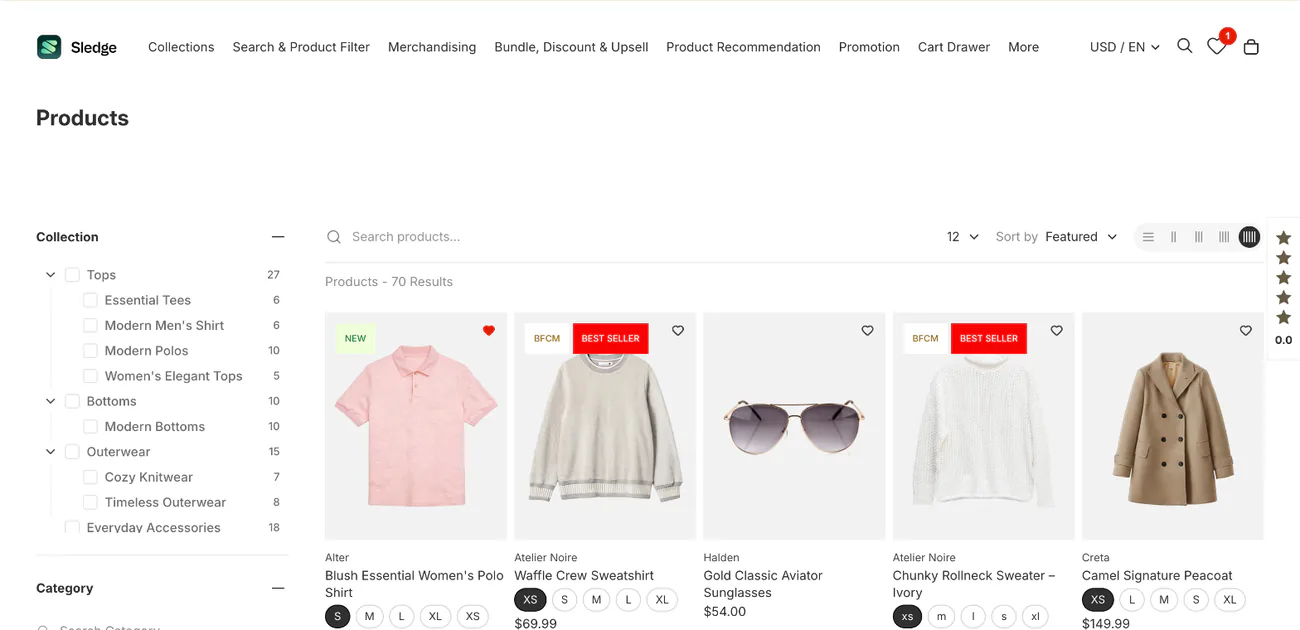
Build it: choose Collections in the editor's drop-down. The filters come from Shopify's free Search & Discovery app: open Apps, then Search & Discovery, then Filters, and click Add filter, up to 25 in all. The five parts of a collection page go deeper, and filters for a large catalog covers big ranges.
Sledge, a Shopify app for search, filters and offers, builds the filter panel from size, color, price, tags or your own product details, shows colors as swatches and keeps a live count beside each option. The same panel shows on search results. See Sledge filters.
Check it: on your phone, are the filters one tap away?
3. Product page
Your product page has to answer the last doubt before Add to cart.
Parts, top to bottom
- Photos, the first one largest.
- Title and price.
- Size or color picker.
- Add to cart.
- Delivery and returns, one line each.
- Description.
- Reviews, then related products.
Build it: choose Products in the drop-down. Each part is a block: click Add block to add one, and the hide icon to hide one. To give a few products a different page, click Create template, which makes a second design for them. The seven parts of a product page have the detail.
Check it: on your phone, are the price and Add to cart on the first screen?
4. Cart drawer
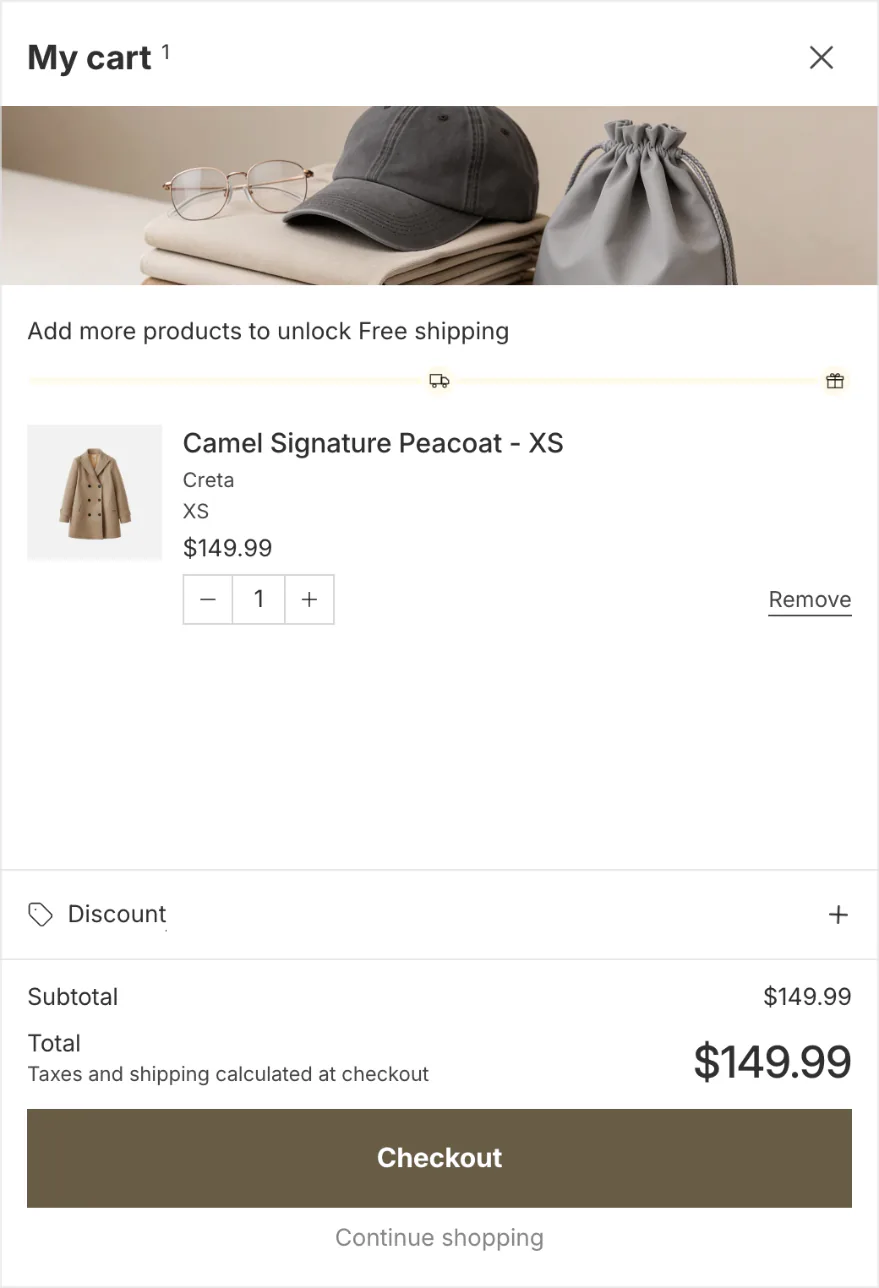
A cart drawer lets shoppers check the cart and reach checkout without leaving the page.
Parts, top to bottom
- Title with the item count.
- Free-shipping line.
- Line items with quantity and remove.
- One suggestion.
- Subtotal, with "taxes and shipping at checkout".
- One Checkout button.
- Continue shopping link.
Build it: in the theme editor, click the Theme settings icon. If your theme has a Cart type setting, it picks Drawer, Page or Popup notification: a drawer or pop-up keeps the shopper on the product page, and Page sends them to the cart page. Enable cart note adds a note box. The Cart entry in the page drop-down usually holds two sections, Items and Subtotal.
Sledge's cart drawer opens in place of your theme's own and can hold a progress bar toward free shipping or a free gift, a row of suggestions and a discount field. Switch it off and your theme's own drawer opens again. See the Sledge cart drawer.
Check it: add a product on your phone. Does the drawer open, and is Checkout visible without scrolling?
5. Search results
Search has one job: turn a typed word into a product.
Parts, top to bottom
- Search box on every page.
- Suggestions as the shopper types.
- Results page with a count.
- Filters beside the results.
- A useful page when nothing matches.
Build it: choose Search in the editor's drop-down, the entry for the search results page. In Theme settings, if your theme has a Search behavior panel, Enable search suggestions switches on the suggestions that appear as shoppers type. Shopify shows up to 10 results in that drop-down by default, and which result types appear is set in Search & Discovery.
Sledge's search shows suggestions as shoppers type, and a search with no match can show search tips, search term suggestions and your most popular products. See Sledge search, and what to show when nothing matches.
Check it: search a misspelled word on your phone. What does the shopper see?
6. Phone menu
Your phone menu does one thing: put a thumb on any collection in two taps.
Parts, top to bottom
- Bar: menu, logo, search, cart.
- Shop all, first in the list.
- Three to six category rows.
- Sale, if you run one.
- Account and help, set apart.
Build it: in your admin, open Content, then Menus, click the menu and then Add menu item. Click the Search or paste a link field, pick a link type such as Collections, Pages or Policies, and choose the destination from the list, because Shopify warns a pasted address can break. Drag the handle beside an item to change its order, then click Save. Your theme shows a menu behind the menu icon, so open your store on a phone to see which one.
Check it: on your phone, can you reach your top collection in two taps?
7. Trust and policies page
A trust page answers one question before the shopper pays: what if it doesn't fit?
Parts, top to bottom
- A plain title, such as "Shipping and returns".
- Shipping: cost and days.
- Returns: the window and who pays.
- Payment and privacy, in one short block.
- Contact: an email and a reply time.
- Links to it in the footer.
Build it: your policies live under Settings, then Policies: Return policy, Privacy policy, Terms of service, Shipping policy, Legal notice, Contact information and Subscription policy. Shopify calls its automated policies informational, not legal advice. For your store pages, add them under Content, then Menus, with the link type Policies. A friendlier page in your own words goes under Online Store, then Pages.
Wording to start from is in the refund policy template and the Shopify shipping policy guide. About Us and Contact Us pages sit beside it.
Check it: click your footer links on a phone. Does each one open a page with real numbers?
How do you open each page in Shopify's theme editor?
Every page above opens from one drop-down in the theme editor, except the phone menu, the cart settings and the policies.
- Duplicate your theme as a backup in Online Store, so any change is easy to discard.
- Click Edit theme.
- Click the drop-down at the top, labeled Home page, and pick a page design. Shopify calls these templates.
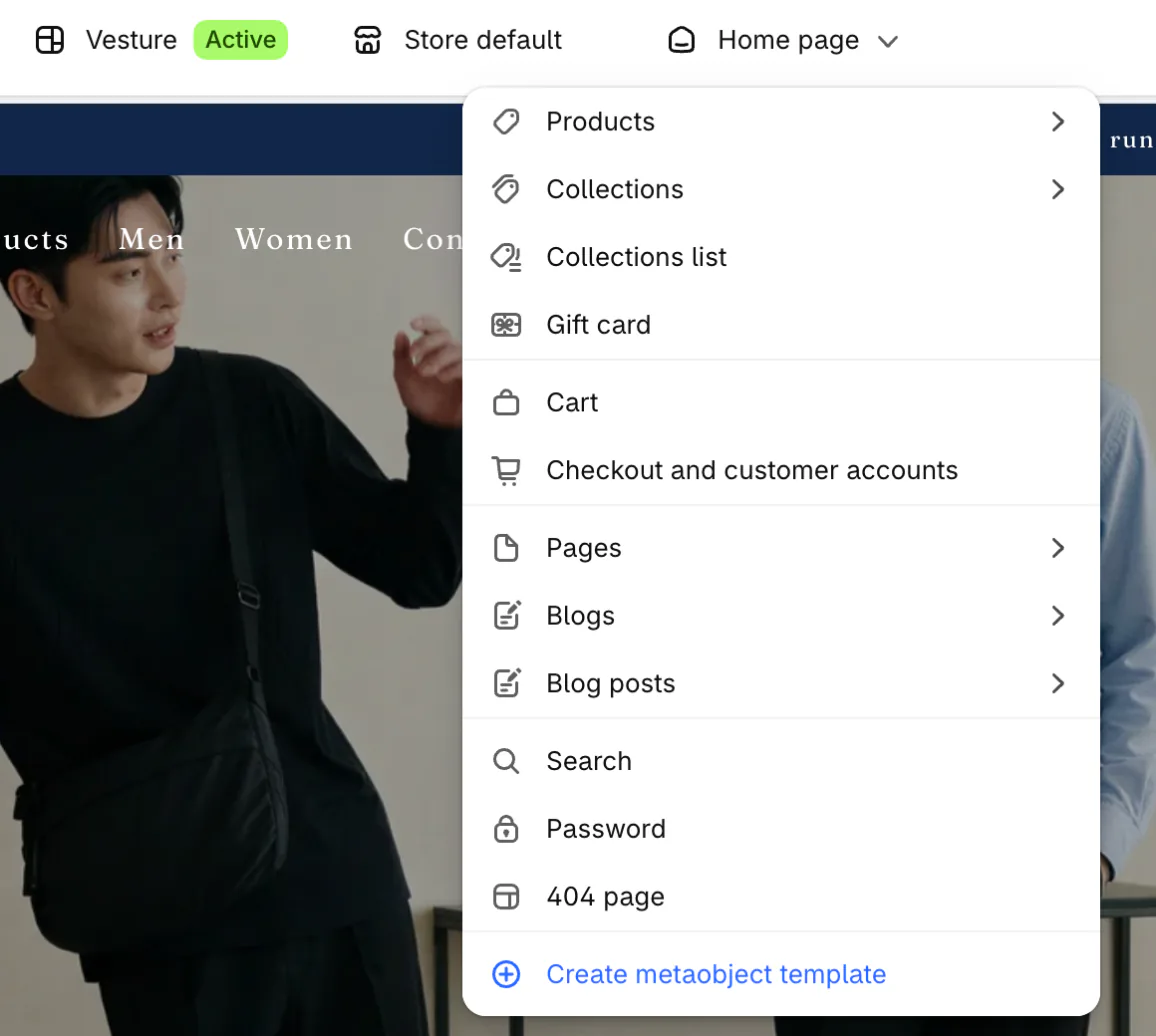
- Click Add section, or click a section name to change it.
- Drag the handle to reorder, then click Save.
- Click the Theme settings icon for settings such as Cart, Search behavior and Page layout, if your theme has them.
- Open your store on your phone and tap through.
Big pictures and many apps slow a page: see how to speed up your Shopify store.
What makes a store layout fall flat?
Four faults are easy to spot, and each has a short fix.
- Two main buttons on one screen. Pick one per page.
- Spacing, fonts and buttons that change from section to section. Colors, Typography and Buttons in Theme settings hold one set for the whole store, so set them there once.
- A home page of sections no shopper reaches. Cut what your own phone scroll skips.
- A policy page that says "fast shipping" and "easy returns" with no numbers. Layout 7 shows where the numbers go.
How can you study any store's design in 10 minutes?
Open one store you like on your phone. For each of the seven pages, write what is on the first screen and what you would tap next. Copy the order of the parts, not the look. A theme sets the look, so pick one from the Shopify themes guide first.
FAQ
Questions, answered
-

14-day free trial
Explore Sledge on your store before you decide to commit.
-

No credit card required
Start improving your store with no upfront commitment.
-

Setup in minutes
Get Sledge running without a lengthy setup process.
-

Built to grow sales
Turn shopper behavior into actions that help you sell more.
What makes a good ecommerce website design?
A good ecommerce design gives each page one job and shows its parts in a set order. The home page sends a shopper to a collection, the collection page narrows the choice, and the product page answers the last doubts. The cart, search and phone menu keep that path short. Check each page on a phone first.
How many sections should a Shopify home page have?
Shopify allows up to 25 sections in one page design. The home layout above has seven parts, header and footer included, which is enough to start. Scroll your own home page on a phone and cut the sections you skip yourself.
Can I change my Shopify store design without code?
Yes. In Online Store, click Edit theme, pick a page from the drop-down at the top, then use Add section, Add block and the drag handle, and click Save. Theme settings change the cart, search suggestions and spacing. Only a change your theme has no setting for needs a developer. Duplicate the theme first, so you can discard any change.
Does Sledge design my store?
No. Sledge doesn't build pages, pick a theme or edit your theme files. For these pages it adds three parts inside the layout you have: filters on collection and search pages, search that suggests as shoppers type, and a cart drawer. You set each up in the Sledge admin, and none needs a developer.
Do I need a page builder app to get these layouts?
Not for these seven pages. The theme editor covers them with sections and blocks. A page builder app helps when your theme's sections can't make the layout you drew, and it still needs the same phone check. Pages built for one ad are covered in landing page examples.
Seven pages drawn. Which one loses the sale?
Sledge doesn't design your pages, build a home page or edit your theme. It adds three parts inside the layout you have: filters on your collection and search pages, search that suggests as shoppers type, and a cart drawer. Try it free for 14 days. Growth Intelligence turns on when you pick a paid plan. It reads your searches, filters and orders, then lists fixes that could win back sales, with one dollar total labeled "Est. potential".