To get more reviews on a Shopify store, ask the buyers of your best sellers first, ask once the parcel has arrived, and make the review one short form away. A card in the parcel, the product page, the Shop app and one email each reach buyers a different way. Then reply to every review.
Thirty parcels went out this week, and your best seller still shows three reviews. Buyers sent kind notes to your inbox. None wrote a review, and nothing in the box or on the page asked them to.
How do you get more reviews on a Shopify store?
Ask where the buyer already is, once they can answer, in one tap. Seven ways follow, and each reaches buyers in a different place. Pick two or three, not all seven.
1. Start with the products that sell most
Reviews arrive in step with orders, so your top sellers earn them fastest, and shoppers meet those products first. Open Analytics, then Reports, and read "Total sales by product", a report under Sales. Write down your top five and ask about those first.
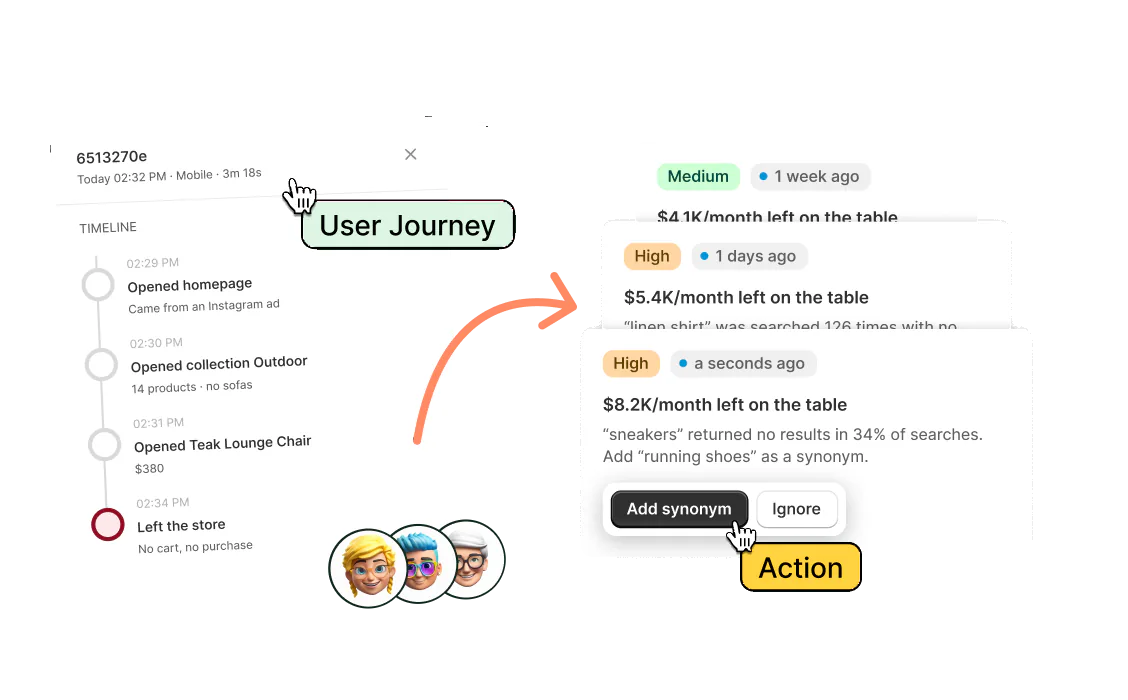
On a paid plan, Growth Intelligence can flag when few of your products have reviews. With no orders yet, ask your first buyers one at a time, and tell them you read every answer. Skip friends and family: the FTC says an insider's review has to say so, and a few can still skew your average. A review from a stranger is the social proof a new shopper is looking for.
2. Put a card in the parcel
A card reaches the buyer with the product in their hands, and it needs no email address. That matters because Shopify Messaging automations go by default only to customers who subscribed to marketing, so a card reaches the rest. We can't show that a card raises your count. It does reach buyers an email skips.
Print one QR code per product that opens that product's page, and one for your Happy Customer page, which takes a review of the store. Use a plain code that holds the web address itself, and scan it on two phones before you print a hundred cards. A link opens the page, not the form, so the buyer taps "Add a review" once they land. Print one line of words on the card and one request, so the buyer knows what to do. Our guide to custom packaging covers inserts, and the testimonial page guide covers the Happy Customer page.
3. Let the product page ask
Sledge's "Add a review" button sits on the product page, so a buyer can write a review on any day, with no email involved. Under Tools, then Product Review, check that the "Product Review" switch is on, because it is what shows reviews on your product pages.
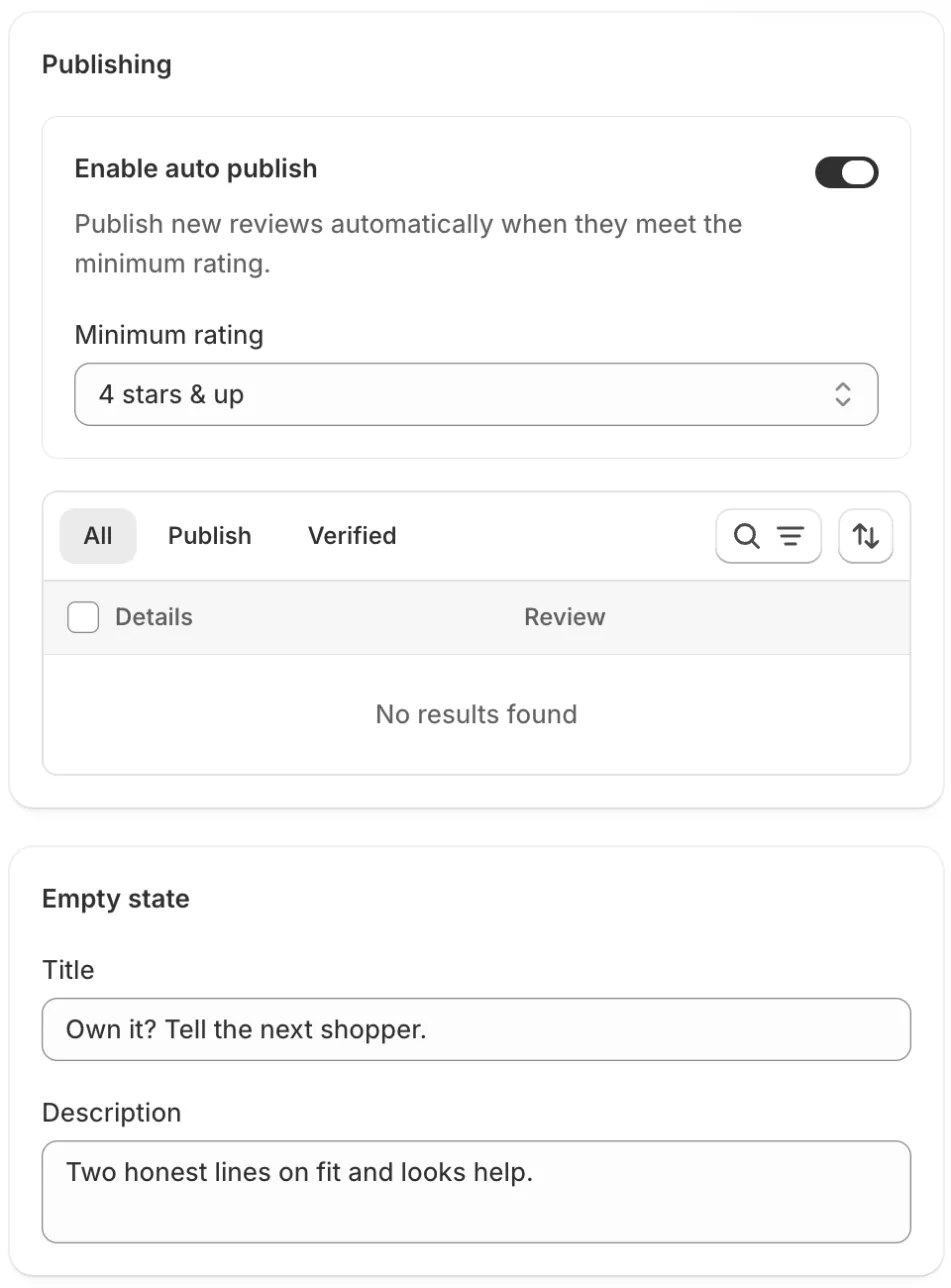
Before a product's first review, the page shows "Be the first to review". You can write your own in Tools, then Product Review, then Product Reviews, in the "Empty state" card, which has a "Title" and a "Description". Turn it into an invitation, such as "Own it? Tell the next shopper."
Sledge does not check that a reviewer bought the product, and the "Verified" badge in your review list is one you set yourself. Read what comes in. The product reviews page shows the rest of the tool.
4. Let the Shop app ask
Shop, Shopify's shopping app, asks the buyers who use it for a review. Under Sales channels, then Shop, then Settings, find the "Shop reviews" section and type how many days after delivery Shop waits, from 1 to 180. Buyers who use Shop then get a notification, and can leave 1 to 5 stars and a comment.
By default this covers orders from your online store too, and the checkbox "Reviews on purchases outside of Shop" turns that off. Shopify's Help Center has the steps.
The limit is where the reviews show. They appear in the Shop app, not on your product page, unless one of the five review apps on Shopify's list syncs them to your store. Sledge is not on that list, so Shop reviews and Sledge reviews stay in two places. The review app comparison covers the apps that do sync.
5. Send one email, counted from delivery
Ask once the parcel has arrived and been used, send one reminder, then stop. Sledge does not send the email, so point the email's button at the product page. The wording, six templates, the timing and the Shopify Messaging steps are all in the review request email guide. The post-purchase email flow covers the rest of what a buyer gets after an order.
6. Make the review short to write
A card, a link and an email all end at the product page, so the form is the last hurdle. Sledge's form has three screens: a one-tap rating from "Love it!" to "Dislike it", then the review with up to five photos, then a first name and an email. The photos are optional. The review, the name and the email are not.
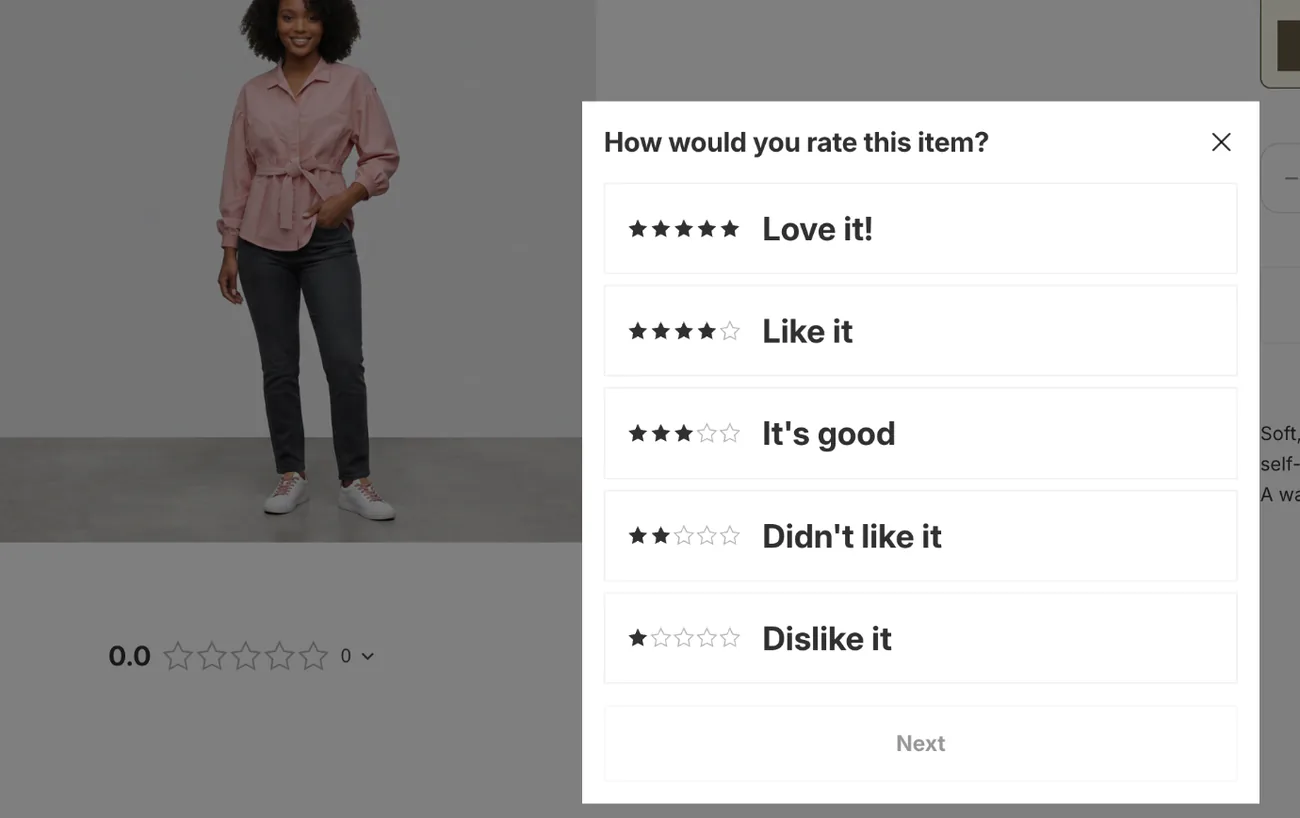
Open the form on your phone yourself, type a line, go to the last screen and close it without sending. If you would give up at screen two, a buyer might too. Ask for one thing per ask. What a good answer looks like is in these customer review examples.
7. Reply to every review, and hear about new ones the day they land
A reply shows the next buyer that someone reads these. In Sledge, go to Tools, then Product Review, then Product Reviews, sort by "Lowest rating", and click "Reply". Your answer shows under the review with an "Admin" badge. In Shop, go to Sales channels, then Shop, then Reviews, open the review, type in the "Reply to this review" box and click "Send reply". The wording for a bad review is in how to respond to negative reviews.
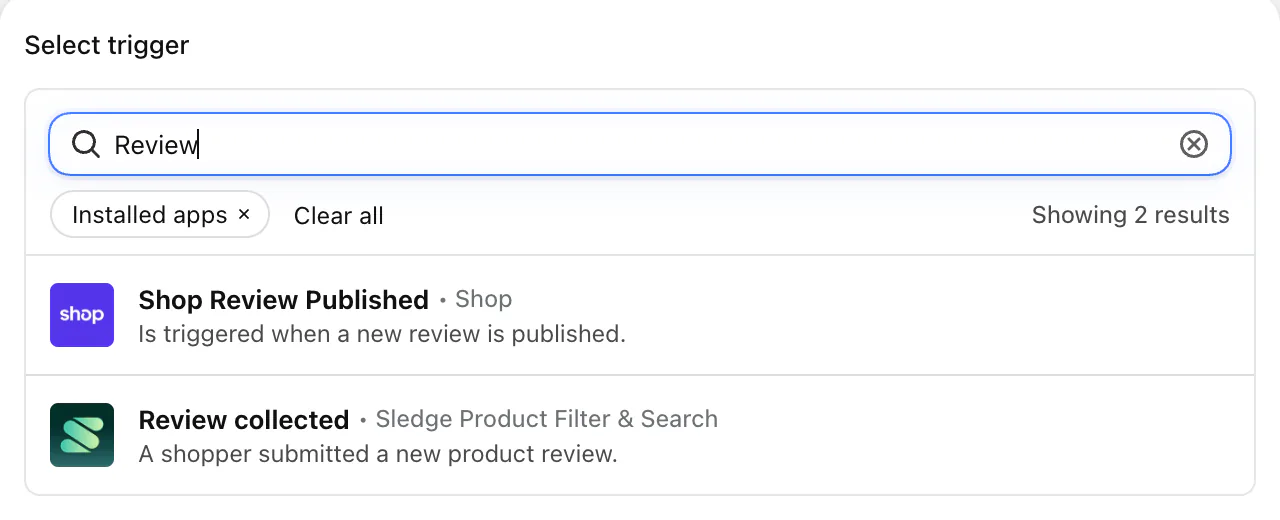
To hear about a new review, use Shopify Flow, a free app on the Basic, Grow, Advanced and Plus plans. If you use Flow, Sledge adds a trigger called "Review collected", the event that starts a workflow, and passes it each new review and the reviewer's email. Flow's "Send internal email" action can then email your team each time.
Can you pay for reviews, or ask only the happy ones?
Ask every buyer of the product, and never tie a reward to a good review.
The FTC's guide for marketers says not to ask only the customers you expect to be positive. The rule on reviews that came into force in October 2024 bars rewards that depend on a positive review. This is not legal advice.
Platforms are stricter. Shop's guidelines list money, discounts, free products and refunds as compensation to avoid, and Google bans free or discounted goods for reviews. Check where the review will show before you offer anything.
Sledge holds ratings under 4 stars for you by default. Publish the honest ones, because picking out only the good ones to show could be deceptive under the FTC Act. Never write your own reviews.
How does Sledge collect and moderate reviews?
Sledge is a Shopify app that collects product and store reviews on your store; it does not send the request.
A buyer leaves stars, a written review and up to five photos. Your Happy Customer page gathers product and store reviews in one place. Reviews at 4 stars and up publish on their own by default, and the "Minimum rating" line moves that cutoff. Reviews come with all four paid plans, from Pro at $29.99 a month, and they run during the 14-day free trial. Sledge does not send requests, import or export reviews, or check that a reviewer bought.
FAQ
Questions, answered
-

14-day free trial
Explore Sledge on your store before you decide to commit.
-

No credit card required
Start improving your store with no upfront commitment.
-

Setup in minutes
Get Sledge running without a lengthy setup process.
-

Built to grow sales
Turn shopper behavior into actions that help you sell more.
How do I get more reviews on my Shopify store?
Ask the buyers of your best sellers first, once the parcel has arrived, and give them one short form. Reach them four ways: a card with a QR code in the parcel, the review button on the product page, the Shop app's request after delivery, and one email. Then reply to every review.
How do you ask a customer for a review?
Ask once they have had the product, ask for one thing, and link straight to where they write it. A line like “Does it fit like the photos?” gets a better answer than “Leave a review”. The exact words, six templates and the day to send are in our review request email guide.
Should you ask every buyer or only the happy ones?
Ask every buyer of the product. The FTC's guide for marketers says not to ask only the customers you think will leave positive reviews. Sledge holds ratings under 4 stars for you by default, but publish the honest ones too, because hiding every low review while the rest pass for all of them could be deceptive.
Can you give a discount or a gift for a review?
Not for a good review. The FTC's rule bans rewards that depend on the review being positive, and a reward should be open to every honest review. Platforms go further: Shop's guidelines list discounts and free products as compensation to avoid, and Google bans free or discounted goods for reviews. Check where yours will show. This isn't legal advice.
How do I get more Google reviews for my shop?
If customers visit a shop or pickup point and you have a Google Business Profile, ask them to open your Google review link or scan its QR code, then reply to the reviews that come in. Google bans free or discounted goods in exchange for reviews. Product reviews on your Shopify store are separate.
Does Sledge ask buyers for reviews?
No. Sledge collects the reviews on your store but does not send the request. Its “Add a review” button on the product page opens a short form for stars, a review and up to five photos, and your Happy Customer page takes reviews of the store. Send the ask by card, by email or through the Shop app.
Which of your products have no reviews yet?
Sledge doesn't send review requests or move reviews over from another app. It collects stars, written reviews and up to five photos on your product pages and your Happy Customer page, holds low ratings for you and lets you reply. Try it free for 14 days. On a paid plan, Growth Intelligence can flag when few of your products have reviews, and shows what its fixes could add as one total in dollars, labeled "Est. potential".