A thank you page is the screen a shopper sees right after paying. On Shopify it shows once, and the Order status page takes over after that. A good one confirms the order, says what happens next and asks for one thing. These 9 thank you page examples show how, with the words to fill in.
Say a shopper pays for a candle. The page loads and shows a few lines you never wrote. Your store has shown the same lines to every customer so far. It is the one screen every paying shopper reaches, and you can reword it, brand it and add blocks.
What is a thank you page on Shopify?
The thank you page is the screen right after payment, and it shows once. Shopify's Help Center says the Order status page takes over from there. A shopper can open that one again, and it carries the order's details.
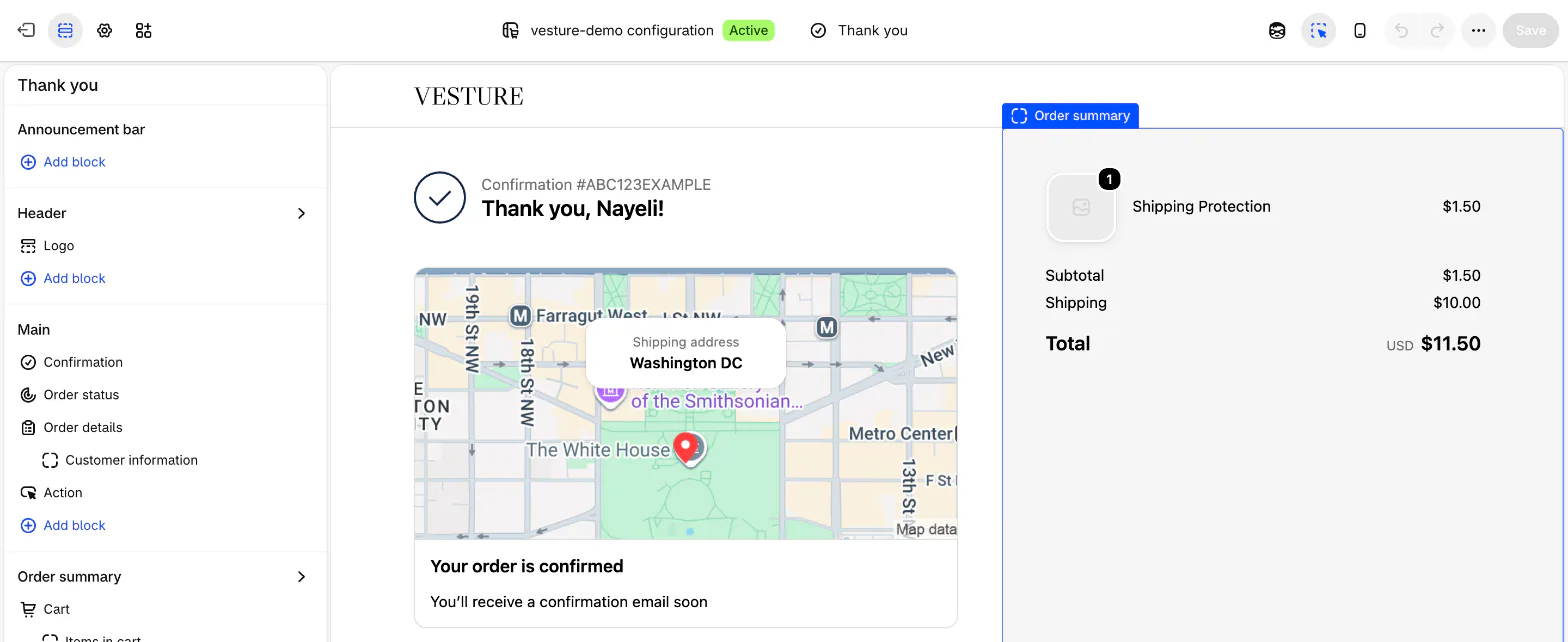
Shopify's own page confirms the order and shows no offer until you add a block.
The emails come separately. Their wording is in the order confirmation email template and the post-purchase email flow.
What can you change on it, and what needs an app?
From the Basic plan up, you can reword the page, brand it and add blocks, with no Shopify Plus. Shopify's Help Center makes the editor and the thank you page apps available on the Basic plan and higher.
| What you change | Where you click | What it needs |
|---|---|---|
| The words | Online Store, then Themes, then the three-dot menu on your theme, then "Edit default theme content" (a screen listing your theme's built-in wording). Open the "Checkout & system" tab and find the "Checkout thank you" group, or search for "thank you". | Nothing |
| The look | Settings, then Checkout. In the Configurations section, click Edit, then open the editor's Settings sidebar for branding, colors and font. | Nothing |
| Extra blocks | In the same editor, pick the page, open the Sections sidebar and click "Add block". Or open the Apps sidebar and click the plus beside a block. | An app with a thank you page block, on the Basic plan or higher |
Shopify's free Checkout Blocks app adds text, links, pictures, banners and buttons. For an offer, a referral or a survey, look for an app built for that job.
You add blocks to the page, and each page takes its own. A block on Thank you does not appear on Order status. The steps for placing one are in the post on putting an upsell block back.
The editor previews the page in a simulated checkout, so you never place a test order to see it. Shopify's Help Center says updates to the page launch after Black Friday Cyber Monday, so your editor's labels may differ from the ones here.
Admin labels from Shopify's Help Center and a store admin (both read on November 19, 2026).
9 thank you page examples for a Shopify store
Pick one layout. The nine are alternatives, not a stack. Each says what sits where, the words to copy, and what it needs. Every example is made up, and every highlighted bracket is yours to change.
1. A reworded confirmation
Say you sell candles. The page holds one heading and one sentence.
Top to bottom: heading, one sentence.
Thanks for your order. We pack within [1 business day] and email a tracking link when it ships.
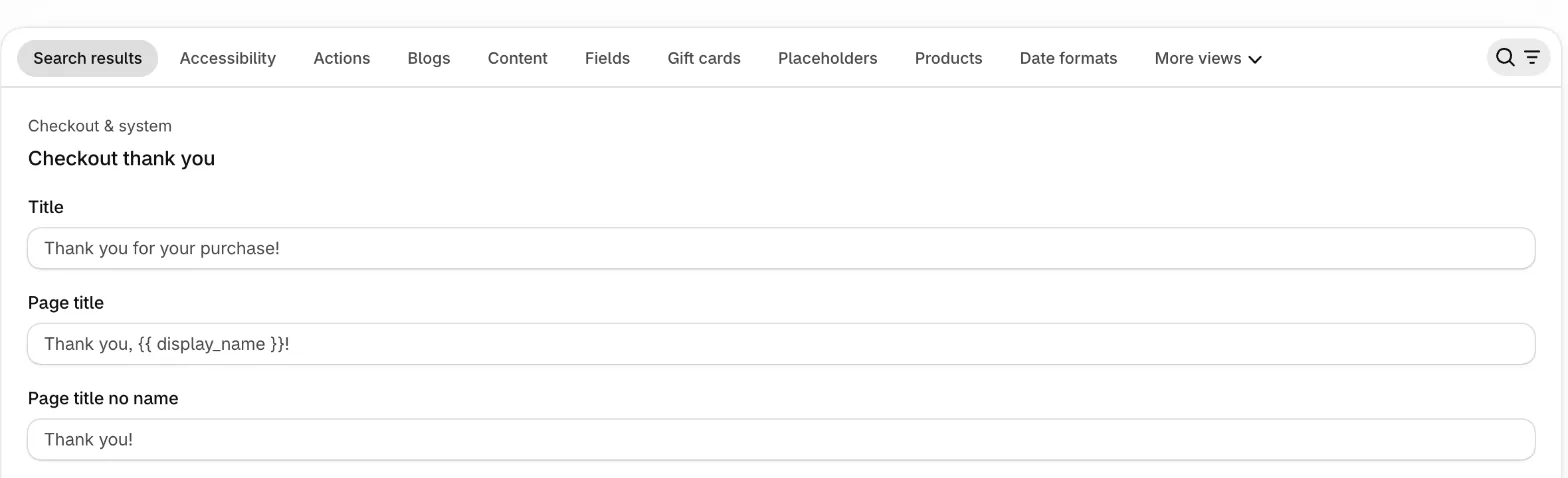
Needs: nothing for the heading, whose lines sit in the "Checkout thank you" group as "Title", "Page title" and "Page title no name". The packing sentence has no row there, so put it in a text block, as in layout 2.
2. What happens next
Say you sell skincare. The page holds the confirmation and three steps, so the shopper knows what the next week looks like.
Top to bottom: confirmation, three steps.
Packed in [1 to 2 days]. Tracking link by email. At your door in [3 to 5 days].
Needs: a text block from an app such as Shopify's free Checkout Blocks. For the days to promise, see how to ship products to customers.
3. An add-on offer
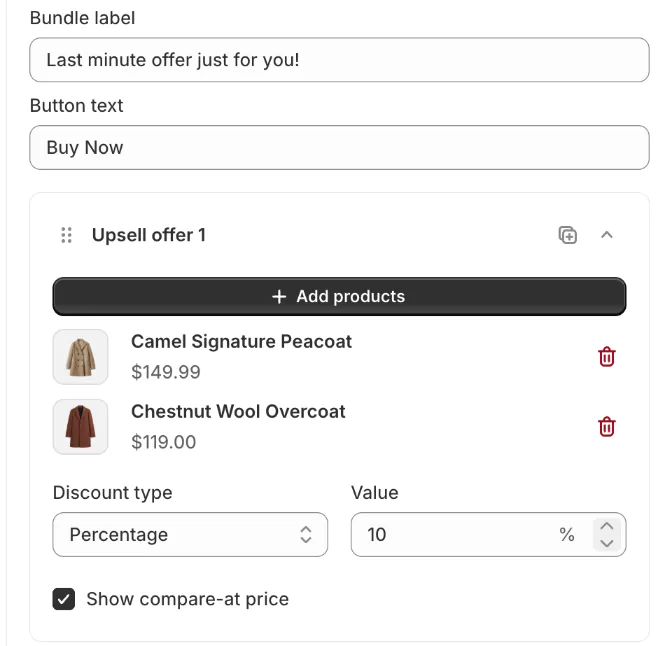
Say you sell plants, and a shopper just bought a [monstera]. Under the confirmation sits one offer card.
Top to bottom: confirmation, then one card holding a label, the product, the discounted price and a button.
A pot to go with it
[Terracotta pot, 8 inch], [10%] off
Button: [Buy Now]
A shopper adds the offer in a tap and completes it through checkout as its own order.
Needs: Sledge's Thank You Page offer. In Sledge, open Tools, then "Bundle, Discount & Upsell" (the group of offer types), then Thank You Page, and click "Add thank you page". Then, in Shopify's editor with the page selector on Thank you, open the Apps sidebar and add the "Sledge Thank You" block. The block shows on that page only, not on Order status. The full steps are in how to add an upsell to your thank-you page.
4. A care or how-to link
Say you sell cast-iron pans. The page holds the confirmation and one link button.
Top to bottom: confirmation, one link button.
Button: [Season your pan in 3 steps], linking to a page on your store.
It answers the question that comes once the parcel arrives.
Needs: a text-and-link block. The link goes to an ordinary page, made the way you would make an About Us page.
5. A referral card
Tea gets gifted and shared. The page holds the confirmation and one card.
Top to bottom: confirmation, one card.
Give a friend [15% off]. Get [15% off] when they buy.
Button: [Send my link]
Needs: an app with a thank you page block. Check that the app's listing says it works on the thank you page, then look for its block in the editor's Apps sidebar. The offer itself is covered in referral marketing.
6. One question
A pet-treat shop wants to know where its shoppers come from. The page holds the confirmation and one question.
Top to bottom: confirmation, one question with four choices.
How did you hear about us?
[A search] [Instagram] [A friend] [Something else]
Needs: a survey app with a thank you page block, checked the same way. Keep it to one question. A long form has no place on this page.
7. A photo ask
Say you sell mugs. The page holds the confirmation, one line and one link.
Top to bottom: confirmation, one line, one link.
Tag [@yourstore] when your first cup is on the table.
Link: [See what others posted]
Needs: a text-and-link block, with the link pointing to your own feed. A review request does the other job once the parcel lands: see the review request email and how to get more reviews.
8. Help and returns
Lamps raise two questions: a wrong address and a return. The page holds the confirmation, a help line and your policy links.
Top to bottom: confirmation, help line, policy links.
Need to change the address? Write to [support@yourstore.com] within [2 hours]. You can return a lamp within [30 days].
Needs: a text block for the help line. Shopify's Help Center says your store policies show as footer links on this page by themselves once you add them under Settings, then Policies, in the "Written policies" section. The policy text is in the Shopify shipping policy template.
9. The page they come back to
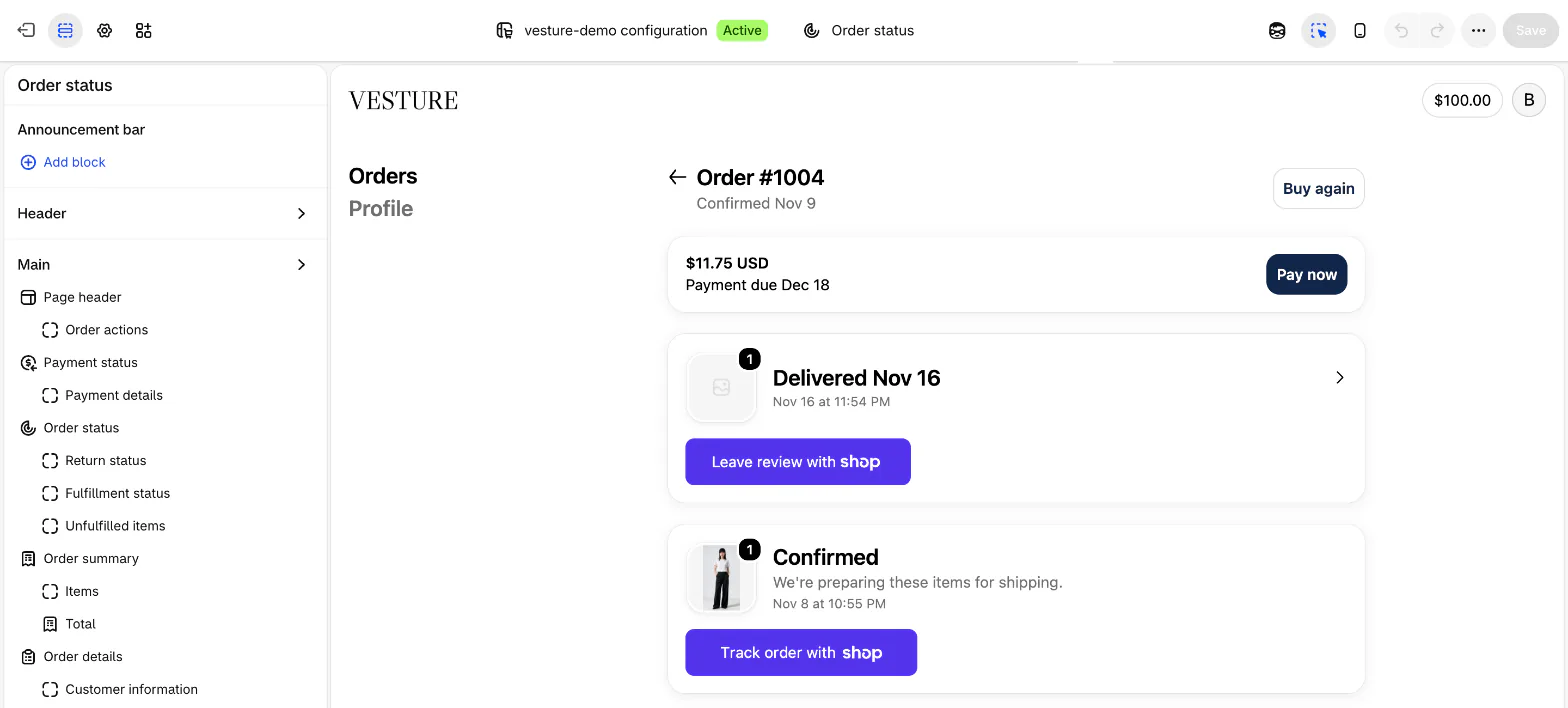
Say you sell a serum that runs out. Keep the thank you page short, and put the lasting facts on Order status, the page a shopper can open again.
Order status, top to bottom: tracking, a Buy again button, returns.
Track this order from the link in your email.
Needs: nothing for Buy again, which the editor's preview of Order status shows and Shopify's Help Center says can be hidden in the editor. Order status also shows returns, where you have turned self-serve returns on. Set the page selector to Order status to see it, since it is its own page in the editor.
Shopify's Help Center says that with a supported carrier, the page updates in real time. Fulfill an order without a tracking number and its status stays on Confirmed.
Which thank you page layout should you use?
Give the thank you page one ask. The confirmation stays on every layout. The second layout in each row is the one to try next, not one to stack on top.
| If your store | Start with layout |
|---|---|
| Sells things people run out of | 9, then 3 |
| Sells gifts | 2, then 7 |
| Sells to first-time visitors from ads | 6, then 5 |
| Sells things that need care or setup | 4, then 8 |
| Wants fewer support emails | 2, then 8 |
The button words matter as much as the layout. The call to action examples have 20 to borrow.
What does a sign-up thank you page look like?
A sign-up thank you page is a message or a short page that appears right after someone gives you their email. Shopify Forms, a free Shopify app for sign-up forms, sets it in the form's Success section. Its Help Center page lists "Confirmation behavior" with two choices: "Show message" or "Redirect to another page".
"Show message" takes a "Title" of up to 50 characters, the "Content", and an optional "Discount" that shows a code on the spot. Say you sell candles:
A message.
You're on the list.
Your [10%] code is below. First look at new drops goes to this inbox.
"Redirect to another page" sends people to a page of your own, such as a next-steps page:
A page on your store.
Thanks for joining.
Follow us on [Instagram]. Pick your first collection: [Candles], [Mugs], [Gifts].
One confirmation, one next step, and the code if you promised one.
FAQ
Questions, answered
-

14-day free trial
Explore Sledge on your store before you decide to commit.
-

No credit card required
Start improving your store with no upfront commitment.
-

Setup in minutes
Get Sledge running without a lengthy setup process.
-

Built to grow sales
Turn shopper behavior into actions that help you sell more.
What should be on a thank you page?
A line that says the order went through, what happens next and when, and at most one ask. The ask can be an add-on, a care link, a referral, a question or a photo request. Two asks compete with the confirmation, so pick the one that suits what you sell.
Do I need Shopify Plus to edit the thank you page?
No. Shopify's Help Center puts the editor and the apps built for the thank you and Order status pages on the Basic plan and up. Plus adds changes to the earlier checkout steps. The page's own words can also be reworded in the theme content editor.
Is the thank you page the same as the Order status page?
No. The thank you page shows once, right after payment. The Order status page can be opened again from the order email and carries the order's details, tracking, a Buy again button and returns. You add blocks to each page separately, in the same editor.
What should a thank you page for a newsletter sign-up say?
One line that confirms, one line on what comes next, and the code if you promised one. In Shopify Forms, the free sign-up form app, the Success section holds a title, the content and an optional discount code, or it sends people to a page of your own.
Does Sledge change my thank you page?
Only by adding its Thank You Page offer as one block. It does not change your wording, your emails or your checkout steps. A shopper adds the offer in a tap and completes it through checkout as its own order. The 14-day free trial runs one offer, and paid plans have no limit.
How do I see the thank you page without placing an order?
Open Settings, then Checkout, and click Edit in the Configurations section. Switch the page selector at the top of the editor to Thank you. The editor previews the page in a simulated checkout, so no order is placed and you never pay for a test order.
One block for the page they only see once.
Sledge doesn't write your thank you page, send your emails or change your checkout steps. Its Thank You Page offer adds one block: your picks at a discount, which a shopper adds in a tap and completes through checkout as its own order. Try it free for 14 days with one offer, then follow the setup steps. Growth Intelligence turns on when you pick a paid plan, and its suggested fixes add up to one dollar figure labeled Est. potential.