To add products to your Shopify store, open Products in your admin, click Add product, type a title and click Save. A new product starts as Active, so add the photos, price, stock, weight and collections first, or set its Status to Draft until the form is finished.
Say you save a new product with only a title. Shopify starts it as Active, so it can be live in your store before it has a photo or a stock count.
How do you add products to Shopify, step by step?
Go to Products, click Add product, fill the form from the top, check Status, and click Save.
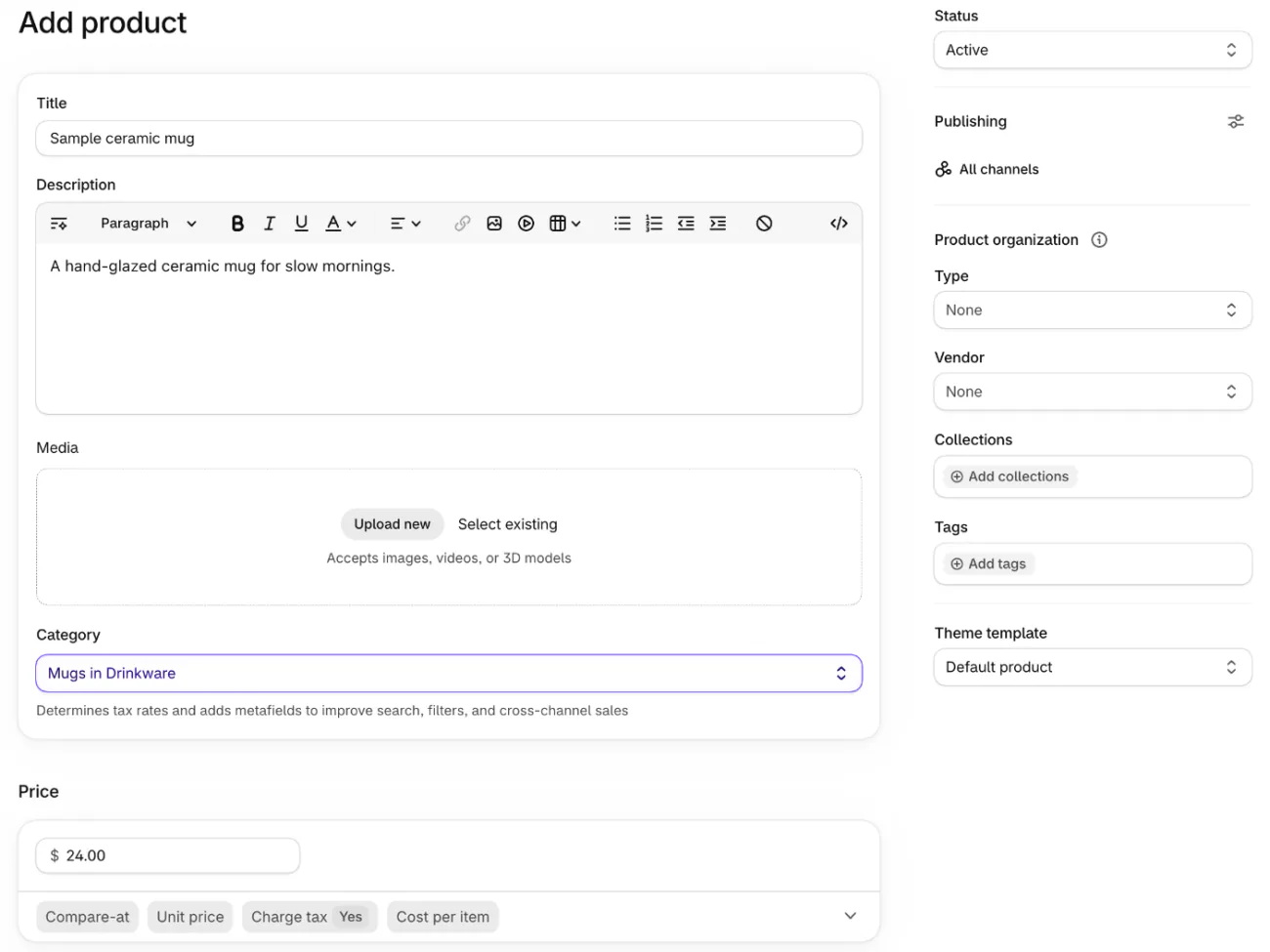
- In your Shopify admin, go to Products and click "Add product".
- Type the Title shoppers will see, then the Description.
- In "Media", click "Upload new" or drag files in. The first picture is the main one.
- Under the photos, check "Category", the standard group Shopify suggests, then type the Price.
- In "Inventory", keep "Inventory tracked" on and type the Quantity. In "Shipping", keep "Physical product" on and type the Weight.
- In "Variants", click "Add options like size or color".
- In "Product organization", fill Type, Vendor, Collections and Tags.
- Check Status, a box that offers Active, Draft or Unlisted and says whether shoppers can buy the product. Then check Publishing, whose icon opens the channels where it sells, and click "Save".
Status already reads Active when the form opens, and Publishing reads All channels. Switch Status to Draft before you save a form you have not finished.
The full launch order, with this step in its place, is in the ecommerce checklist.
Steps from Shopify's Help Center on adding and updating products, read November 23, 2026.
What goes in the title, description and photos?
Name the product the way a shopper would search for it, describe it in the Description, and upload the main picture first.
Shopify's Help Center asks only for a title when you add a product, and says you don't have to provide every detail for every product. The Description can hold specs, uses and benefits, as Shopify's Help Center lists them, and what to write in each part has its own page.
Media takes up to 250 images, 3D models or videos. The first is the main picture, and it shows on collection pages, in the cart, at checkout and on your home page. Drag any picture to the first place to change it. Product photography covers shooting them, alt text examples describing them and Shopify product image size the sizes to upload.
Under "Search engine listing", the last card on the form, the pencil opens Page title, Meta description and URL handle, the end of the product's web address. Shopify makes the handle for you, and its Help Center warns that editing it too often might keep the product out of search engine results. It also says a page title over 70 characters might be cut off. What to write there is in Shopify meta description.
Media limits from Shopify's Help Center on adding product media, read November 23, 2026.
How do you fill Price, Inventory, Shipping and Variants?
Price is one box, Inventory tracked is the switch that makes Shopify count the product, and Weight lets Shopify charge the right shipping.
Type the amount in Price. Chips under it add Compare-at (the crossed-out old price), Unit price, Charge tax and Cost per item, and typing a cost makes Shopify show the Profit and Margin. If you make what you sell, how to price handmade items works out the number.
A new product starts with Inventory tracked on, and you type the count under Quantity. "Sell when out of stock" starts Off, so at zero shoppers can't add the product to their cart. Shopify inventory management covers tracking, counting and reordering.
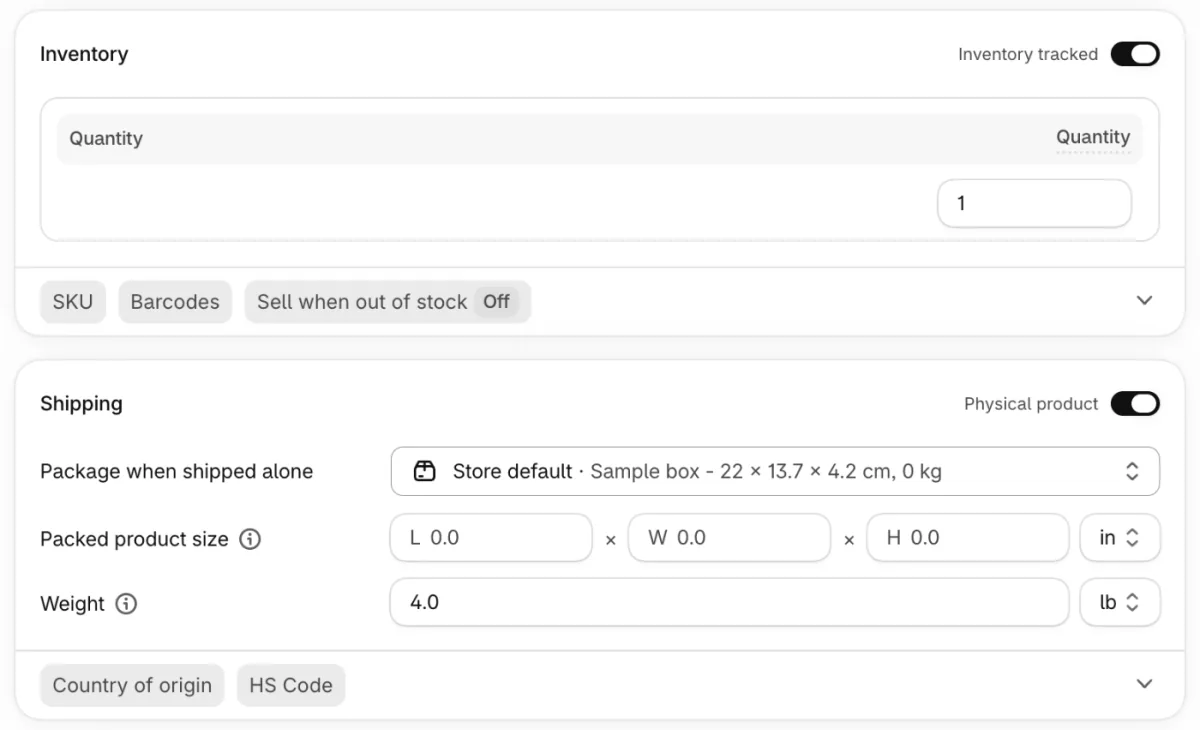
Shipping starts with Physical product on, which suits anything you ship. Type the Weight, since Shopify's Help Center says accurate weights are what charge your customers the correct shipping. A download has nothing to ship, so switch Physical product off and see how to sell digital products.
Shopify's Help Center says its redesigned product details page is rolling out gradually, so you may see the older one. These labels are from the redesigned page, as read on November 23, 2026. On the older page, the stock switch reads Track quantity and the box reads Available.
Put sizes and colors in Variants, as options on one product, not as separate products. Click "Add options like size or color", name the option, type its values and click Done. One product holds up to 3 options and 2,048 variants, as of November 23, 2026. For the price, stock and photo of each one, see Shopify variants.
Limits from Shopify's Help Center on adding variants, and the weight rule from its page on packages and weights, read November 23, 2026.
What are Category, Type, Vendor, Collections and Tags for?
Category is Shopify's own list, Type and Tags are names you make up, Vendor is the brand, and Collections are the groups shoppers browse.
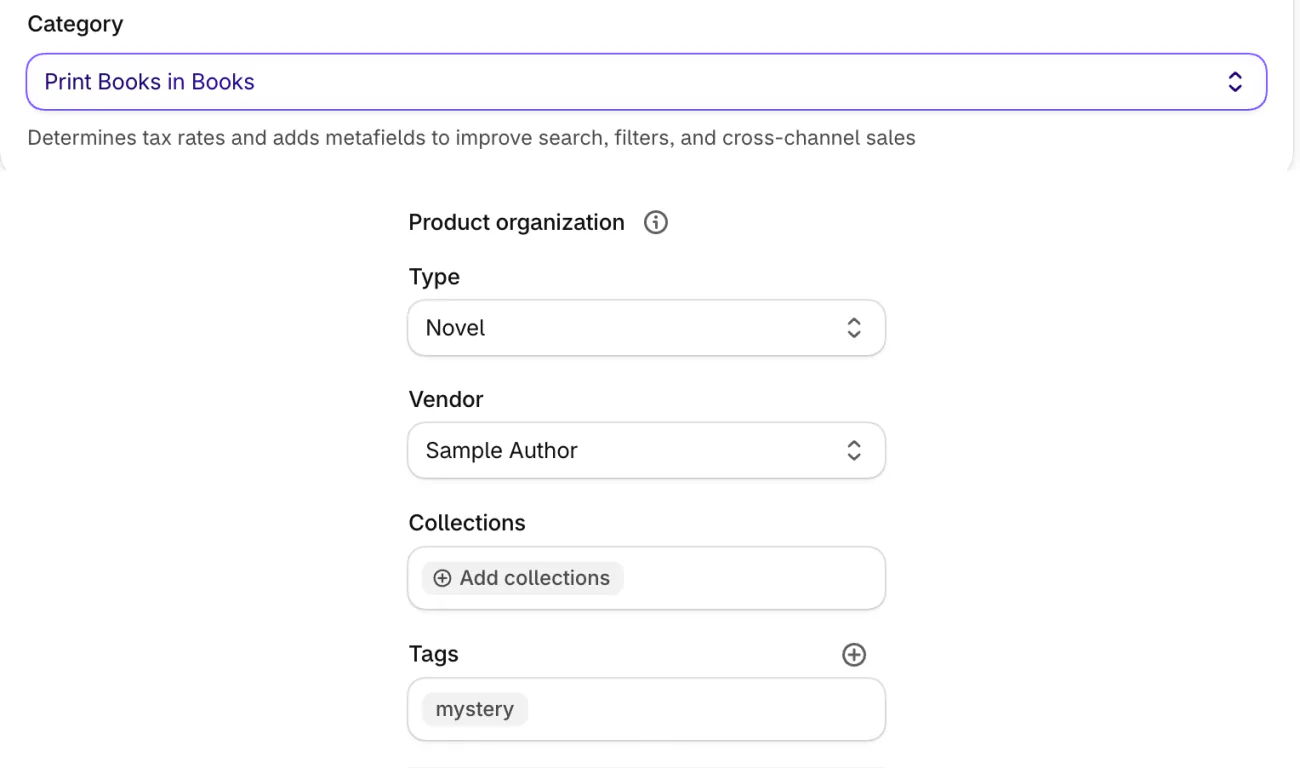
| Field | What it is | What it does |
|---|---|---|
| Category | A group from Shopify's standard list. Shopify suggests one from the product's name, description and images. | Used for tax rates in Shopify Tax, for selling on other channels and for fields such as size or color. A product has one. |
| Type | A custom category: a name you type yourself. | Can fill a collection by rule. A product has one. |
| Vendor | The brand or supplier name. | Can fill a collection by rule. |
| Collections | A group of products shoppers can browse. | The plus beside Collections adds the product to one. |
| Tags | Labels you type, up to 250 per product, with no limit on Shopify Plus. | Can help shoppers find the product through your store search, and can fill a collection by rule. Shopify's Help Center says search engines don't use tags. |
From Shopify's Help Center pages on product category, product type and tags, read November 23, 2026.
To add a product to a collection from its own page, click the plus beside Collections under Product organization. That works for a collection whose products you added by hand. A collection that fills itself by rule takes the product once it matches a condition, such as a tag.
Say a candle belongs in Gifts and in Home. Add it to both by hand, or give it a tag for each and let a rule fill them. Shopify collections covers both kinds.
Why isn't a new product showing in your store?
On your online store, a shopper can buy a product only when its Status is Active or Unlisted and it is published there. Four checks find the cause.
- Status. Active products are ready to be sold and Draft products still need details, while a copied or unarchived product defaults to Draft.
- Publishing. The row reads All channels when the form opens, and every sales channel and market starts selected. To change them, click the icon beside Publishing, change the channels, click Done and then Save.
- A collection in your menu. Shoppers who browse from your menu reach products through collections, so add the product to a collection your menu links to.
- Preview. The Preview button, which a Draft product has too, shows how the product will display on your online store.
Unlisted keeps a product for sale by its direct link and off the places shoppers browse. Draft against Unlisted is covered in how to hide a product on Shopify.
From Shopify's Help Center page on product status, read November 23, 2026.
How do you add many products at once?
Copy one with Duplicate product, or import a file with a row per product for dozens.
To copy a product, click it under Products, then click More actions and Duplicate product. Set a new Title, choose which details to copy, and pick Set as draft, Set as active or Set as unlisted. Videos and 3D models aren't copied. For another size or color, add a variant instead.
The steps for a file import are in how to import products to Shopify. To change products you already have, the Shopify bulk editor edits many at once.
Which of these fields does Sledge read?
Sledge's search reads Title, Vendor and Product type from the start, and its filters can list Vendor, Product Type, Tags, Collection, Category and your options. It doesn't add or import the products you sell.
Sledge is a Shopify app for search, filters and merchandising. Its search and filters list only Active, published products, so a Draft never shows in them. Both appear on your store once you switch them on.
In Field Priority, under Tools and then Search, you choose which product fields search reads. The page says "Fields at the top have higher priority", so drag a row up to rank it higher. Title, Vendor and Product type start on, while Tags, Description, Variant title and each option start off. A store keeps the field list it already saved, so check the SKU switch yourself. Search forgives a typo in a title or a vendor, and in no other field.
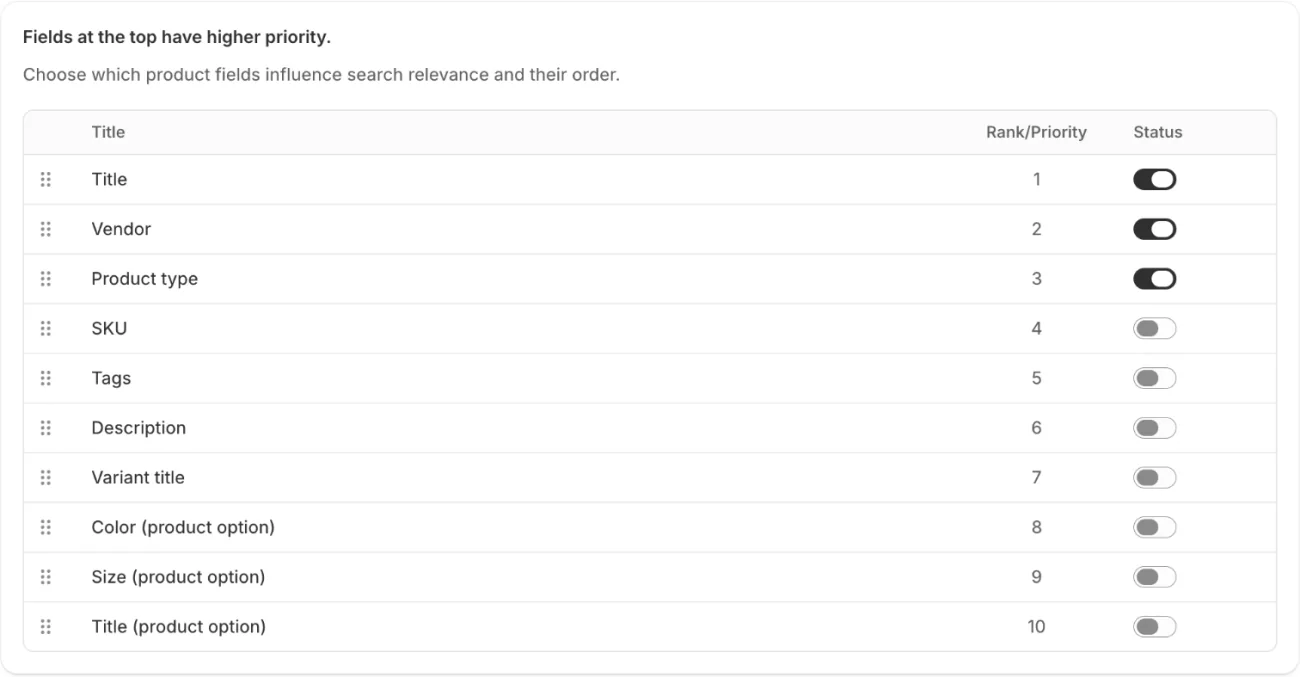
| On the form | Sledge search | As a Sledge filter |
|---|---|---|
| Title | On at the start | Not available |
| Vendor | On at the start | Vendor |
| Type | On at the start, as Product type | Product Type |
| Tags | Off until you switch it on | Tags |
| Collections | No switch | Collection |
| Category | No switch | Category |
| Description | Off until you switch it on | Not available |
| An option such as Size | Off until you switch it on, as Size (product option) | Options Size |
| SKU, your own stock code | Check its switch | Not available |
Put the size and the color in options, not only in the title. Search can find a word in a title, but a filter has nothing to list from a title. A Color option gives a filter its list of colors, and it gives Field Priority a row you can switch on for your site search.
A blank field gives search and filters nothing to read.
FAQ
Questions, answered
-

14-day free trial
Explore Sledge on your store before you decide to commit.
-

No credit card required
Start improving your store with no upfront commitment.
-

Setup in minutes
Get Sledge running without a lengthy setup process.
-

Built to grow sales
Turn shopper behavior into actions that help you sell more.
What is the least you must fill in to save a Shopify product?
A title. Shopify's Help Center says to enter a title, plus any other details you want, then click Save. A price, a photo, a stock count and a weight make the product ready to sell. Set Status to Draft until they are in, because the Status box already reads Active when the form opens.
Can you add products from the Shopify app on your phone?
Yes. In the Shopify app, tap the Products icon, tap +, then tap Add product. Enter a title and any other details, then tap Save or the tick. Photos can come from your phone's camera or library. These steps follow Shopify's Help Center as read on November 23, 2026.
How many products can you add to Shopify?
Shopify's pricing page, read on November 23, 2026, lists Sell unlimited products among the core features of its plans. Each product has its own limits: up to 250 images, videos or 3D models, 3 options and 2,048 variants. Past 3 options or 2,048 variants, Shopify's Help Center suggests an app from the Shopify App Store.
How do you add products to a collection from the product page?
Open the product, find Product organization, click the plus beside Collections, pick the collection and click Save. Shopify's Help Center says this works only for collections whose products you added by hand. A collection that fills itself by rule takes the product once it matches a condition, such as a tag. Shopify collections covers both kinds.
Should you save a new product as Draft first?
Yes, if the form is not finished. Shopify's Help Center says Draft means the details still need completing, and Active means the product is ready to be sold. The Status box opens on Active, so choose Draft first, add the photos, price and stock, then switch Status to Active.
Does Sledge add products or fill in their details?
No. Sledge is a Shopify app for search, filters and merchandising, and it starts once your products are saved. It doesn't add or import the products you sell, and it doesn't write their titles, photos, prices or descriptions. Its search and filters can read some of the fields you filled in.
Products added. Now choose what search reads.
Sledge doesn't add or import the products you sell, and it doesn't write their details. Try it free for 14 days and choose, in Field Priority, which of the fields you just filled in its search reads. Growth Intelligence turns on when you pick a paid plan, and its suggested fixes add up to one dollar figure, labeled Est. potential.