To hide a product on Shopify and keep its link working, set its status to Unlisted. Shopify takes it off your collection pages, store search, recommendations and sitemap, Google drops it once it revisits, and it still sells by direct link. Draft hides it too, but the link then shows Page not found.
You set a product to Draft to clear it off the collection page, and the ad you forgot about now lands shoppers on a dead page.
What happens when you hide a product on Shopify?
It depends on the route, and the biggest split is the product's own link. Pick by where you want the product gone, and read the "Its own link" column first.
| Route | Collection pages | Store search | Its own link | Still on sale? | |
|---|---|---|---|---|---|
| Unlisted | Hidden | Hidden | Works | Dropped once Google revisits | Yes, by link |
| Draft | Hidden | Hidden | Page not found | Dropped once Google revisits | No |
| Archived | Hidden | Hidden | Customers can't view it | Shopify doesn't say | No |
| Off all sales channels | Hidden | Hidden | Page not found | Dropped once Google revisits | No |
| Excluded from one collection | Hidden from that one | Still shows | Works | Stays | Yes |
| SEO Hidden | Still shows | Hidden | Works | Dropped once Google revisits | Yes |
| Sledge Hide rule | Hidden on the ones you pick | Hidden on the searches you pick | Works | Stays | Yes |
Search apps can ignore Unlisted and SEO Hidden, because Shopify's visibility settings might not apply to them. A Sledge Hide rule acts only on pages Sledge shows. One rule runs on collection pages or on search, so covering both takes two rules.
A store password locks the whole store, not one product. Deleting can't be undone, so Shopify suggests archiving instead. And every route here hides a product from everyone. Showing it to only some customers usually takes an app that locks pages by customer.
How do you hide a product but keep the link working?
You want a cheap add-on buyable, just not sitting on your collection page. Shopify added the Unlisted status for jobs like this on 21 October 2025, and also suggests it for private sales, warranties and free gifts with purchase.
- In your Shopify admin, open Products and click the product.
- In the "Status" section, which sets whether the product is live, choose Unlisted.
- Save, then open the product's direct link in a private window.
- If an app runs your store search, search for the product to confirm it no longer shows.
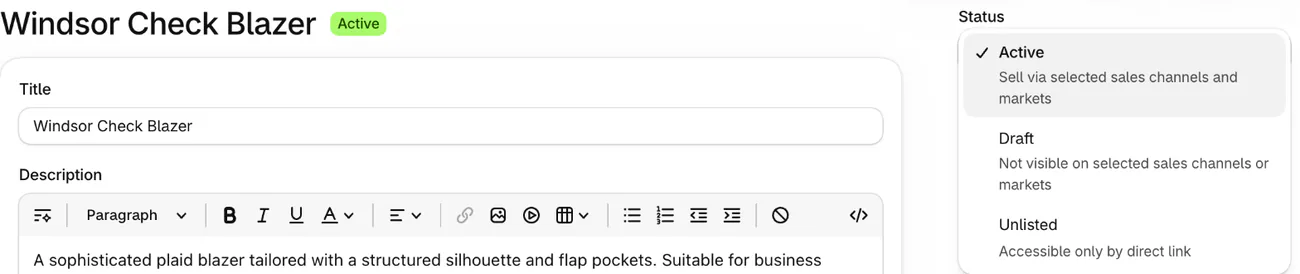
An Unlisted product keeps the same address, so outside links still work and shoppers can add it to their cart from that page. The exception is an Unlisted page you've customized to block adding to cart.
Shopify takes it off collection pages, store search (predictive search included), recommendations and your sitemap. It also tells search engines not to list the page, so Google drops it once it revisits.
Three catches come with it.
- It can go on Shopify POS, but not on a third-party sales channel or on Shop.
- A search or recommendations app that doesn't read Unlisted might still show the product.
- Anyone can forward a direct link, so the product is hidden, not private.
What do Draft and Archived do to the product's link?
Neither keeps the link working for shoppers. Draft is for a product with details still to finish. Archived is for one you no longer sell, and it leaves your main product list for the Archived tab.
Setting a product to Draft makes its link show Page not found, your store's 404 page. Any ad, email or saved link pointing there now hits that page, so find the broken links your ads still use. Customers can't view an archived product either.
To save that traffic, add a URL redirect to a close match. Go to Content, then Menus, then "View URL Redirects", and click "Create URL redirect". A redirect works only from a broken link, and Shopify deletes it for you when the product returns. Taking many products down at once? Import Shopify URL redirects from one spreadsheet, one old address per row.
To show a hidden product again, set it back to Active. An archived product has to be unarchived first, which makes it a Draft.
For a launch, future publishing keeps a product hidden until a start date, as long as it's Active by then. Schedule the product launch email for the same minute.
How do you take a product off your online store?
Do this when you still sell it in person. Open the product, find the "Publishing" section, which lists where it's on sale, and click the adjust icon. Deselect Online Store, click "Done", then "Save".
The product leaves that channel and stays on your others. Take it off the Shop channel, though, and it might still show there and send shoppers to your store. Take a product off every sales channel and its link shows Page not found.
For many products, select them in your product list and choose "Make products unavailable". A bulk change can take several hours to reach store search, while a single product usually takes seconds.
Shopify Flow, free on Basic and up, can do this for you. Its "Unpublish product" action, the step that takes a product off a channel, can run when a product sells out. A Flow template does the same on a date and time you set.
If it's only sold-out products you want gone, sorting them to the bottom keeps them buyable later.
How do you hide a product from one collection?
Go to Products, then Collections, and open the collection. If it shows "Exclude", the list of products a collection leaves out, add the product there. You can pick products by hand, or by category, tag, type or vendor. What you exclude stays out, even if it matches what the collection includes.
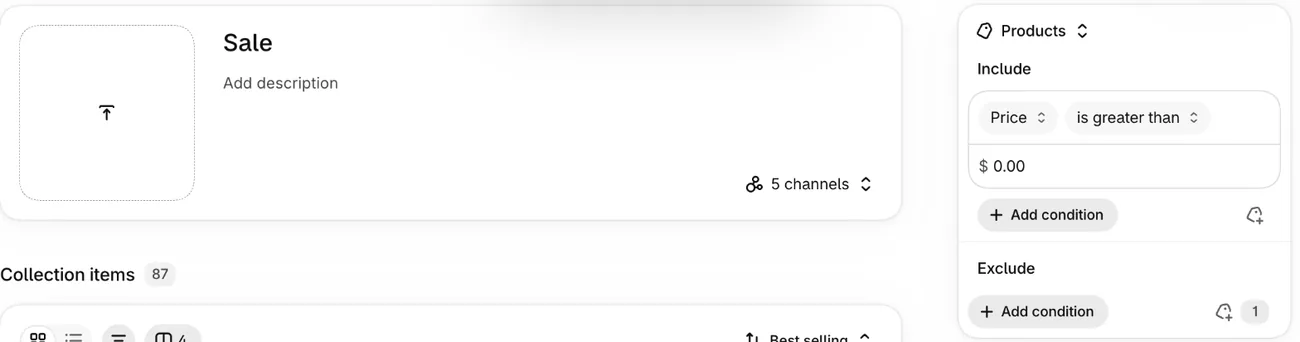
Shopify is still rolling Exclude out, so your store may have manual and smart collections instead.
- On a manual collection, click the x beside the product. It leaves the collection without being deleted.
- A smart collection follows its conditions, so change the tag or other detail that pulls the product in. Check first that no other smart collection relies on it.
Either way, the product stays on your other collections and in search.
A developer's change to your theme can also skip a tagged product. You pay for their time, and the same change can take the product out of places you still need it, such as an add-on in the cart.
How do you hide a product from your store's search?
You send a custom product to chosen customers by link, and it still turns up in your search bar. If only people with the link should see it, Shopify points you to Unlisted. If it belongs in your collections, use a custom product detail named SEO Hidden, set to 1 on that product. Shopify's search visibility guide has the setup.
The product stays in your recommendations too, but it drops out of your sitemap and Google, so this setting can't hide it from store search alone. If a product has both SEO Hidden and Unlisted, Unlisted wins.
SEO Hidden works on Shopify's own search. A search app might ignore it, and Sledge's search does. If Sledge runs your search, use a Hide rule.
Want to exclude a product from search because it's sold out? Search & Discovery can show, hide or place those products last, and only those.
Can you hide a product from only some collections or search words?
A sample pack outranks the real product when someone searches its name, and you want it gone from that one search. None of the routes above works on one search word.
Sledge is a Shopify collection sorting app whose Hide strategy takes chosen products out of the collection pages and searches you pick. Hide is on all four paid plans.
A Hide rule works only on pages Sledge shows. Collections need Sledge's "Product Filter" tool on, and searches need its "Search" tool, which runs your store search. Saving a rule doesn't switch them on. On Shopify's own collection grid and search, nothing changes.
- In Sledge, open Merchandising, then "Strategy", your list of rules, and click "Add Strategies".
- Choose "Collection Page" or "Search Page & Instant Search", then narrow it to "Specific collection" or "Specific keywords".
- Switch on "Hide" and pick up to 5 products. For a wider rule, use "By Attributes and Metrics", for example Inventory set to Out of Stock.
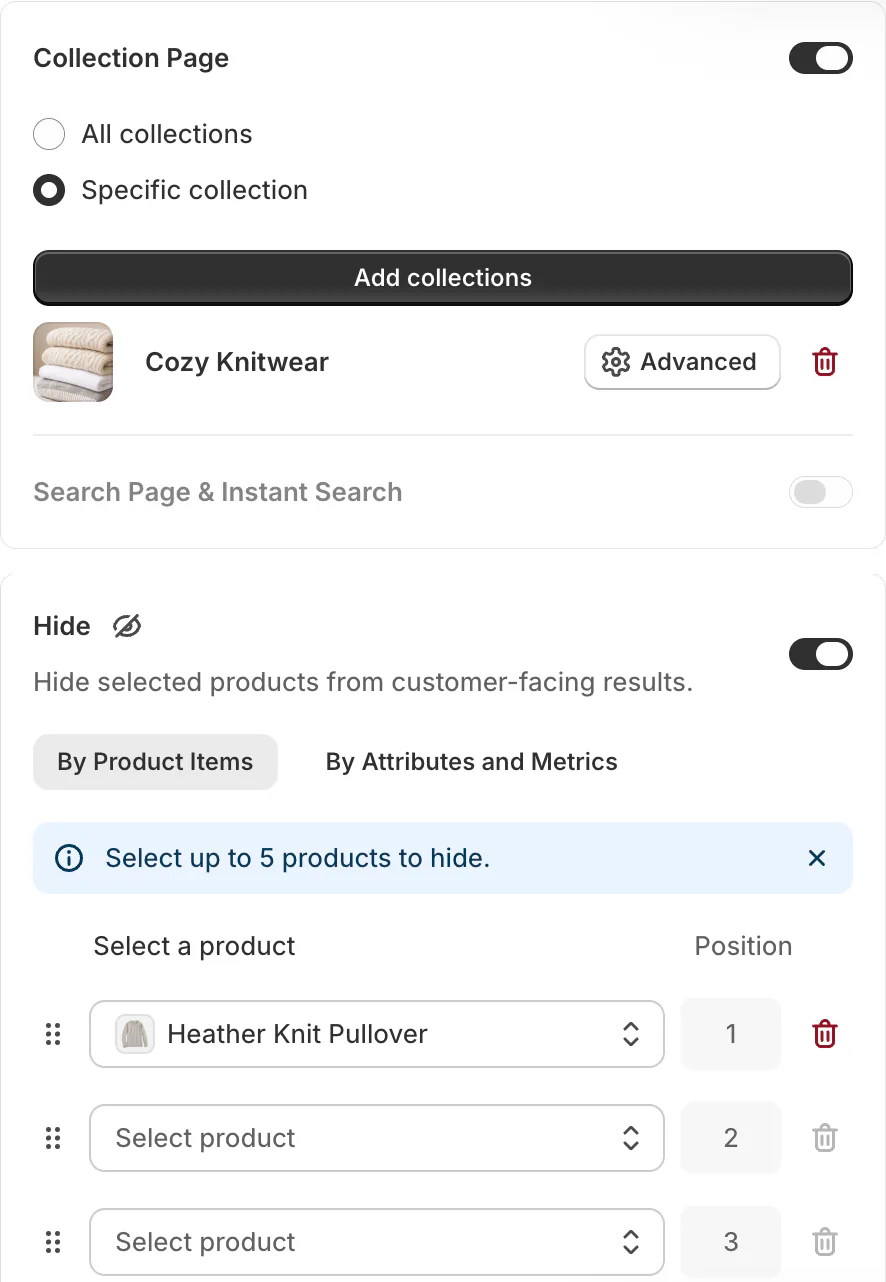
With the matching Sledge tool on, the rule is live once you save it. Collections and search each need their own rule.
A Hide rule gives you three more things.
- You can hide a product from store search and leave Google as it is.
- "All collections" also covers your All products page.
- "Set active date" puts a start and an end on the same rule.
A Hide rule changes nothing in Shopify. It doesn't reach your recommendation blocks, the product's own page or Google. Unlisted handles Shopify's recommendations and Google. Draft takes the page down.
Hide is one move in merchandising a Shopify store, alongside pin and boost.
FAQ
Questions, answered
-

14-day free trial
Explore Sledge on your store before you decide to commit.
-

No credit card required
Start improving your store with no upfront commitment.
-

Setup in minutes
Get Sledge running without a lengthy setup process.
-

Built to grow sales
Turn shopper behavior into actions that help you sell more.
How do I hide a product but keep it buyable on Shopify?
Set its status to Unlisted on the product page and save. Shopify takes it off collection pages, store search, recommendations, your sitemap and internet search, and the product's address stays the same. Anyone with the direct link can open the page and add it to their cart, so you can send it to the shoppers you choose.
Does hiding a product remove it from Google?
Not straight away. Unlisted tells search engines not to list the page and drops it from your sitemap. Draft turns the page into a 404. Either way Google drops it once it revisits, which Google says may be months away. Its Removals tool can keep a page out of Google's results for about six months.
How do I hide a product from search but keep it in collections?
Shopify's route is a custom product detail called SEO Hidden, set to 1 on the product. It keeps the product in collections but drops it from Shopify's store search, your sitemap and Google. A search app might ignore it. If Sledge runs your search, a Hide rule on Search Page & Instant Search covers only that and leaves Google alone.
How do I hide a product from the All products page?
Set the product to Unlisted, which takes it off every collection page Shopify shows, or take it off the Online Store channel. Excluding it from your other collections won't touch All products. With Sledge showing your collection pages, a Hide rule set to All collections covers that page too.
Can I hide one size or color instead of the whole product?
Yes. Open the product, and in the Variants section click the Publishing column for that size or color. Deselect Online Store, click Done, then Save. That size stops showing on your store while the others stay on sale. Unpublish every size and Shopify hides the whole product until one returns. Shopify's redesigned product page may label this differently.
Hide it from one search, not the whole store.
Install free and set one Hide rule during the 14-day trial. On a paid plan, Growth Intelligence reads your searches and sales, can suggest merchandising rules among its fixes, and puts one dollar figure, labeled "Est. potential", on what they could add.