A Shopify variant is one version of a product, such as a medium black tee. You make variants by adding options, like Size and Color, in the product's Variants section. A product takes up to 3 options and 2,048 variants. Each variant keeps its own price, stock and SKU, and can have its own photo.
Say you sell one tee in 4 sizes and 3 colors. That is 12 versions, each with its own stock count. Listed as 12 products, your collection shows the same shirt 12 times. Listed as one product with variants, it shows once, and the shopper picks a size and a color.
What is a variant on Shopify?
An option is the choice a shopper makes, a value is one answer to it, and a variant is one combination you sell. On the tee, Size and Color are the options, and a medium in black is one variant.
Shopify builds the variants from your options, so the tee in 4 sizes and 3 colors gets its 12 without you typing any. Options can differ from product to product: Size and Color on a shirt, Size and Width on a shoe.
How do you add variants on Shopify?
Open the product, click "Add options like size or color" in its Variants section, type an option and its values, then save.
- From your Shopify admin, go to Products and click the product.
- In the Variants section, click Add options like size or color.
- Under "Option name", the choice shoppers see, type Size.
- Under "Option values", the answers to that choice, type S, M and L.
- For a second choice such as Color, click Add another option. A product takes up to 3.
- Click Done, then Save.
Steps from Shopify's Help Center, read November 11, 2026, and checked in the Shopify admin on November 9.
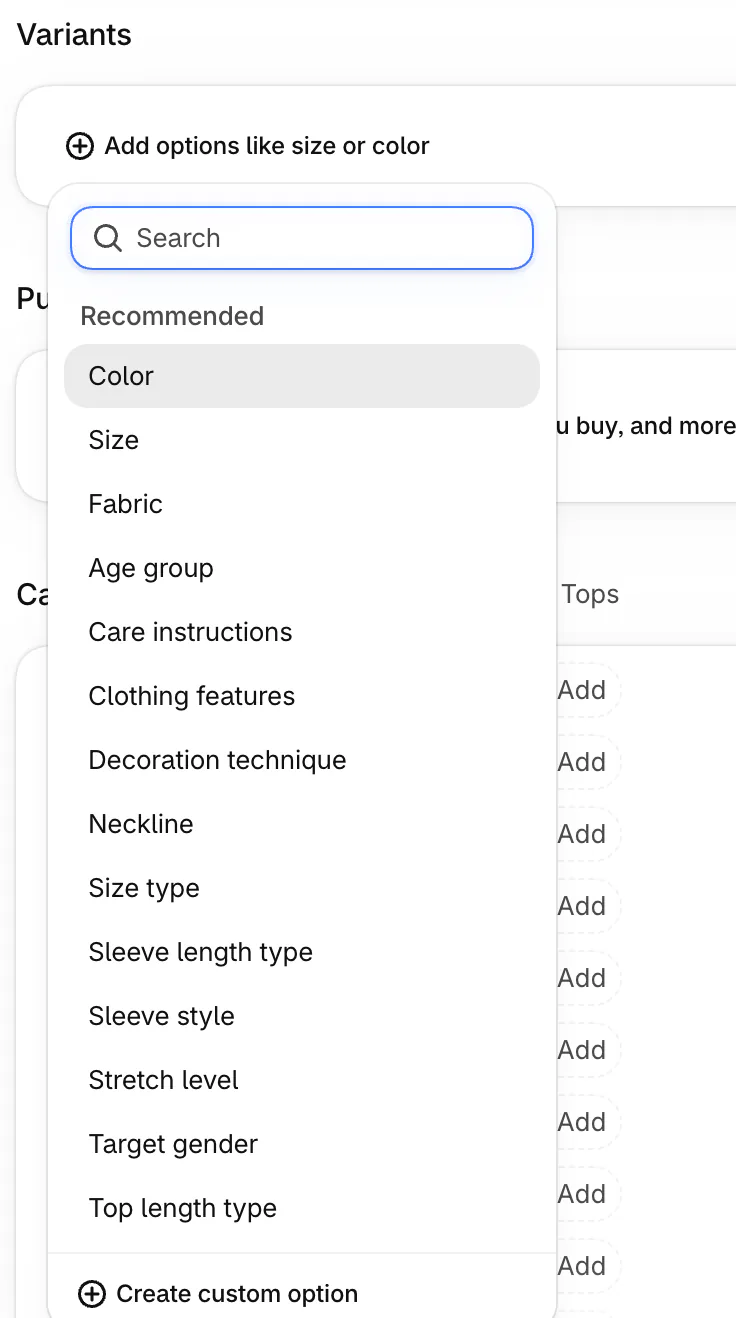
Pick the product's category before you add options. For a tee in the category "T-Shirts in Clothing Tops", the picker then lists options such as Color, Size and Fabric under "Recommended", drawn from Shopify's ready-made fields for it. Without a category, or for a choice the list lacks, you name your own through "Create custom option".
Adding a value later builds every new combination at once. Add Yellow to a tee that comes in 3 sizes, and Shopify creates 3 new variants. For one combination only, click "Add variant". If you sell clothing, how to sell clothes online covers the size chart shoppers check before they pick a size.
How many variants can a Shopify product have?
A Shopify product can have up to 2,048 variants across 3 options, on every plan since October 15, 2025. Before that date, Shopify's changelog says, the cap was 100 variants per product.
| Limit | What Shopify allows |
|---|---|
| Variants per product | 2,048 |
| Options per product | 3, and each product can use different ones |
| Photos and videos per product | 250 |
| Images per variant | 1, taken from the product's photos |
| New variants a day, once a store has 500,000 of them | 10,000 added by apps or imports, with no daily cap on Plus |
| Combined Listings, on Plus | 60 products in one listing, 2,048 variants across them and up to 3 extra options |
Shopify's variant limits as its Help Center printed them, read November 11, 2026.
The number to watch is 100. Shopify's Help Center warns that some third-party themes, apps and sales channels might not handle more than 100 variants on one product. Stocky and the legacy Order Printer app don't.
Say a sneaker comes in 15 sizes, 6 colors and 2 widths. That makes 180 variants, which Shopify refused before October 2025 and accepts now. Build that one product first and click through every size on your own store before you add the rest.
How do you give each variant its own price, stock and SKU?
Once a product has variants, its price, stock, SKU and shipping live on each variant rather than the product, and you click a variant to change them.
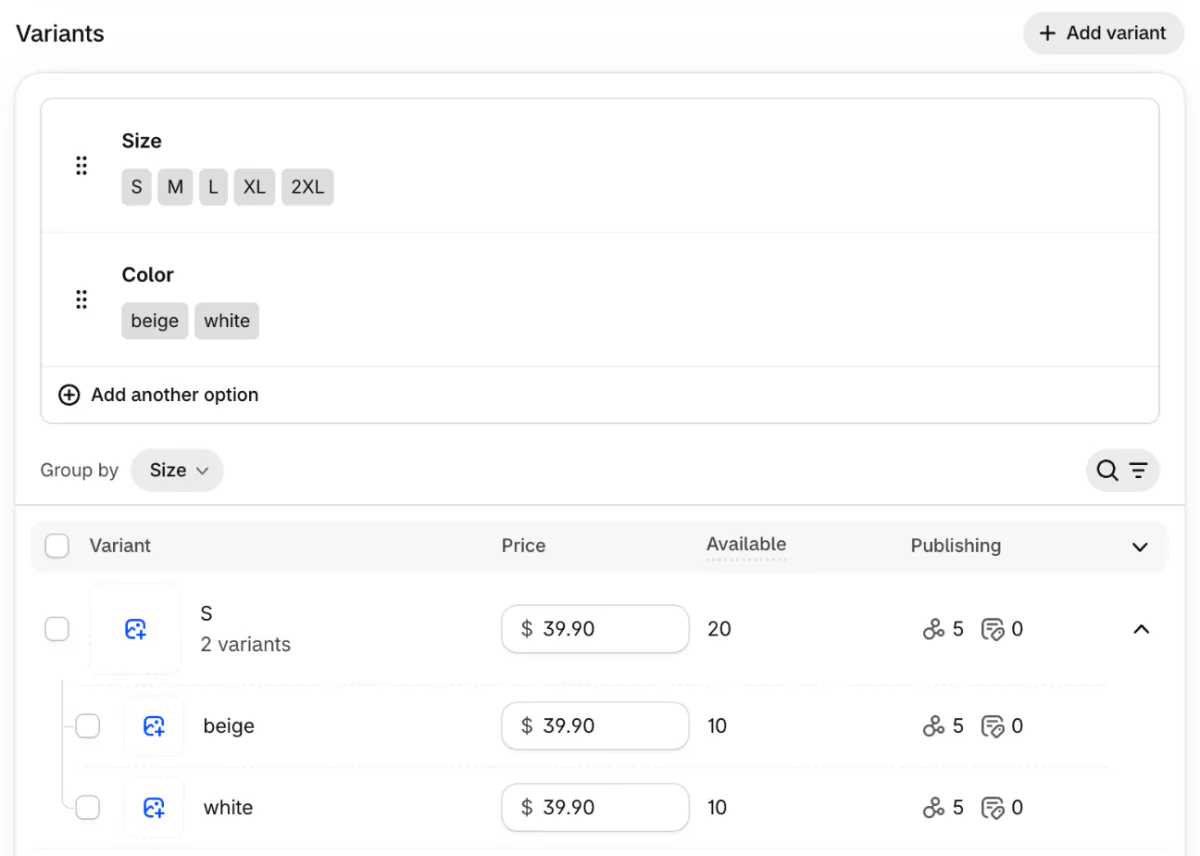
The list under your options shows every variant with its price, its stock under "Available" and its sales channels under "Publishing". You can type a new price straight into a row. To change stock in the list, Shopify's Help Center says to pick one location first from the "All locations" menu. "Group by" sets which option the rows are grouped under, the first one unless you change it.
Say XL and 2XL cost $2 more than S to L. Change the price on those two rows and leave the others alone.
Clicking a variant opens a page of its own. There, the SKU and barcode boxes open only once you click the "SKU" and "Barcodes" buttons.
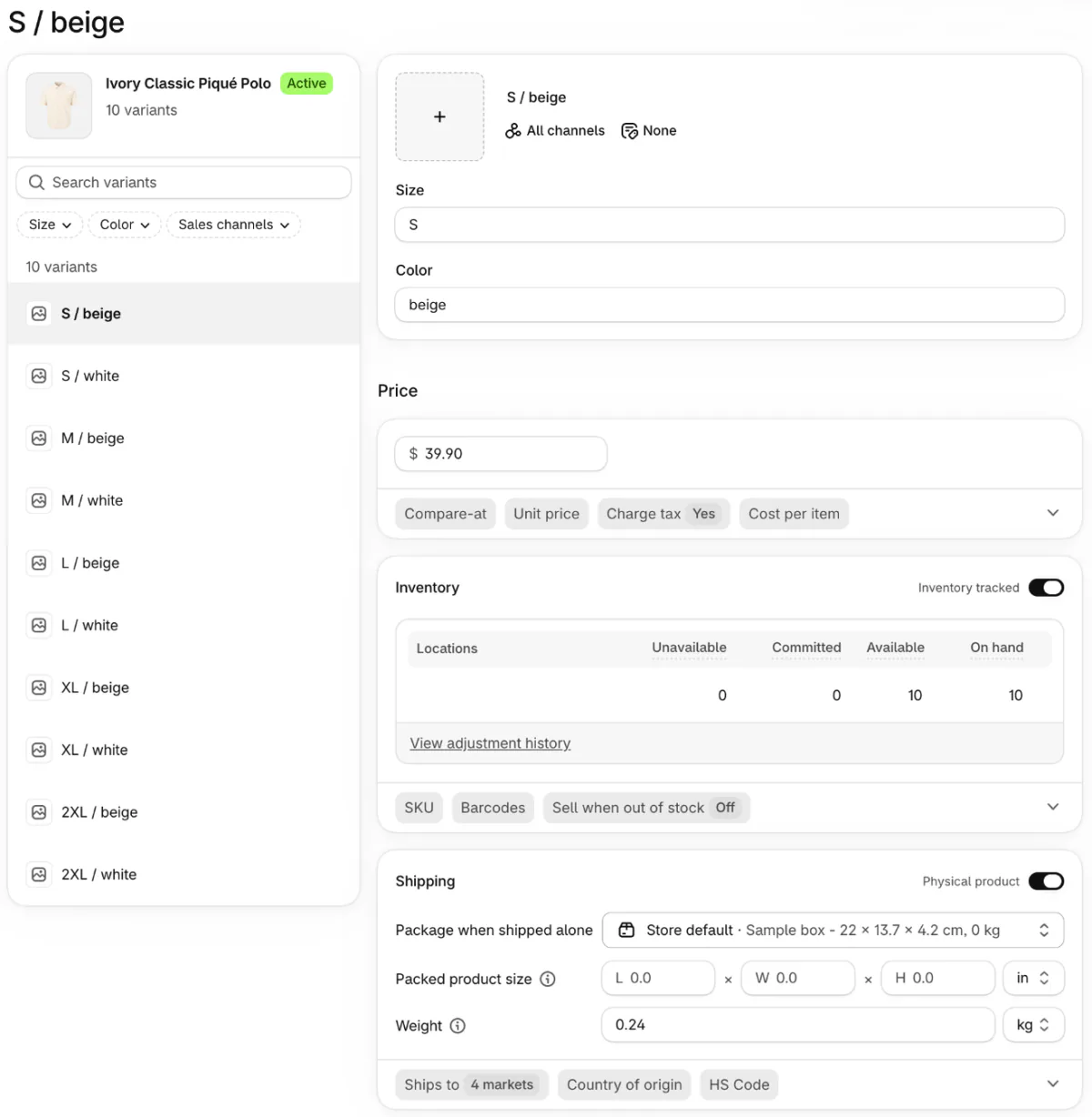
To change many rows at once, tick them and click "Bulk edit", which opens them side by side in a table. Stock for a product with variants is bulk edited from Inventory instead. Counting and reordering by size are in Shopify inventory management, and what an empty size costs you is in stockout.
How do you add a photo to each variant?
Each variant takes one image, picked from the product's photos or uploaded, and a product holds up to 250 photos and videos. Videos and 3D models can't be attached to a variant.
In the Variants section, click the image icon next to the variant. Pick a photo, or click "Add image" to upload one, then click Done and Save. For many variants at once, tick them, open the three-dot menu and click "Add images".
For several photos of one color, keep them next to each other in the product's photo list and assign one of them to the variant. A shopper who picks that color sees its photo first and scrolls to the rest. For a gallery that swaps to one color's photos by itself, Shopify points to its Combined Listings app, on Plus. Sizes and shapes to upload are in Shopify product image size.
Shopify's own color dots on the product page come from linking the Color option to Shopify's color field for the product's category. In most current Shopify themes, the "Variant picker" block, where shoppers choose a size and color, then shows swatches. Our glossary entry on the color swatch covers where else the dots can show.
What if you need more than 3 options?
Shopify stops at 3 options per product, so past that you split the product, add a product options app, or join products with Combined Listings on Plus.
- Split the product. Make one product per fabric, say, each with its own 3 options. The cost is upkeep: every extra product is one more page, photo set and channel listing to keep current.
- Add a product options app. An app from the Shopify App Store collects extra choices, such as engraving text or gift wrap. It usually adds a monthly fee, and Shopify keeps no stock count for those choices. A developer can change your theme to collect them instead, though you pay for the work and the change stays with that theme if you switch.
- Join products with Combined Listings. Shopify's free app for Plus and enterprise plans shows up to 60 separate products as one listing, with up to 3 more options. It works only on the online store and can't go in a bundle or a subscription. Search & Discovery's option filters also leave out the products inside a combined listing, as Shopify's Help Center notes.
A hat in 100 colors with a 21-value second option hits the other limit first. That is 2,100 combinations, past the 2,048 cap with only 2 options used. The hat has to split, or move its second choice into an options app. What Plus itself costs is in Shopify Plus pricing.
Should each color be its own product?
Usually not: one product keeps one page and one set of reviews. Split only when each color needs its own spot in your collections.
Shopify makes the case for one page on its own blog: one product page puts your SEO, ad spend and social posts behind one address. Its Help Center adds that to show single variants in collection and search grids, you should "consider using combined listings", which needs Plus. A color that only wants a collection of its own, such as red for Valentine's Day, can stay on its product: since July 2026, a collection can hold chosen variants instead of whole products, as Shopify collections explains.
To stop selling one color, unpublish it instead of deleting it. In the Variants section, click "All" or the channel icons in that variant's Publishing column. In "Manage publishing", the list of channels it sells on, untick the channels where it should stop selling, then click Done and Save. If every variant is unpublished from a channel, the whole product disappears there, as Shopify explains.
How do shoppers filter by size and color?
A filter app builds filters from your options, and one filter catches every product only if the option has the same name on each. "Color" on one product and "Color:" or "Colour" on another won't land in the same filter.
In Shopify's own Search & Discovery app, a Size option with Small, Medium and Large becomes a Size filter. Those filters check each variant, so a shopper who ticks two colors of one product still sees it once. To keep sold-out sizes out of that filter, read why your size filter shows sold-out sizes. What filter pages do in Google is in faceted navigation SEO.
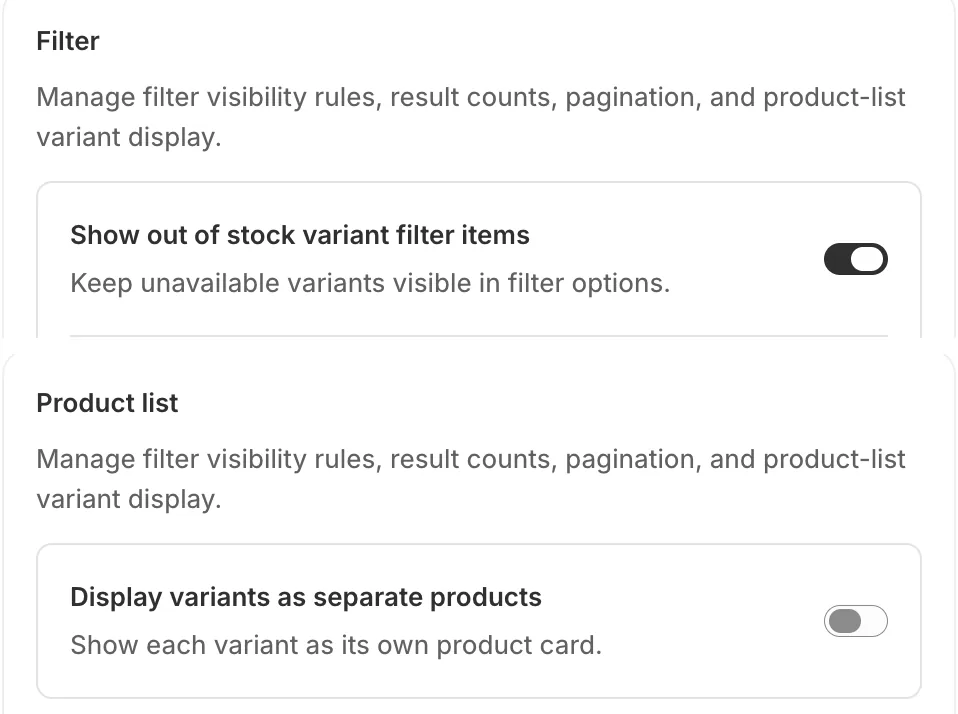
Sledge is a Shopify search and filter app that builds its filters from your product options. Its Color filter can show as color swatches, either dots or fabric pictures. The switch "Show out of stock variant filter items" decides whether sold-out sizes stay in the list. Another, "Display variants as separate products", gives each color its own card in collections and search results once you pick Color as the option to split by. Each card carries that color's photo, or the main photo if the color has none. Sledge warns that some features, bundles among them, may not work with that setting on. The swatches and both switches come with every paid Sledge plan, and Sledge filters covers its other filter features.
FAQ
Questions, answered
-

14-day free trial
Explore Sledge on your store before you decide to commit.
-

No credit card required
Start improving your store with no upfront commitment.
-

Setup in minutes
Get Sledge running without a lengthy setup process.
-

Built to grow sales
Turn shopper behavior into actions that help you sell more.
What is the difference between options and variants on Shopify?
An option is a choice the shopper makes, such as Size or Color, and its values are the answers, such as S, M and L. A variant is one combination of those values, such as a small in black. Shopify builds the variants for you from the options, and each one gets its own price and stock.
How many variants can you have on Shopify?
Up to 2,048 variants per product, across a maximum of 3 options, according to Shopify's Help Center in November 2026. Shopify raised the limit from 100 on October 15, 2025, for every plan. It warns that some themes, apps and sales channels might not handle more than 100, so test one large product on your theme first.
How do I add more than 3 options on Shopify?
Shopify stops at 3 options per product, according to its Help Center in November 2026. Past that, split the product, say one per fabric, or use a product options app for choices that need no stock count, like engraving text. On Plus, the free Combined Listings app joins up to 60 products and adds up to 3 more options.
Can Shopify variants have their own images?
Each variant takes one image from the product's photos. A product holds up to 250 photos and videos, according to Shopify's Help Center in November 2026. For more photos of one color, keep them together in the product's photo list and assign one to the variant. Shoppers who pick that color see it first and scroll to the rest.
How do I stop selling one size or color without deleting it?
Unpublish it instead. In the product's Variants section, click that variant's entry in the Publishing column, untick the sales channels where it should not show, click Done, then save. The variant stays in your admin, so you can publish it again later. If every variant of a product is unpublished from a channel, the whole product disappears there.
Can Shopify show each color as a separate product in collections?
Shopify's Help Center suggests its Combined Listings app, on Plus, for showing single variants in collection and search grids. Otherwise you list each color as its own product, pay a developer to change your theme, or use an app. In Sledge, the setting Display variants as separate products shows each color as its own card in collections and search results.
Your sizes and colors are set up. Can shoppers filter by them?
Sledge doesn't set up your sizes and colors in Shopify. It reads the options you already have and turns them into filters with color swatches, and it can show each color as its own card in collections and search. Try it free for 14 days. Growth Intelligence turns on when you pick a paid plan, and its suggested fixes add up to one dollar figure, labeled Est. potential.