Ecommerce automation is software that runs a repeat store job each time something happens, such as a shopper leaving checkout or stock running low. On Shopify, the free Flow app handles orders and stock, Shopify Messaging sends emails, and storefront rules set sale dates and collection order. Start with the job that loses a sale when it runs late.
Say it is Monday morning. A best seller sold out on Saturday, a sale banner is still up two days after the sale ended, and six orders need a tag for whoever packs them. Each fix takes two minutes. You will do them again next week, and software can do each one the moment it happens.
What is ecommerce automation on Shopify?
Ecommerce automation on Shopify is a rule you set once: when something happens and a check passes, a task runs by itself.
Flow names the three parts. A trigger is the event that starts the workflow, such as a new order. Next comes a condition, a check on a detail, such as an order total over $200. Last is the action, the task itself, such as adding a tag or sending an email.
Shopify's Help Center calls Flow "an ecommerce automation platform", and it is free on Basic, Grow, Advanced and Plus.
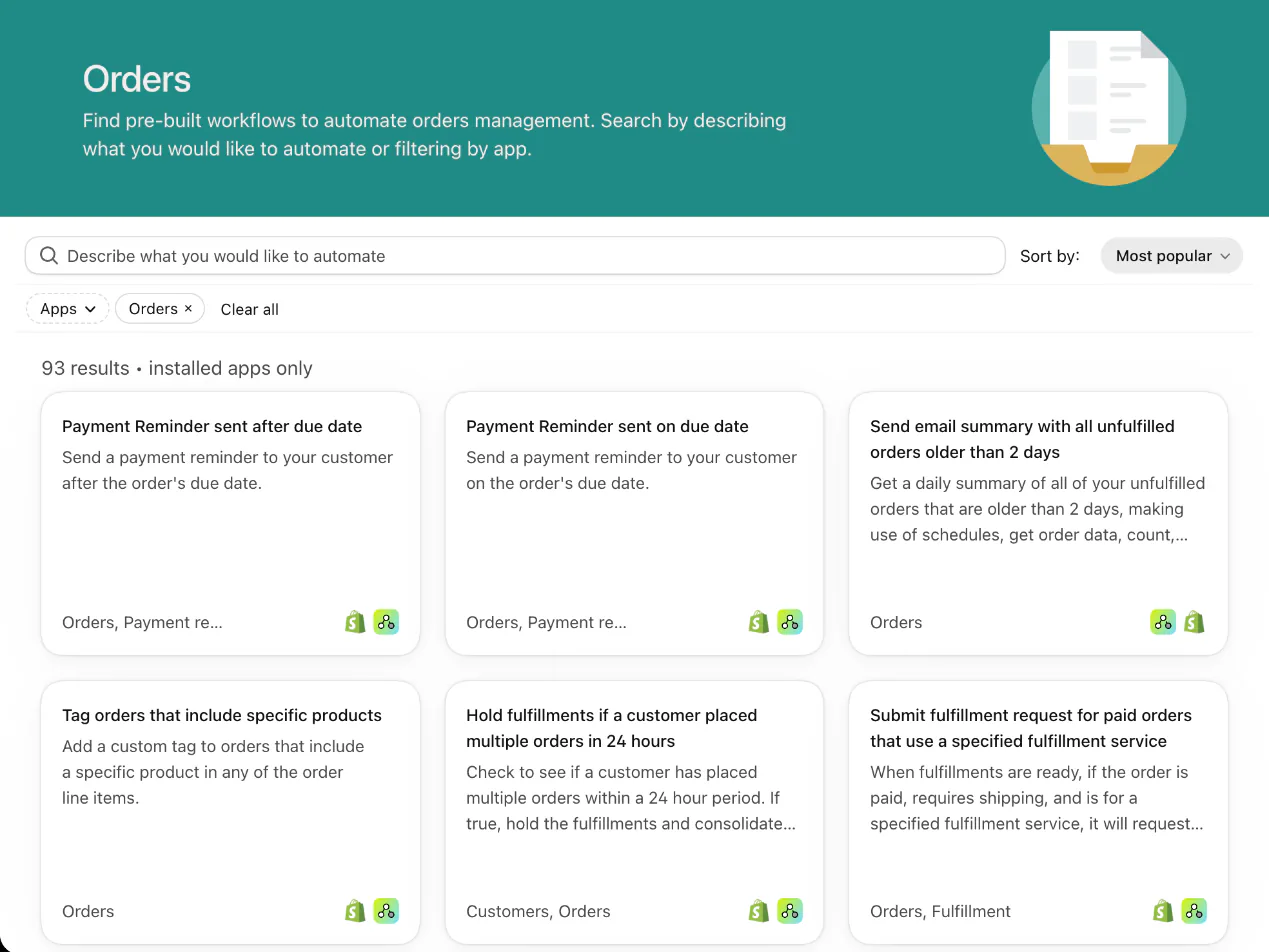
Rules live in three places: in Shopify's own admin, in an app that connects to your store, and on the storefront, where an app acts on what shoppers see.
Some jobs are already on. Shopify captures card payments at checkout by default, and it emails the shopper when you fulfill an order. The shipping confirmation email template covers that email.
Which store jobs can you automate on Shopify, and with what?
Each job has a tool that runs it, and the middle column names that tool and, where it helps, the screen to open.
| Job | What runs it, and where | Read more |
|---|---|---|
| 1. Email a shopper who left checkout | Shopify Messaging runs this marketing automation: Apps, then Messaging, then Automations, then Recover abandoned checkout. The email is free and goes to marketing subscribers, unless you set To: to All customers. | Abandoned cart emails, win back emails |
| 2. Tell you stock is low | Shopify Flow: Apps, then Flow, then Browse templates. A low-stock template emails you when a size or color drops to a level you set. | Shopify inventory management |
| 3. Tell shoppers a sold-out product is back | Sledge Back in Stock, on Accelerate and up, emails each shopper waiting on a product once it is in stock again. Shopify's own inventory features list back-in-stock alerts as not supported. | Back-in-stock alerts on Shopify |
| 4. Tag orders and alert your team | Shopify Flow templates, such as "Tag orders paid with gift card". A tag is a label the Orders page can filter by, and a template can also email your team. | Shopify Flow templates |
| 5. Flag a risky order | Shopify rates eligible orders for fraud. In Flow, the "Order risk analyzed" trigger starts a workflow once an order is rated. That workflow can tag the order or email you, and it can cancel the order only if you fulfill by hand. | Shopify chargebacks |
| 6. Start and end a sale on time | Shopify: a discount's Active dates and Set end date, or Markets, then Rollouts, which publishes a theme change for a set period. Sledge: banners and countdowns take Active dates with Has end date, and badge campaigns and merchandising rules take dates of their own. | Scheduling a sale banner, flash sales |
| 7. Fill and order a collection | Shopify: a collection's conditions add matching products on their own. Sledge: a Merchandising rule orders them by sales, views or clicks over the last 7, 14 or 30 days. | Shopify collections, bulk editor (to tag many products at once, so a condition can find them) |
| 8. Add a gift or a discount in the cart | Shopify: an automatic discount applies with no code, up to 25 active at once. Sledge: Free Gift adds the gift once the cart meets your goal. | Discount code and free gift |
| 9. Publish reviews that meet your bar | Sledge: a switch called Enable auto publish, with a Minimum rating. A review below that rating waits for you to publish it. | Getting more reviews, Sledge reviews |
| 10. Send yourself a summary | Shopify Flow: a template that emails you a summary of unfulfilled orders older than 2 days. Sledge: a Growth Intelligence digest email, on paid plans. | Shopify reports |
Shopify renames Flow templates now and then, so if a name here has gone, search a few words of the job.
Which three jobs should you automate first?
Start with the three that cost you a sale or margin when they run late: the checkout email, the low-stock alert and the sale end date.
-
Turn on the checkout email. Click Create automation in Messaging's Automations, pick Recover abandoned checkout, choose Email and turn it on. It reaches marketing subscribers unless you set To: to All customers, and it never counts toward your 10,000 free emails. Abandoned cart emails has the wording. To see how many shoppers leave checkout and why a payment fails, read checkout abandonment.
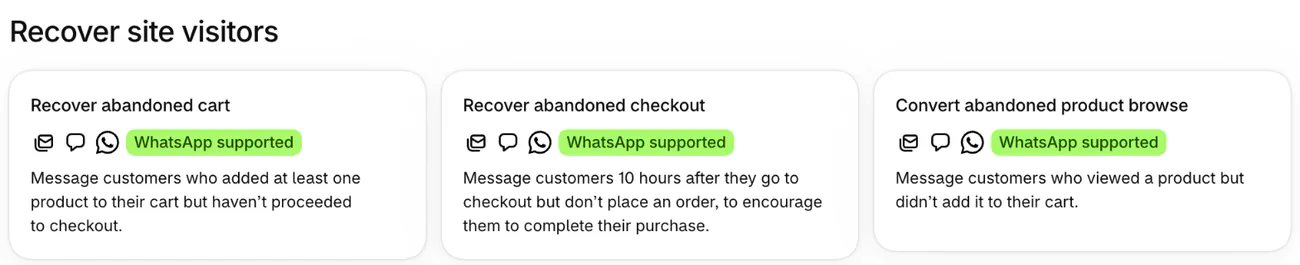
The three ready-made automations for shoppers who leave, as Messaging lists them. - Set the low-stock alert. In Flow's Browse templates, search "low stock", click Install and replace the placeholder address with yours. Run a test, which changes nothing in your store, then click Turn on workflow. It emails you once when stock crosses your level, so pick a level that leaves time to reorder. Just-in-time inventory shows how to work that level out. Inventory management and Flow templates have the detail.
- Give every sale an end date. In Discounts, set Active dates and click Set end date, then put the same dates on your banner. Sledge banners take Active dates with Has end date. Times follow your store's time zone. The holiday marketing calendar plans the year's dates, and scheduling a sale banner and flash sales cover the setup.
What does Sledge automate, and what doesn't it?
Sledge automates the storefront by rule, and it has no workflow builder.
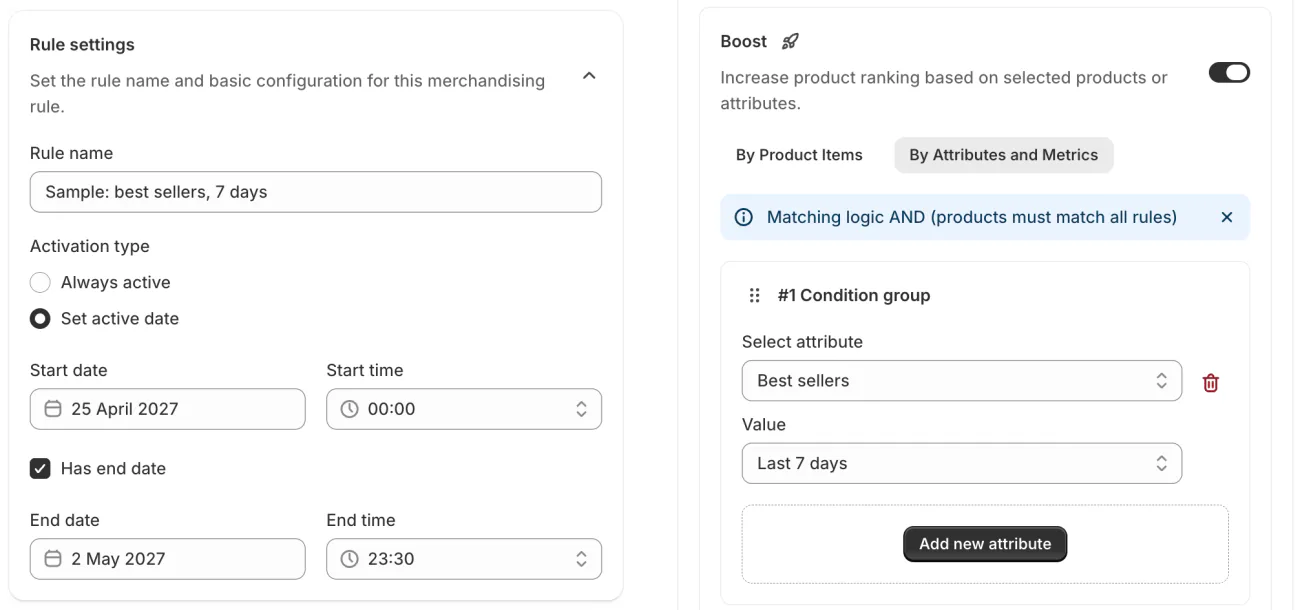
Sledge is a Shopify app for search, filters, merchandising, offers and reviews, and its rules run on what shoppers see. In Tools, then Merchandising, then Strategy, a Merchandising Boost rule moves products up a collection by Best sellers, Most viewed, Most clicked, Highest conversion rate or Highest add-to-cart ratio over the last 7, 14 or 30 days. Under Activation type, Set active date gives the rule a start, and Has end date adds an end.
A Demote rule set to Inventory and Out of Stock moves sold-out products down, so the rule follows your stock. Pushing out-of-stock products to the bottom covers it.
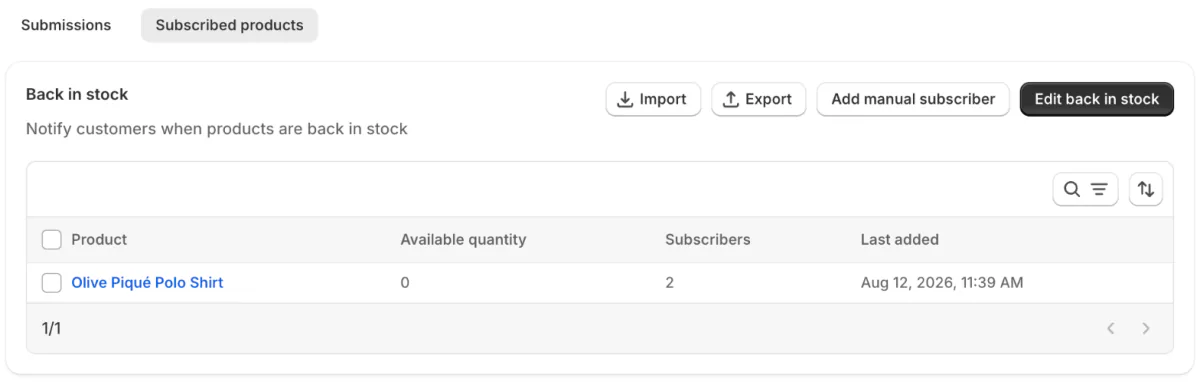
Back in Stock emails the shoppers waiting on a product once it is in stock again. It is email only, a shopper signs up per product, and it needs Accelerate or higher. The Subscribed products tab lists each product's available quantity beside the shoppers waiting for it.
A badge campaign follows stock and dates, banners and countdowns start and end on their dates, and Free Gift adds the gift once the cart meets your goal. A switch called Enable auto publish publishes each new review that meets the Minimum rating you pick, and a review below it waits for you.
Sledge does not automate orders, fulfillment, email campaigns or support, and it sends no review requests. A badge never follows a product's age or price. Sledge's one link to Flow is a trigger called Review collected, which starts a workflow when a shopper submits a review, and Shopify Flow templates covers it.
Which store jobs should you keep manual?
Leave manual any job where a wrong move costs a shopper or an order.
- Fulfillment you pack yourself. Shopify cautions that automatic fulfillment marks every new order fulfilled, so you can no longer sort for the orders still to ship. The setting sits under Order processing in your Shopify settings, and Shopify's Help Center explains it.
- Cancels and refunds. Flow can cancel a high-risk order, but only if you fulfill by hand, and a wrong rule cancels a good order. Let the workflow tag the order or email you, and cancel it yourself. A test takes no action on your orders, so test any rule before you turn it on. Refunds stay with you.
- Closing a pre-order campaign. In Sledge, closing the campaign restores your stock setting, and passing its end date does not, so close it yourself.
- The reply to an unhappy shopper. A person should write it.
Turn on one automation, check what it did after a week, then add the next.
FAQ
Questions, answered
-

14-day free trial
Explore Sledge on your store before you decide to commit.
-

No credit card required
Start improving your store with no upfront commitment.
-

Setup in minutes
Get Sledge running without a lengthy setup process.
-

Built to grow sales
Turn shopper behavior into actions that help you sell more.
What is ecommerce automation?
Ecommerce automation is software that runs a repeat store job when something happens. On Shopify, a rule has a trigger, such as a new order, a condition, such as a total over $200, and an action, such as adding a tag or sending an email. Flow, Messaging and storefront apps each run a different kind of rule.
What can Shopify automate without a paid app?
A lot, from Shopify's own free tools. Flow runs workflows on Basic and up. Messaging has 11 ready-made automations, with 10,000 emails a month free. Automatic discounts, collection conditions, discount dates, fraud analysis and automatic payment capture sit in the admin itself. Fulfillment stays manual until you turn automatic fulfillment on.
What does ecommerce automation cost on Shopify?
Flow is free on Basic, Grow, Advanced and Plus. Shopify Messaging includes 10,000 emails a month, then charges $1 USD per 1,000, and abandoned checkout emails are always free. Sledge's storefront rules come with every paid plan, which starts with a 14-day free trial, except Back in Stock, which needs Accelerate or higher, from $199 a month.
Can you fully automate a Shopify store?
No. Shopify's own guide to automation tools says to keep human oversight even with Flow and Messaging running. Automate the repeat jobs and keep the judgment calls: packing parcels you ship yourself, cancelling or refunding an order, and replying to an unhappy shopper. Turn on one automation, check it after a week, then add the next.
Can AI automate my Shopify store?
Partly. Shopify's Autopilot recommends marketing actions, such as email automations, and its Permissions setting lets you choose whether it asks for your approval or acts on its own. Sidekick, Shopify's assistant, drafts a Flow workflow from a plain description on desktop, and that workflow stays inactive until you turn it on.
Does Sledge automate my store?
Mainly the storefront. Sledge ranks collections by recent sales, puts start and end dates on banners and rules, shows a badge by stock, adds a free gift at your goal and publishes reviews at your minimum rating. On Accelerate and up it emails shoppers when a product returns. It has no workflow builder and no order, email-campaign or support automation.
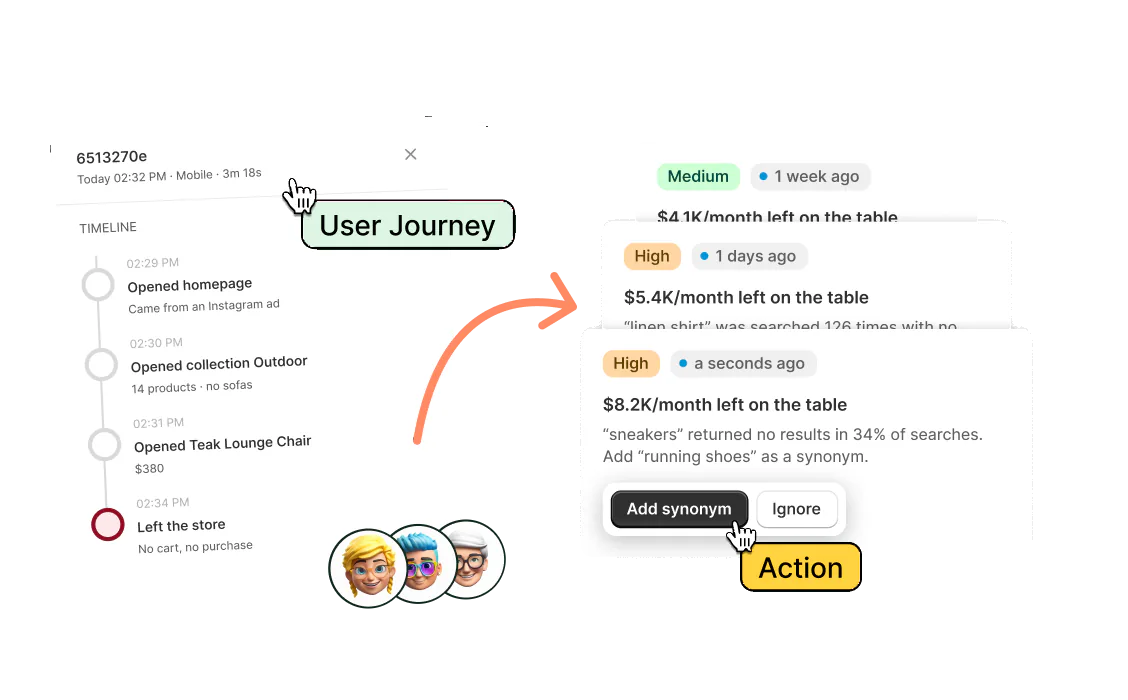
Which storefront jobs do you still do by hand?
Sledge doesn't build workflows, send order emails or send review requests. It runs the storefront by rule: collections ranked by recent sales, banners with start and end dates, badges that follow stock, a free gift added at your goal, and back-in-stock emails on Accelerate and up. Try it free for 14 days. Growth Intelligence turns on when you pick a paid plan, and its suggested fixes add up to one dollar figure, labeled Est. potential.