A post-purchase email flow is the run of emails after a buyer pays: the order confirmation, shipping updates, a thank-you, a review request and an invitation to order again. Shopify sends the first two to any buyer who gives an email. Shopify Messaging adds the thank-you and the invitation, for marketing subscribers. A reviews app usually sends the review request.
The order lands at 9pm and Shopify sends the receipt. Once you ship, a tracking link follows. After the parcel arrives, your buyer hears nothing, and the second order rests on whether they remember your name.
What is a post-purchase email flow?
On Shopify, a post-purchase email flow, or sequence, is five emails from three senders between a buyer paying and ordering again.
| When it goes | Sent by | Who gets it | |
|---|---|---|---|
| Order confirmation | When the order is placed | Shopify, by itself | Every buyer who gave an email (a phone-only buyer gets one text) |
| Shipping updates (Shipping confirmation, Shipping update, Out for delivery, Delivered) | When you fulfill, when tracking changes, and when the carrier reports the parcel out for delivery or delivered | Shopify, by itself | Every buyer who gave an email |
| Thank-you | After the first order, and again after the second | Shopify Messaging, "Thank customers after they purchase" | Marketing subscribers |
| Review request | Once the parcel has arrived | A reviews app | Depends on the app |
| Order again | 14 days after a first order, by the template's default | Shopify Messaging, "Upsell customers after their first purchase" | Marketing subscribers |
Shopify settings checked November 4, 2026.
Only the first two are sure to reach every buyer who gives an email. The thank-you and the order-again email go to marketing subscribers only, such as a buyer who ticks the email box at checkout.
In Omnisend's analysis of 24 billion emails sent through its platform in 2024, order follow-up emails had a 49.75% open rate.
The emails before an order are a different job, covered in abandoned cart emails and product launch emails.
Which post-purchase emails does Shopify send by itself?
Shopify sends the order confirmation and the shipping emails on its own. You'll find them in Settings, then Notifications, then Customer notifications.
Every order placed with an email gets an Order confirmation, and your settings can't switch it off. A buyer who gives only a phone number gets one confirmation by text, if your store sends SMS notifications, and no shipping updates.
Shipping confirmation goes out when you fulfill the order. To skip it on one order, untick "Send shipment details to your customer now" while fulfilling. Shipping update follows when you add or change tracking. Out for delivery and Delivered go when the carrier reports those steps, and you can switch both off under "Shipping updated". Refunds and cancellations send their own emails. When a buyer writes back about either, customer service email templates have the reply ready. How to refund a return is in ecommerce returns.
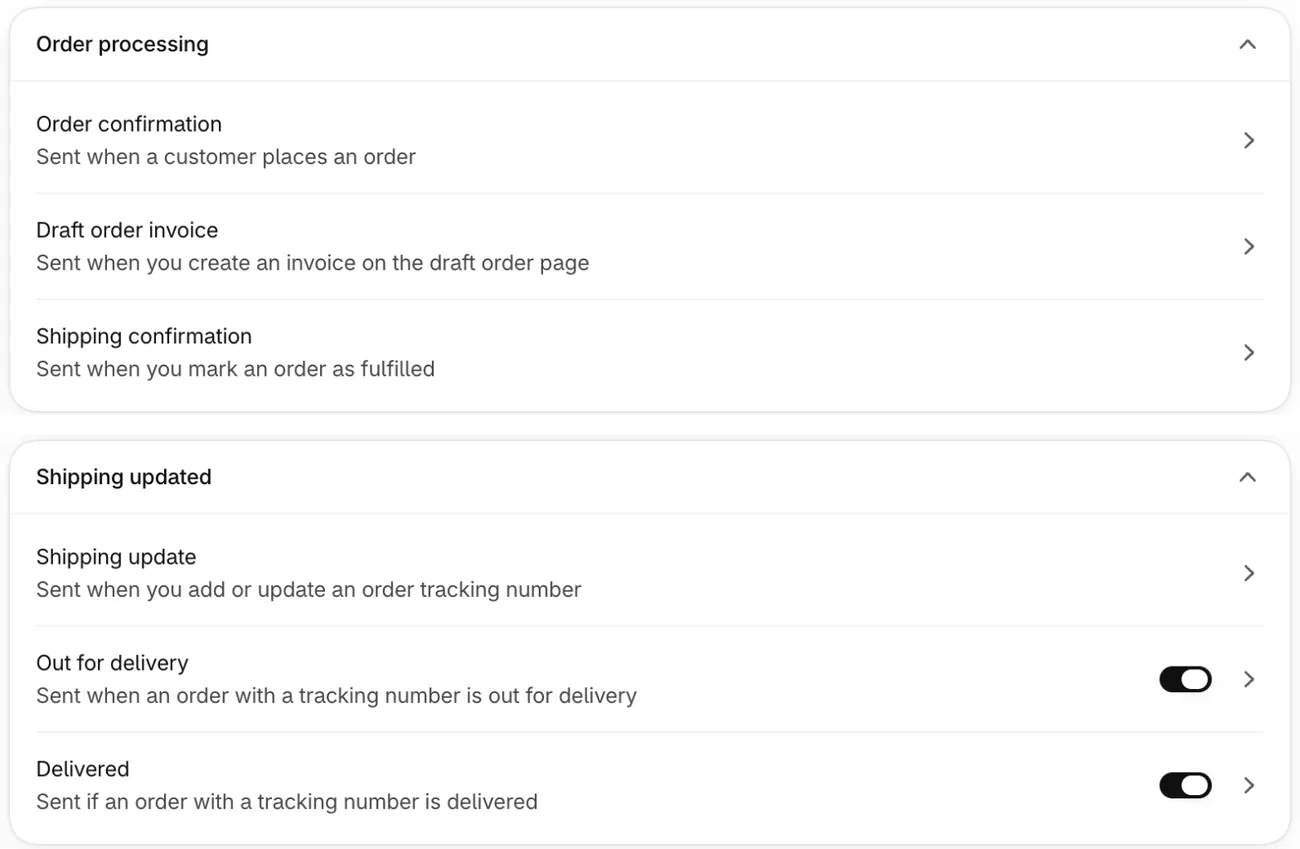
To change the look, click "Customize email templates" on the Customer notifications page. It puts your logo and accent color on every notification at once.
Changing one email's words takes "Edit code", the button that opens that email's own code. If you don't write code, Shopify suggests hiring a Shopify Partner: paid work, and a test email after every change. Or leave the receipt as it is and put your own words in the thank-you email.
How do you add a thank-you email in Shopify Messaging?
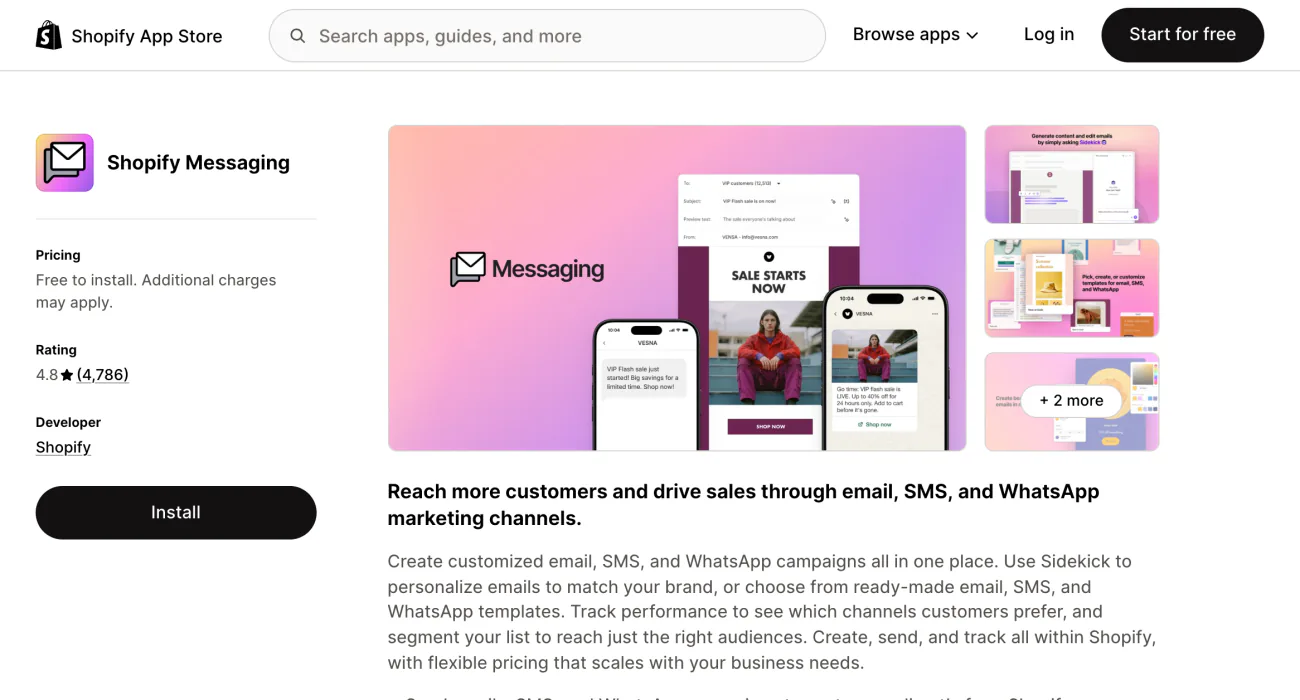
Shopify Messaging, formerly Shopify Email, has ready-made emails for after the order, and this flow uses two of them. It's Shopify's own app, free to install.
- In your Shopify admin, open Apps, then Messaging, then Automations.
- Click "Create automation" to open Shopify's ready-made list, "Automation templates".
- Under Post-purchase, pick "Thank customers after they purchase".
- In the preview that opens, click "Edit emails", put in your own words, and send yourself a test.
- Click "Turn on", then "Turn on" again to confirm.
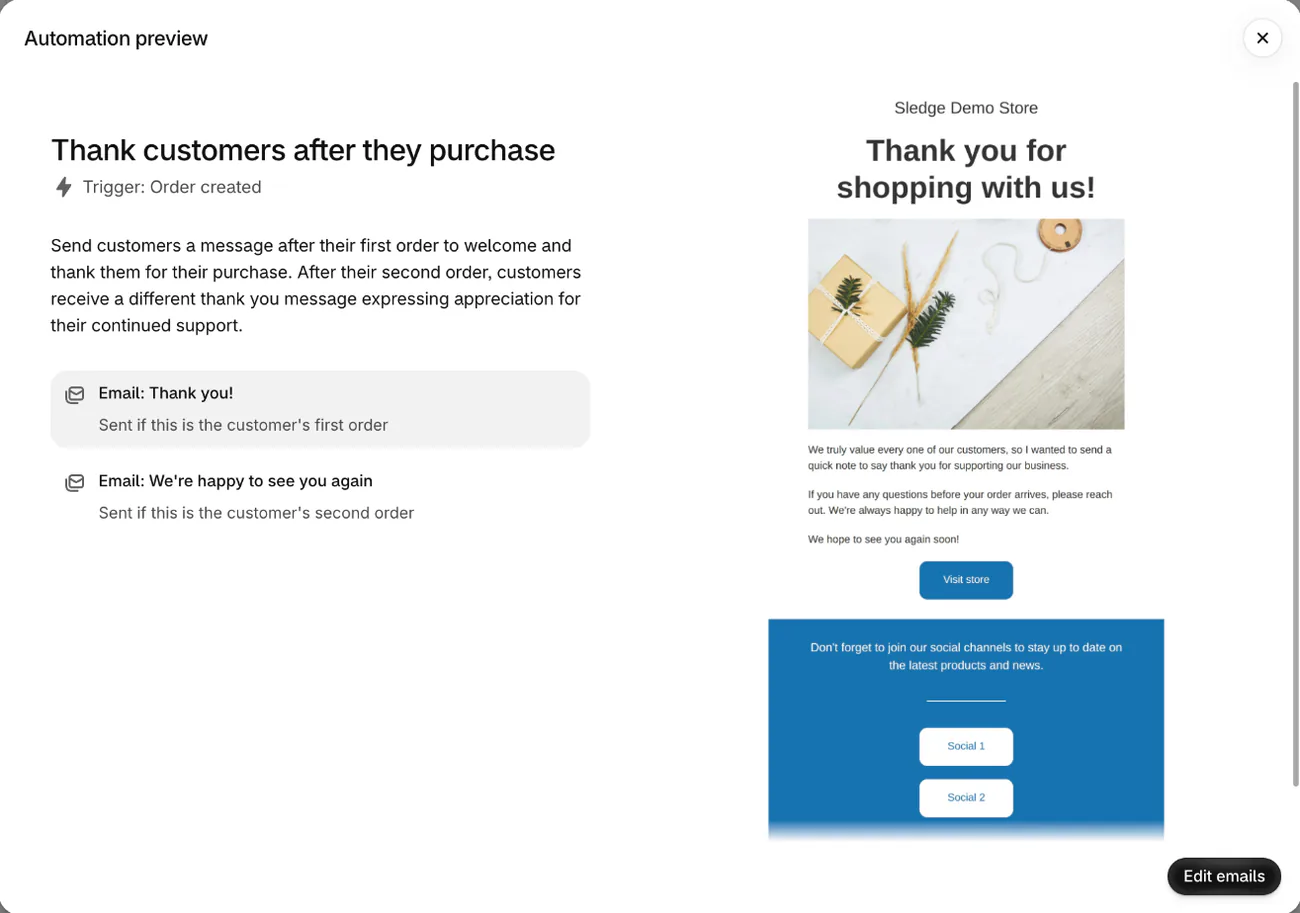
For the order-again email, pick "Upsell customers after their first purchase" from the same list. By default it sends featured products 14 days after a first order. "Win back customers" waits a set time after the last order instead, and how to get repeat customers covers it.
These templates send email only, and you set them up on a computer, not in the Shopify mobile app. Messaging needs the Basic plan or higher, the Shopify Flow app for full use, and Shopify Network Intelligence turned on in the store's privacy settings. The first 10,000 emails in a calendar month cost nothing, automations included. After that, pricing starts at $1 per 1,000. On a Shopify free trial, Messaging sends tests to you and nothing to subscribers.
These automations reach marketing subscribers only. Of all Messaging's automations, only the abandoned checkout email can be switched to all customers. A buyer who isn't subscribed, such as one who leaves the email box at checkout unticked, gets the order and shipping emails and nothing from Messaging.
To show that box, go to Settings, then Checkout, and select Email under "Marketing opt-in". You also choose where it starts ticked: "Regions recommended by Shopify" follows local rules, and "Regions you choose" lets you pick.
Run one automation for each email. Shopify warns that two welcome automations send customers twice as many emails. Once yours run, the Automations page shows the orders and sales each one brings in.
What should each post-purchase email say?
Each email does one job, and the job is in its subject line. Shopify writes the receipt and the shipping emails, so the three below are the ones in your words. Say you sell denim jackets and a buyer just placed a first order.
Thank-you email, first order
"Thank customers after they purchase" sends it after the first order.
- Subject: Thanks for your first order, Sam
- Body: Your denim jacket is on our packing list. Wash it inside out in cold water and it keeps its color. Not sure about the fit? Reply to this email and we'll help.
Thank-you email, second order
The same template sends it after the second order.
- Subject: Back again? Thank you
- Body: Thanks for ordering again. Your tracking link follows by email once the parcel ships.
Order-again email
"Upsell customers after their first purchase" sends it 14 days after the first order, by default.
- Subject: Three things that go with your denim jacket
- Body: Here's what pairs with it: a striped knit, chinos and a canvas belt. Tap one to see what's left in your size.
Messaging has no template for a review request, so it usually comes from a reviews app. The review request email guide has the words.
What does a customer see after checkout on Shopify?
Every buyer sees the thank-you page, the screen right after payment, before any email lands. Sledge is a Shopify app whose Thank You Page offer puts a few discounted picks there. Sledge sends none of the emails in this flow.
In Sledge, open Tools, then Bundle, Discount & Upsell, then Thank You Page, and click "Add thank you page". Under "Upsell offer 1", pick the products to offer and set the discount, 10% unless you change it. Then click "Open Checkout Editor" and add Sledge's block to Shopify's thank-you page.
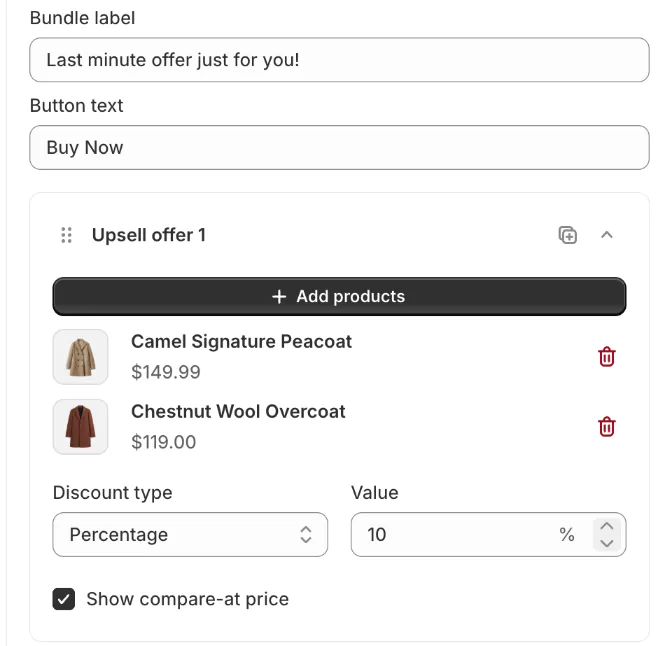
The shopper taps "Buy Now" and completes the pick through checkout as its own order, with its own confirmation email. The offer shows on the thank-you page only, not on the order status page your emails can link to. It comes with every paid plan. Which products to offer, and at what discount, is in the post-purchase upsell playbook.
FAQ
Questions, answered
-

14-day free trial
Explore Sledge on your store before you decide to commit.
-

No credit card required
Start improving your store with no upfront commitment.
-

Setup in minutes
Get Sledge running without a lengthy setup process.
-

Built to grow sales
Turn shopper behavior into actions that help you sell more.
What is a post-purchase email?
A post-purchase email is any email a shopper gets after paying: the order confirmation, shipping updates, a thank-you, a review request or an invitation to order again. On Shopify, the order and shipping emails go out by themselves. The thank-you and the order-again email come from Shopify Messaging automations, which reach marketing subscribers only.
Does Shopify send post-purchase emails automatically?
Yes, the order and shipping ones. Shopify sends an Order confirmation for every order placed with an email address, and your settings can't switch it off. Shipping confirmation goes out when you fulfill, Shipping update when tracking changes, and Out for delivery and Delivered when the carrier reports them. A thank-you takes an email app, such as Shopify Messaging.
Why didn't my customer get the thank-you email?
Shopify Messaging sends its automations only to customers subscribed to marketing, and the thank-you is one of them. A buyer who isn't subscribed, say one who left the email box unticked at checkout, gets the order and shipping emails, not the thank-you. Only the abandoned checkout email can be switched to all customers. Check Settings, then Checkout, then Marketing opt-in.
Why didn't a customer get their order confirmation?
Ask them to check their spam and junk folders first, as Shopify advises. Then open Settings, then Notifications, and check your sender email. Since February 1, 2024, Gmail and Yahoo require an authenticated domain for a branded sender, and without one Shopify sends from a shopifyemail.com address. Some email hosts reject a sender address with no-reply in it.
Does Sledge send post-purchase emails?
No. Shopify, Shopify Messaging and a reviews app send the emails in this flow. Sledge works one step earlier, on the thank-you page: its Thank You Page offer shows a few discounted picks, and a shopper completes one through checkout as its own order. It comes with every paid Sledge plan, and the 14-day free trial runs one offer.
Every order ends on a thank-you page. Is yours selling?
Try Sledge free for 14 days and put an offer on your thank-you page. Growth Intelligence turns on when you pick a paid plan. It reads your orders, can suggest a thank-you page offer, and totals what its fixes could add in one dollar figure, labeled "Est. potential".