A review request email asks a buyer to rate what they bought. Send it once the parcel has arrived and been used, ask one question, and give one button to the review form. Shopify has no ready template for it, so you send it from a review app or from Shopify Messaging, Shopify's own email app.
Forty orders went out last month, and two reviews came back. Your email asked the day each order was placed, so it landed while the parcels were still in a van. One buyer whose box ran late answered with a single star.
What should a review request email say?
A review request email needs five parts, in this order: a subject that names the product, a person's name as the sender, one question, one line on who the review helps and one button to the review form. Keep it short enough to read on a phone without scrolling.
Ask a question the buyer can answer in a line, such as whether it fit or matched the photos. The answers you want read like these customer review examples. "We value your feedback" gives them nothing to answer. Send it from your first name at your store, so it reads like a note from a person.
Ask for one review per email, of the product or of the store, never both.
Review request email templates you can copy
Swap the words in brackets for your own. Each template fits a different moment.
1. The plain ask
Use it for most products, a few days after delivery.
- Subject: How's your [product] working out?
- Body: Hi [first name], your [product] arrived a few days ago. Is it what you hoped for, and does it look like the photos? Two honest lines help the next shopper choose.
- Button: Review your [product]
2. The phone-sized ask
Send this one when a star rating is all you need.
- Subject: One tap, [first name]?
- Body: Did the [product] live up to the photos? Tap below and pick a star.
- Button: Rate it
3. The photo ask
Pick it where fit, color or size matters, as with clothing or home goods.
- Subject: Show us your [product] in real life
- Body: Hi [first name], a buyer's photo answers what ours can't: the true color, the real fit, how big it is next to a mug. If you're happy to share one, add it to your review. A review without a photo helps too.
- Button: Add a photo review
4. The one reminder
Send it about a week after the first ask, only to buyers who haven't reviewed.
- Subject: Last nudge about your [product]
- Body: Hi [first name], this is the last time we'll ask. One line about the [product] helps someone else decide. If something is wrong with it, reply to this email and we'll sort it out.
- Button: Leave a quick review
The reply line offers to fix a problem without asking anyone to hold back a review. When a buyer writes back with one, these customer service email templates cover the reply. If a bad review posts anyway, answer it with one of six negative review response examples.
5. The store review
Use it after a first order, when you want a review of the store rather than one product.
- Subject: How did we do, [first name]?
- Body: Your order from [store name] arrived last week. How was it, from checkout to unboxing? A short review of the store helps other shoppers trust a name they don't know yet.
- Button: Review [store name]
6. The thank-you for any honest review
Send it when you want to thank each reviewer with a discount.
- Subject: A thank-you for your honest review
- Body: Hi [first name], tell us what you really think of the [product], good or bad. Every honest review gets [10% off your next order], whatever the stars. Please mention the discount in your review so other shoppers know.
- Button: Write my review
Create the code before you send it, and read the rules on rewards at the end of this page.
Six more subject lines to test:
- Did the [product] fit?
- [First name], one question about your order
- Is the [color] what you expected?
- How's the [product] holding up?
- Your review helps the next buyer
- Worth it?
When should you send a review request email?
Send a review request email after delivery, once the buyer has used what they bought. An ask that lands before the parcel invites a one-star answer about shipping, because the buyer has nothing else to judge yet.
| What you sell | Send it after delivery |
|---|---|
| Clothing, shoes, bags | 3 to 7 days |
| Food, coffee, candles | 3 to 5 days |
| Furniture, electronics, tools | 10 to 14 days |
| Skin care, supplements, hair care | 14 to 21 days |
These are starting points to test, so move the day to when your buyer can judge what they bought. If your tool counts from the order, add your usual shipping time.
Follow up once, about a week after the first ask, with template 4. Then stop, so each order gets two emails at most.
How do you send a review request email on Shopify?
Shopify has no review request email of its own, so you rewrite a Shopify Messaging email, let the Shop app ask, or use a review app. The Product Reviews app Shopify used to offer is no longer on the App Store.
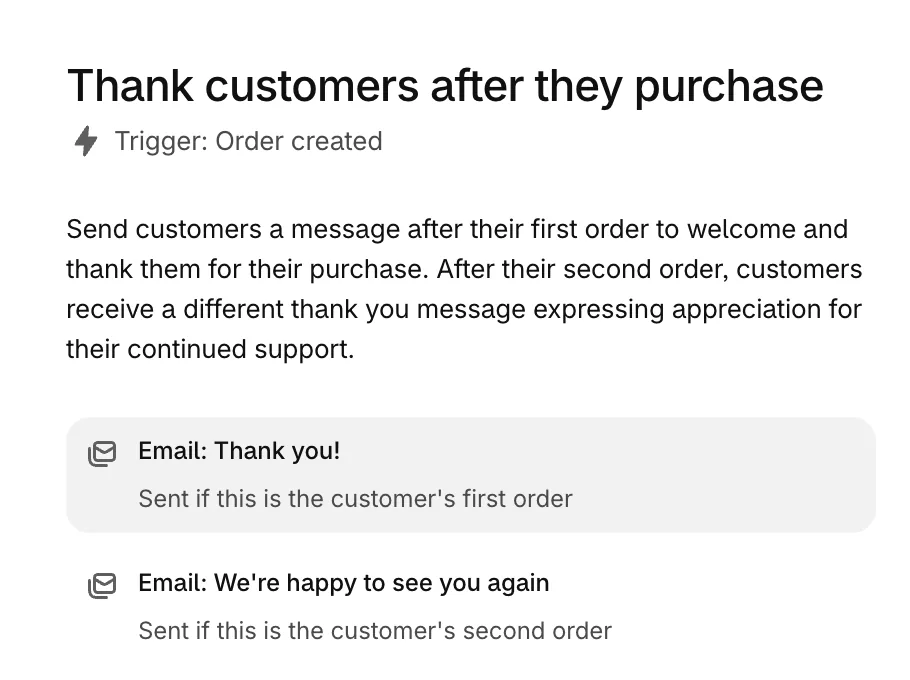
Shopify Messaging, formerly Shopify Email, can send it, but none of its automations is a review request. The nearest is "Thank customers after they purchase", which emails a buyer after their first and second orders. A third order gets no ask. Rewrite the first email, "Thank you!", as your ask, and the second, "We're happy to see you again", if repeat buyers should get one too.
- Go to Apps, then Messaging, then Automations, and click "Create automation".
- Pick "Thank customers after they purchase", which opens the preview above, then click "Edit emails".
- Paste a template into the subject and the first text block. Click "Send test" to read it on your phone, then "Save without turning on".
- Open the automation and click "Edit workflow", the steps behind the email. Add a Wait step before the email, or edit the one there, so it covers your shipping time plus the days in the table above, then click "Apply changes".
- Turn the automation on.
If the email can't show what each buyer ordered, use template 5, the store review, which names no product.
The automation reaches only customers subscribed to marketing. Its emails count toward your 10,000 free emails a month, and past that Shopify charges $1 per 1,000. Shopify Flow's own email action is meant for your staff and can't address each buyer, so it can't send the ask.
The Shop app asks on its own. Buyers who use Shop get a notification from the app asking for a review. You set the day, from 1 to 180 days after delivery, under Sales channels, then Shop, then Settings, in the "Shop reviews" section. Shopify shows those reviews in the Shop app.
A review app sends it for you. It can time the ask from delivery, name each product, send the reminder and collect the review on your product page. The eight apps in our review app comparison all send requests on their free plan, though some charge for the reminder or for timing it from delivery.
A developer can add the ask to Shopify's Delivered email. The buyer gets the ask on the day the carrier reports delivery. It costs a developer's time, since the wording sits in the email's code, plus a recheck whenever your notifications change. The Delivered email doesn't go out when the carrier reports no delivery, or on local delivery orders.
| Route | Who gets it | Counted from | Where the review shows | Cost |
|---|---|---|---|---|
| Shopify Messaging | Customers subscribed to marketing | The order, plus your wait | Where your button points | Free up to 10,000 emails a month, then $1 per 1,000 |
| Shop app | Shop buyers | Delivery, 1 to 180 days | In the Shop app | Comes with Shop |
| A review app | Buyers, per the app's settings | Delivery or fulfillment, per the app | On your product pages | Free plans exist, see the comparison |
| Delivered email, by a developer | The buyer, when the carrier reports delivery | Delivery | Where your button points | A developer's time |
Checked November 4, 2026, in Shopify's Help Center.
For the other emails that follow an order, see the post-purchase email flow.
Where should a review request email link?
Point the button at the page where the review gets written, one tap from the email. That page comes from your review app.
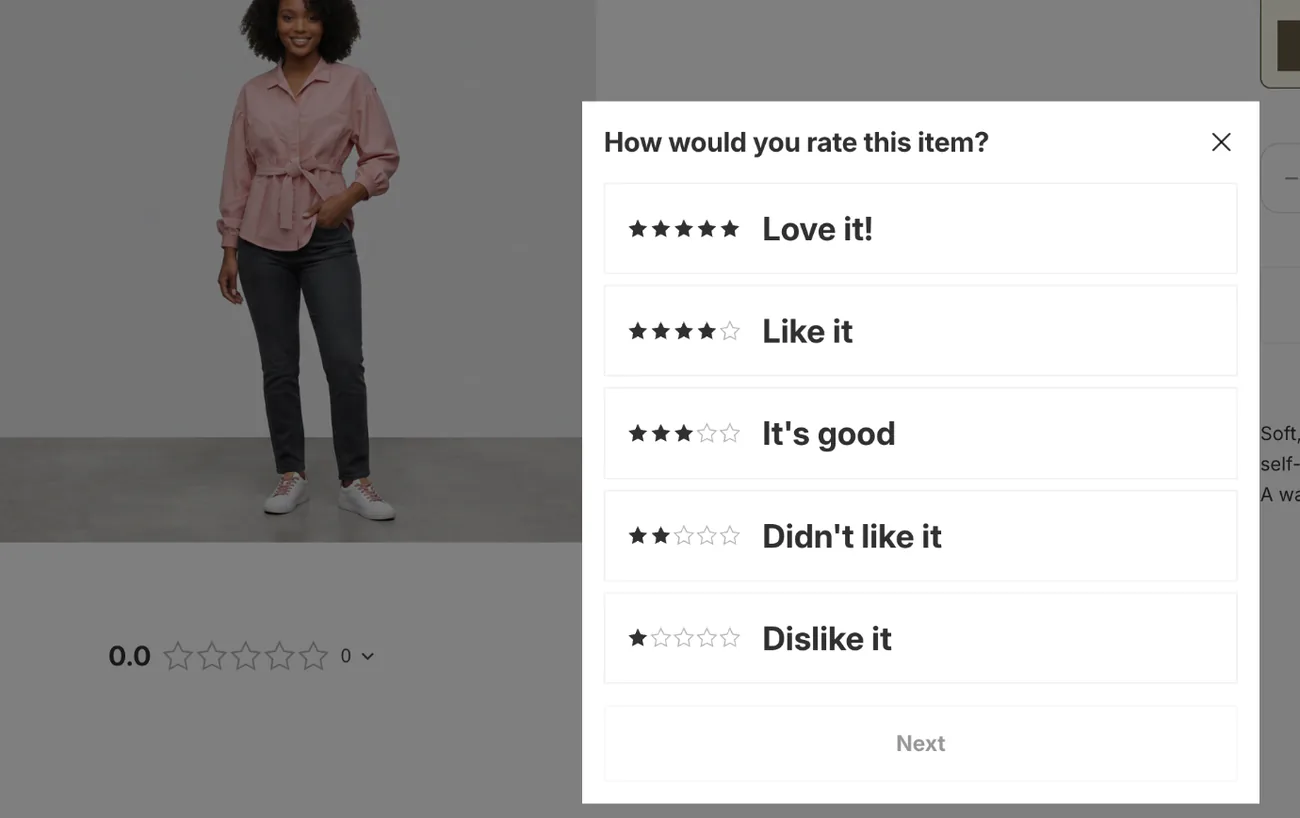
Sledge is a Shopify app that collects product and store reviews on your store. It doesn't send the email. Reviews come with all four paid plans and run during the 14-day free trial. If your reviews run on Sledge, link the button to the product page. There, Sledge's "Add a review" button opens a short form that starts with "How would you rate this item?", then takes the review, up to five photos, a name and an email.
For a store review, link your Happy Customer page, Sledge's page of product and store reviews. Reviews of four or five stars go live on their own by default, and you choose which of the rest to publish.
Can you ask only your happy buyers?
No. In the US, the FTC's guide for marketers says not to ask only the buyers you expect to leave good reviews. It also says not to ask people who haven't used the product.
If you offer a reward, every honest review should earn it, whatever the stars, and the review should mention it. Some review sites ban rewarded reviews outright, so check where yours will show. For the 2024 US rule on fake and hidden reviews, see how to make a testimonial page. This isn't legal advice.
FAQ
Questions, answered
-

14-day free trial
Explore Sledge on your store before you decide to commit.
-

No credit card required
Start improving your store with no upfront commitment.
-

Setup in minutes
Get Sledge running without a lengthy setup process.
-

Built to grow sales
Turn shopper behavior into actions that help you sell more.
When should you send a review request email?
After the parcel arrives and the buyer has used what is inside: three to seven days for clothing, two to three weeks for skin care or supplements. Count from delivery, not from the order. If your tool counts from the order, add your usual shipping time to the wait. Send one reminder about a week later, then stop.
What is a good subject line for a review request email?
Name the product and ask a question the buyer can answer, such as “How's your linen shirt working out?” A line like “We value your feedback” gives them nothing to answer. Keep it short enough to read on a phone, and send it from a person's name at your store. Two more to test: “Did the shirt fit?” and “Worth it?”
Can you offer a discount for a review?
In the US, yes, if every honest review earns it, whatever the stars. The FTC's guide for marketers says not to tie a reward to a positive review, and that the review should mention the reward. Some review sites ban rewarded reviews outright, so check where yours will show. This isn't legal advice.
Does Shopify send review request emails?
Not from your store. Shopify's own Product Reviews app is no longer on the App Store, and Shopify Messaging has no review request template, though you can rewrite its thank-you email as one. The Shop app asks Shop buyers itself after delivery, and Shopify shows those reviews in the Shop app.
Does Sledge send review request emails?
No. Sledge collects the reviews on your store. Its “Add a review” button on the product page opens a short form for stars, a review and up to five photos, and your Happy Customer page takes store reviews. Send the email from Shopify Messaging or another email tool, and point its button at that product page.
Which products need reviews first?
Try Sledge free for 14 days, and buyers can leave stars and photos on your product pages and your Happy Customer page. On a paid plan, Growth Intelligence can flag it when most of your products still have no reviews. What its fixes could add shows as one total in dollars, labeled "Est. potential".