An order confirmation email tells a buyer you have their order: what they bought, what they paid, where it is going and when to expect it. This order confirmation email template gives you the wording, so swap each bracket. Shopify already sends one for every order placed with an email address, so on Shopify the job is changing its words without losing its order status link.
A buyer pays at 11pm and gets an email headed "Order #1042 confirmed". It says nothing about when the parcel leaves. By 8am you have three messages asking whether the order went through and when it ships.
What does Shopify's order confirmation email say by default?
Shopify sends an Order confirmation for every order placed with an email address, and it already carries the order number, the items, the totals and the payment.
It sits under Settings, then Notifications, then Customer notifications, in the "Order processing" group, described as "Sent when a customer places an order". On most plans you can't switch it off. A buyer who gave only a phone number gets one text instead, if your store sends them.
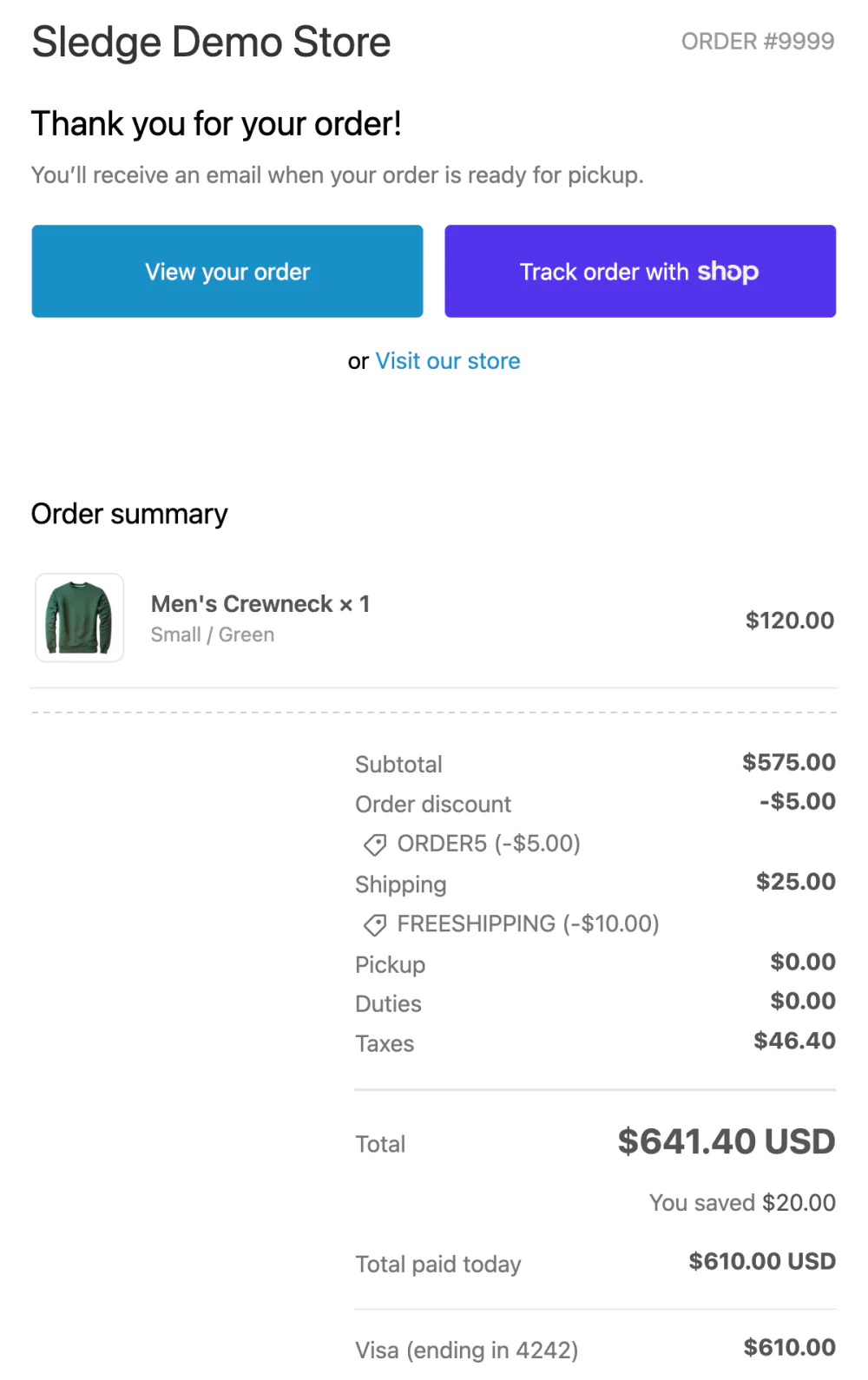
The default opens with "Thank you for your order!" and a "View your order" button. Below come the "Order summary" with each item, the subtotal, discounts, shipping, taxes and the total, then the customer's details and the payment.
It leaves out what only you can say: when the parcel ships, how long delivery takes and what to do if the address is wrong. That is the part to write. Shipping confirmation is a separate email, sent when you fulfill, and the post-purchase email flow covers the whole run. A buyer who wants a receipt instead will find one in the receipt template.
Order confirmation email template to copy
Free to use. Shopify fills in the order number, items, totals, address and payment, so the template gives you the sentences to write around them. The details are an example.
Order confirmation email
Subject. [Order #1042 is confirmed]
Heading. [Thanks, Sam. We have your order.]
Opening line. [We're packing it now. Orders placed before 2pm ship the same business day.]
Shopify fills in. Order number, items, quantities, prices, subtotal, shipping, tax, total, payment method and shipping address.
Delivery. [Ships within 1 business day. Standard delivery takes 3 to 5 business days after that.]
What next. [A second email with a tracking link follows when it ships. Until then, "View your order" shows where it stands.]
Changes. [Need to fix the address or size? Reply within 2 hours and we'll sort it before it leaves.]
Returns. [Unused items can come back within 30 days. Details are on our returns page.]
Sign-off. [Thanks again, Mia at Cedar & Clay. hello@yourstore.com]
Template written and Shopify settings checked November 18, 2026.
- Promise a ship date you can keep. A buyer reads it as a deadline.
- Put the facts first. An offer, if you add one, goes below the details, and a bigger one can go on the thank-you page.
- Write it in the voice of the rest of your store, as in these brand voice examples.
- Leave the "View your order" button in, for the reason below.
Order confirmation email subject lines
Shopify's own subject reads "Order #9999 confirmed" in its preview, with sample data. Keep the word "confirmed" and the order number, so a buyer can find the email later by searching their inbox.
- Order #[1042] confirmed
- We have your order, [first name]
- Your [store name] order #[1042] is confirmed
- Thanks for your order #[1042]: ships by [Friday]
- Order #[1042] is in. Here's what happens next
- Pre-order #[1042] confirmed: ships [March 3]
Order confirmation email examples
Three made-up examples for orders that need more than the standard line. Each keeps Shopify's order summary and adds your own lines.
- Made to order, a ceramics studio. Subject: Order #1042 confirmed: made in 8 to 10 days. Body: "Thanks, Sam. Your mugs are made after you order, so they ship in 8 to 10 days, not tomorrow. We'll email a tracking link the day they leave. Want a different glaze? Reply within 24 hours."
- Pre-order, a coffee roaster. Subject: Pre-order #1042 confirmed: ships March 3. Body: "You're in. Your beans roast in the first week of March and ship on March 3. We'll email the moment they're on their way."
- Local pickup, a plant shop. Subject: Order #1042 confirmed: ready Thursday. Body: "Thanks, Sam. Collect your order at our shop on Thursday, 10am to 6pm. Bring this email or your order number."
How do you edit the order confirmation email in Shopify?
Shopify's settings change the logo and color of every email at once, and the words of one email only through "Edit code".
- In your Shopify admin, open Settings, then Notifications, then Customer notifications.
- For your logo and accent color, click "Customize email templates", choose a file and pick a color.
- For the words, open "Order confirmation" and click "Edit code", which opens that email's editor. Shopify asks you to confirm your sender email address first.
- Change the subject in the "Email subject" box, and leave anything in curly brackets alone, because Shopify fills in details such as the order number there. Below it, "Email body (HTML)" holds the email as code: edit only the plain sentences and leave the rest alone.
- Click "Preview" to see your changes. Use "Send test" on the preview page to email a sample to the address you log in with, then click "Save".
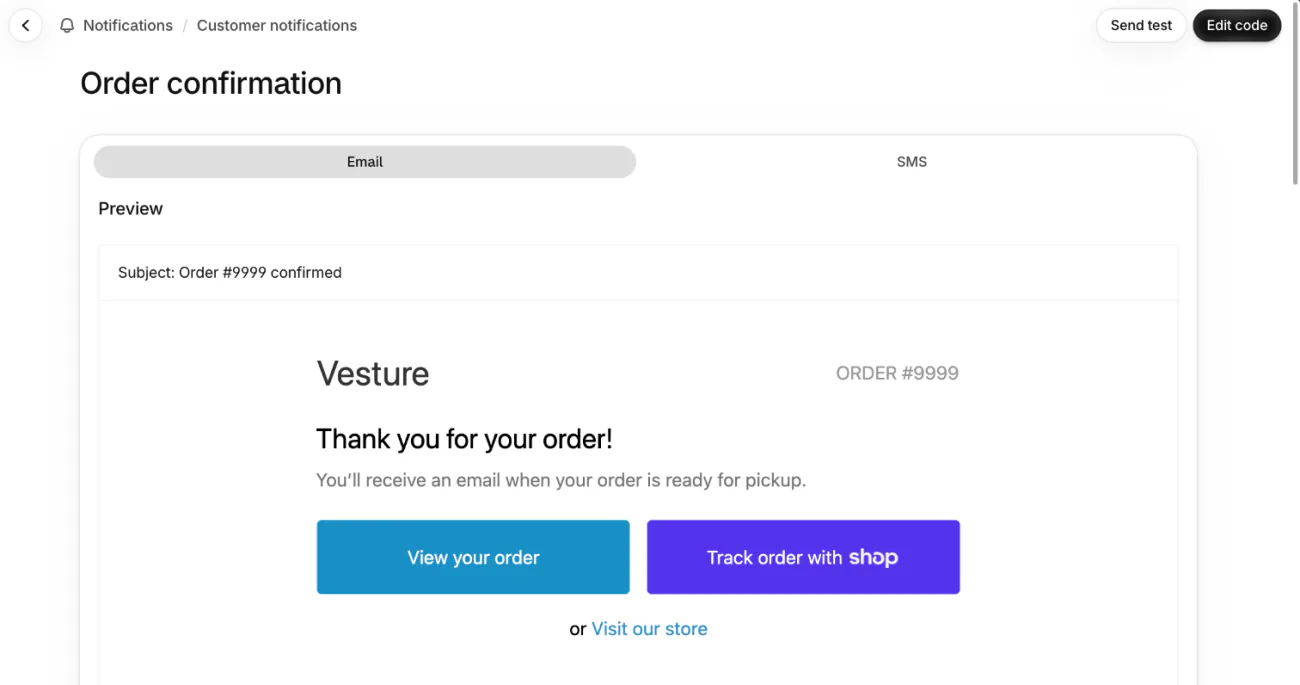
The editor shows the email as code, and that is the one real cost. If code is new to you, Shopify suggests hiring a Shopify Partner, which costs money, and sending yourself a test email after each change. Made a mess? Click "Revert to default" under the email body to return to Shopify's version. Your logo and color stay.
Will editing the order confirmation email break the order status link?
Shopify's Help says it can't add the order status link to an email you have customized, so keep the "View your order" button when you edit.
The button leads to the order status page, where a buyer sees where the order stands. Shopify's own fixes for a customized email are to click Revert to default, which erases your changes and can't be undone, or to add the link back by hand, which it calls an advanced job it doesn't support.
To see whether yours was customized, click "Edit code" and look under the email body. "Revert to default" is greyed out on a template nobody has changed.
For 3 weeks, a buyer on the same browser can open the order status page from the email without logging in. After that, Shopify asks them to log in or to give the order number and the email or phone number from checkout. Add tracking numbers, because without one the page stays at "Confirmed".
After each change, place a test order with Shopify's Test payment gateway, which needs a paid plan, open the email and click the button.
Where does an upsell go, in the email or on the thank-you page?
A bigger offer fits the thank-you page, which the buyer sees the moment payment clears, before any email. Sledge is a Shopify app that can put a short offer on that page, through its Thank You Page tool under Tools, then Bundle, Discount & Upsell. The offer stays on the page and never appears in this email. The thank-you page upsell guide shows how to set one up.
FAQ
Questions, answered
-

14-day free trial
Explore Sledge on your store before you decide to commit.
-

No credit card required
Start improving your store with no upfront commitment.
-

Setup in minutes
Get Sledge running without a lengthy setup process.
-

Built to grow sales
Turn shopper behavior into actions that help you sell more.
What is an order confirmation email?
An order confirmation email is the message a buyer gets right after paying. It repeats the order number, the items, the total, the payment and where the order is going. On Shopify it is the Order confirmation notification, sent for every order placed with an email. A buyer who gave only a phone number gets a text instead, if your store sends them.
Can I turn off Shopify's order confirmation email?
On most plans, no. Shopify says most customer notifications go out automatically and can't be deactivated, and Order confirmation isn't one of the few you can switch off. A Shopify Plus store can ask Shopify Support to turn specific ones off. To send one again, open the order, find the email in the Timeline and click Resend email.
How do I edit the order confirmation email in Shopify?
Go to Settings, then Notifications, then Customer notifications. Customize email templates adds your logo and color to every email. For the words, open Order confirmation, click Edit code, change the subject or body, click Preview, use Send test on the preview page, then click Save. If code is new to you, Shopify suggests hiring a Shopify Partner.
Will editing the order confirmation email remove the order status link?
It can. Shopify's Help says that once you customize this email, Shopify can't put the order status link in for you. Keep the View your order button while you change the words, then place a test order and click it. Reverting to the default brings the link back and erases your changes.
Is the WooCommerce order confirmation email the same?
The wording and subject lines on this page work there too. The settings differ: WooCommerce sends its Processing order email to customers with their order details after payment, and you edit its subject and heading under WooCommerce, then Settings, then Emails.
The email confirms one sale. How many shoppers left before it?
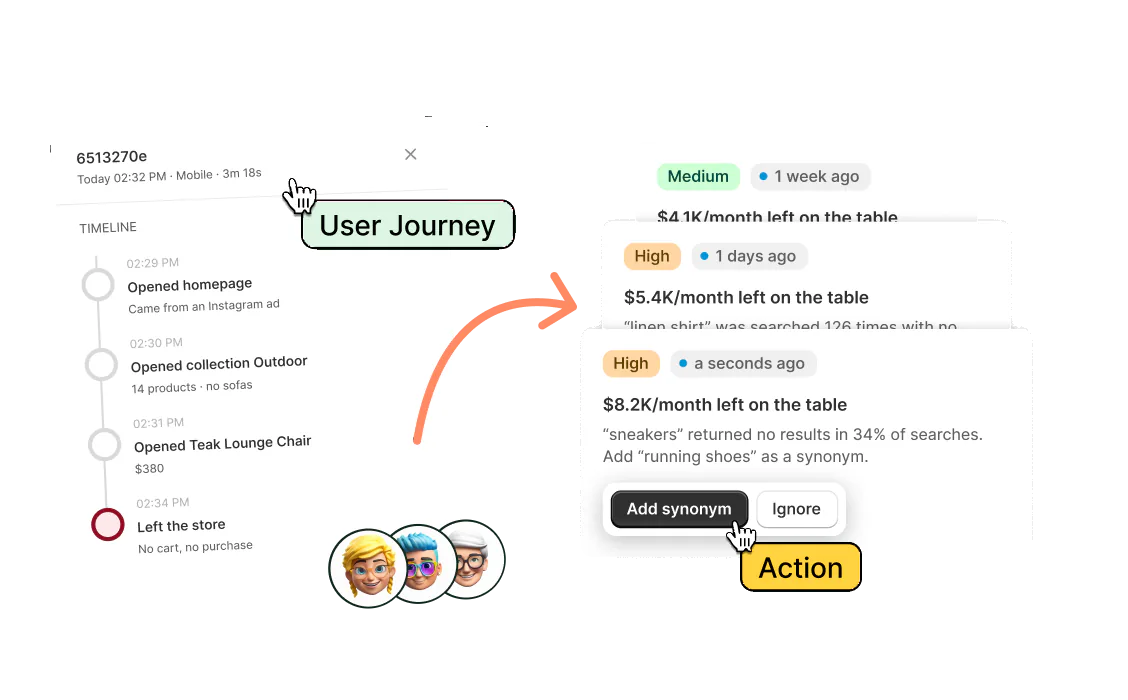
Sledge doesn't send or edit your order confirmation email. Shopify does. Sledge works on the store itself: search, filters, bundles, a cart drawer and a Thank You Page offer shown after payment. Try it free for 14 days. Growth Intelligence turns on when you pick a paid plan. It reads your store's searches, carts and orders, and totals what its suggested fixes could add in one figure, labeled "Est. potential".