A call to action is the few words on a button that tell a shopper what to do next, such as Add to cart or Get my 10% off. Below are 20 call to action examples to copy for a product page, cart, sale banner, sign-up popup and email, with where to type each group.
Your sale banner says "Click here" and your sign-up popup says "Submit". Neither tells a shopper what they get when they tap.
What makes a good call to action for a store?
A good button line starts with a verb, says what the shopper gets and adds a limit only when the limit is real.
- The formula: a verb, then what you get, then a real limit.
- "Get my 10% off" has a verb and a reward.
- "Shop the sale, ends Sunday" adds a limit, and belongs there only if the sale ends Sunday.
Three habits keep a line honest. Give each button one job. Use two to five words. Send the click where the words promise.
On a store, the call to action is the button. The 20 lines below are grouped by where the button sits, with where to type each group.
Product page call to action examples
Most of your product page's button words live in one place, Shopify's theme content. Five lines to start from, each with when to use it:
- Add to cart. The plain default, right for most products.
- Add to bag. Clothing and bags, where "cart" sounds cold.
- Add to cart, ships today. Only when you do ship that day.
- Pre-order, ships March 3. Stock arrives later, so promise a date you can keep.
- Sold out for now. The word for an empty product you will restock.
Lines written for this page in November 2026. Shopify's Help pages checked November 18, 2026.
To retype one, follow Shopify's steps for changing the wording in your theme:
- In your Shopify admin, open Online Store and click the three-dot menu beside your theme.
- Choose "Edit default theme content", the page that holds the words your theme prints. Older guides call it "Edit languages".
- Click the search icon (Shopify's Help calls it "Filter items") and type the words your button shows now. The matching rows list below.
- Type your own words over the old ones and click Save.
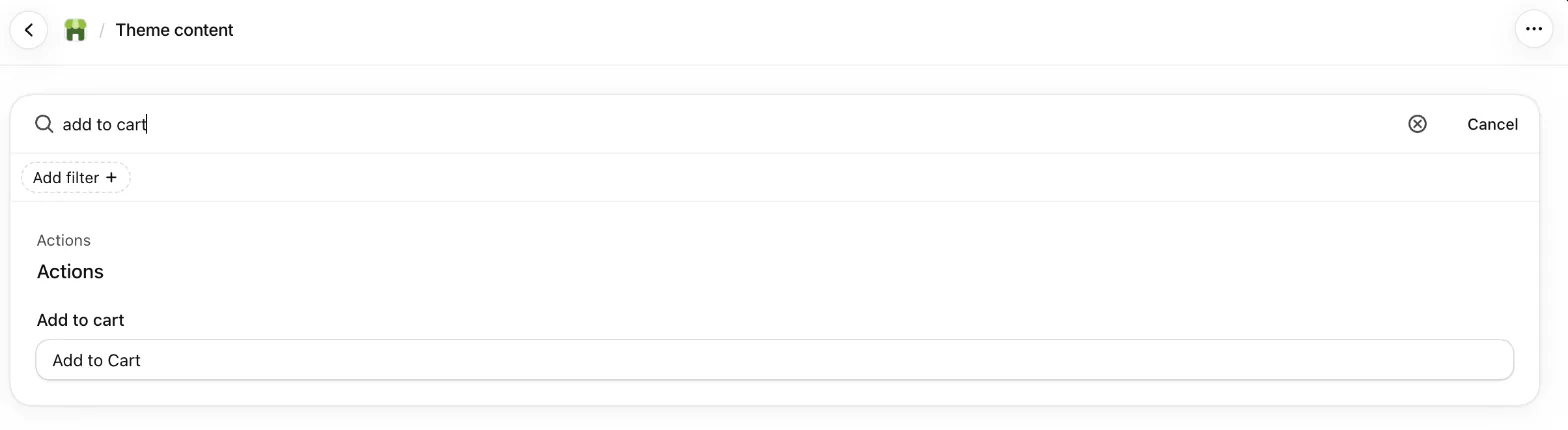
On the theme checked for this page, the "Add to cart" row sits under the Actions tab, and "Sold out" sits under Checkout & system as "Sold out label". The tabs differ by theme. The change reaches the whole store, and it covers your default language only. Other languages go through Shopify's Translate & Adapt app or a file you upload.
That reach is the trap for a pre-order line. "Pre-order" typed here becomes the default word for the whole store, so products in stock may show it too. To mark only some products, this editor is the wrong tool.
The "Buy it now" button may not follow this. Shopify's Help lists only its color and font, not its words. For where the button sits and how big it is, see the product detail page guide.
Cart call to action examples
Three lines for the cart, each matching a button your theme already prints:
- Review my cart. For "View cart".
- Check out. For "Check out", which is already plain, so leave it.
- Keep shopping. For "Continue shopping".
Where these words live depends on your theme. Shopify's Help says a "Sections" tab holds wording about the cart, and its own example turns "Continue shopping" into "Continue indulging". The theme checked for this page had no Sections tab, a search for "view cart" found nothing, and "Check out" turned up only inside sentences. "Continue shopping" sat on the thank-you and account screens. Search for the words your theme prints, and not for the ones you want.
Sale banner call to action examples
A Sledge banner or countdown timer can carry a button, and you type the words. Five lines to try, each with its limit:
- Shop the sale. The safe line for any discount.
- Shop gifts under $[50]. Put your real price cap in the brackets.
- Get free shipping. Only while the offer runs.
- Shop before it ends. Only beside a real end date.
- See what's new. For a launch or a restock, with no discount to claim.
In Sledge, open Promotion, then Banner, then "Add banner":
- Under "Banner content & behavior", tick "Add button".
- Pick "Primary" or "Secondary" under "Button style".
- Type your words in "Button text".
- Put the page the click opens in "Redirect URL".
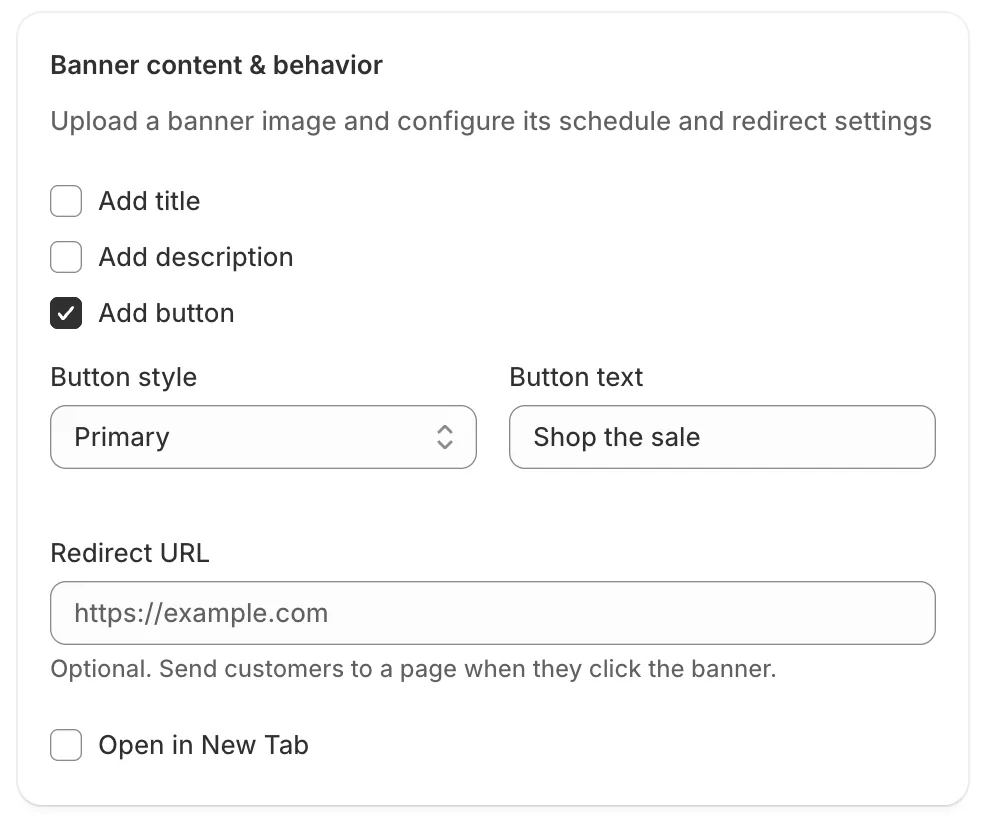
"Button style" starts on "Image button", and "Button text" stays greyed out until you pick "Primary" or "Secondary". The preview beside the form shows the button. With "Image button" there is no button, and a Redirect URL turns the whole banner into the link, as the note under it says: "Send customers to a page when they click the banner." A banner shows on collection pages, the search page, the search drop-down and the cart drawer.
A countdown timer takes the same kind of button. In Sledge's promotions, set "Call to action" to "Button" on a Global or Product Countdown, and a "Button text" box and a "Link" box open. "Make entire bar clickable" turns the whole bar into the link, with no button.
For the dates a sale should start and end, see how to schedule a sale banner.
Sign-up popup call to action examples
Shopify's own popup lets you type the button words, and caps them at 25 characters. Four lines that fit, with their counts:
- Get my 10% off. 14 characters, for a discount in return for an email.
- Join the list. 13 characters, when there is no offer.
- Send me the guide. 17 characters, for a free download.
- Tell me when it's live. 22 characters, for a launch.
In Shopify Forms, open a popup form and type the line in "Button label". Shopify's Help calls it a clear call to action, and offers "Sign Up", "Subscribe", "Submit" and "Get my discount" as examples. The lines above tell the shopper more.
The form's title can carry the offer, up to 50 characters. A popup appears only after the "Forms" switch under "App embeds" in your theme editor is on and the form is activated.
Email call to action examples
Three lines for three other emails:
- Track my parcel. For a shipping update.
- Shop the restock. For a back-in-stock note.
- Reorder my favorites. For a customer who bought before.
The button is typed inside your email tool's button settings. Whole emails with a button line each are in the abandoned cart email, product launch email and review request email guides, and the order confirmation email has its own "View your order" button.
How do you know which button line works?
Change one line at a time, and leave it long enough to cover whole weekdays and weekends.
On the Grow plan or higher, Shopify's Rollouts can run a theme edit as an Experiment and report Add to cart rate and Reached checkout rate. Shopify's Help does not say whether a change made in the wording editor can ride in a rollout. Without Experiments, note the date of the change and compare the same weekdays before and after.
Rollouts also schedules theme edits, which the sale banner guide explains.
FAQ
Questions, answered
-

14-day free trial
Explore Sledge on your store before you decide to commit.
-

No credit card required
Start improving your store with no upfront commitment.
-

Setup in minutes
Get Sledge running without a lengthy setup process.
-

Built to grow sales
Turn shopper behavior into actions that help you sell more.
What is a call to action?
A call to action, or CTA, is the short prompt that tells a shopper what to do next, usually the words on a button, such as Add to cart, Shop the sale or Get my 10% off. It sits on the product page, in the cart, on a sale banner, in a sign-up popup and in emails.
What is a good call to action for an online store?
A good call to action starts with a verb, says what the shopper gets and adds a limit only when the limit is real. Get my 10% off says more than Submit, and Shop the sale says more than Click here. Two to five words usually fit, and the click must lead where the words promise.
How do you change the Add to cart button text in Shopify?
Open Online Store in your Shopify admin, click the three-dot menu beside your theme and choose Edit default theme content. Click the search icon, which Shopify's Help calls Filter items, and search for Add to cart. Type your words and click Save. It changes the default text for the whole store, not one product, and only for your default language.
How long can a button line be?
Shopify Forms limits a popup's Button label to 25 characters, its title to 50 and its text to 100, according to Shopify's Help Center. Other buttons have no limit that Shopify's Help states, so keep every line to two to five words.
Does Sledge change my Add to cart button?
No. Reword the Add to cart button in your theme's content, as above. Sledge's Promotion tool puts a button on a banner or a countdown timer, and takes your own words for it: you type the text and the page the click opens, and you can edit them any time.
A good button gets the click. Does the next page keep the sale?
Sledge doesn't reword your theme's Add to cart button. Your theme and Shopify do. Sledge's Promotion tool puts a button with your own words on a banner or a countdown timer. Try it free for 14 days. Growth Intelligence turns on when you pick a paid plan. It reads your store's searches, carts and orders, and totals what its suggested fixes could add in one figure, labeled "Est. potential".