Shopify builds your sitemap and secure pages for you. A Shopify SEO checklist starts with the eight jobs it leaves to you: make the store public, connect Google Search Console, write page titles and descriptions, add alt text, redirect changed links, link every page, write your own product copy, and check your speed.
You type your best seller into Google and your store isn't there. The advice you find is a long list, and Shopify already did some of it. These are the eight still yours. Going public comes first, because nothing else shows until search engines can see your store. Search Console comes second and shows what Google has indexed.
| Job | Where in Shopify | Done when |
|---|---|---|
| 1. Go public | Online Store, the menu beside View store | The menu reads Public |
| 2. Search Console | Settings, Domains, then Search Console | Google has your sitemap |
| 3. Titles and descriptions | Products, Search engine listing | Each key page has its own title and description |
| 4. Alt text | Products, a product photo | Every product photo has a line |
| 5. Redirects | Content, Menus, URL redirects | No changed link opens Page not found |
| 6. Links | Content, Menus | Every collection sits in a menu |
| 7. Product copy | Products | Your best sellers read in your own words |
| 8. Speed | Online Store | You know which scores read Poor |
What does Shopify already do for your SEO?
Shopify handles the technical basics, so skip them. It builds your sitemap, the list of your products, collections, pages and blog posts that search engines read, and keeps it current. Tags it adds tell search engines which address of a page is the main one, so duplicate addresses don't compete. Secure pages are on by default, your store name goes into titles, and each product's price and availability reach search engines in a form they read. Shopify's SEO overview lists these built-in features.
It can't know your products, though. Shopify's audit guide says you still choose the searches to target, write the product information and decide which pages stay findable.
Job 1: is your store public and out of trial?
Search engines won't list a private store or a trial store. Shopify's Help Center says that in private mode every page is hidden from visitors and search engines, and that a new store starts that way. It also says search engines don't index trial stores, and that you can choose a plan when you're ready.
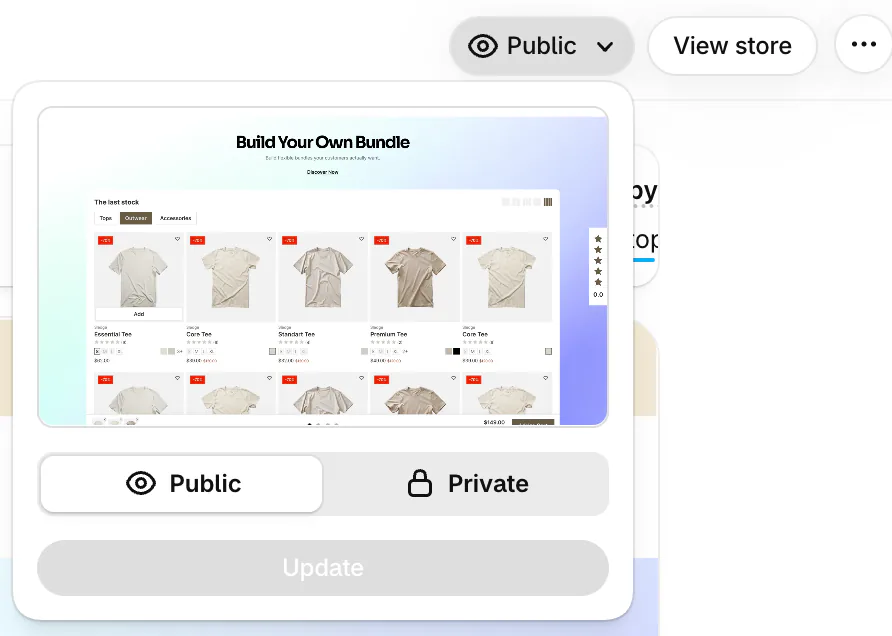
In your admin, go to Online Store. The menu beside View store reads Public or Private. If it reads Private, click it, choose Public and click Update. Shopify's Help Center says the button reads Launch store the first time, and before launching you pick a plan, add a store address under Settings, then General, and set up a payment method with test mode off. If you set the store to Private for a redesign, set it back to Public the day you finish. Search engines then need to visit again, and Google doesn't guarantee how long that takes.
Job 2: how do you connect Google Search Console to Shopify?
Search Console is Google's free report on how your store shows up in search. You need it to send your sitemap and to see which pages Google has indexed, meaning stored for results.
First prove the store is yours. For a whole domain, Google accepts one proof, a short line of text you add at the company that holds your domain name. If Shopify holds it, go to Settings, then Domains, click your domain, open the DNS settings, click Manage, then Add custom record, pick the record type Google names and add the line it gives you. If another company holds it, add the line in that company's DNS settings. Shopify says changes can take up to 24 hours.
Shopify's own steps use another proof, a line added to your theme, and they work only if you add the store as a "URL prefix" property, the kind that covers one web address. That changes your theme, so ask a developer if you aren't sure. A store still on its myshopify.com address has no DNS settings, so these are the steps that fit it.
Then, in Search Console, click Indexing, then Sitemaps, type sitemap.xml, the name Shopify gives your sitemap, and click Submit. Google can't read it while your store is private.
Job 3: how do you write page titles and meta descriptions in Shopify?
Each page you want found needs its own title and description. The title is the blue link in Google. The meta description, as Shopify labels it, is the short summary Google can show under the link.
- Go to Products and click a product.
- Find "Search engine listing" and click the pencil.
- Fill in "Page title" and "Meta description", then click Save.
Steps follow Shopify's Help Center, read November 6, 2026.
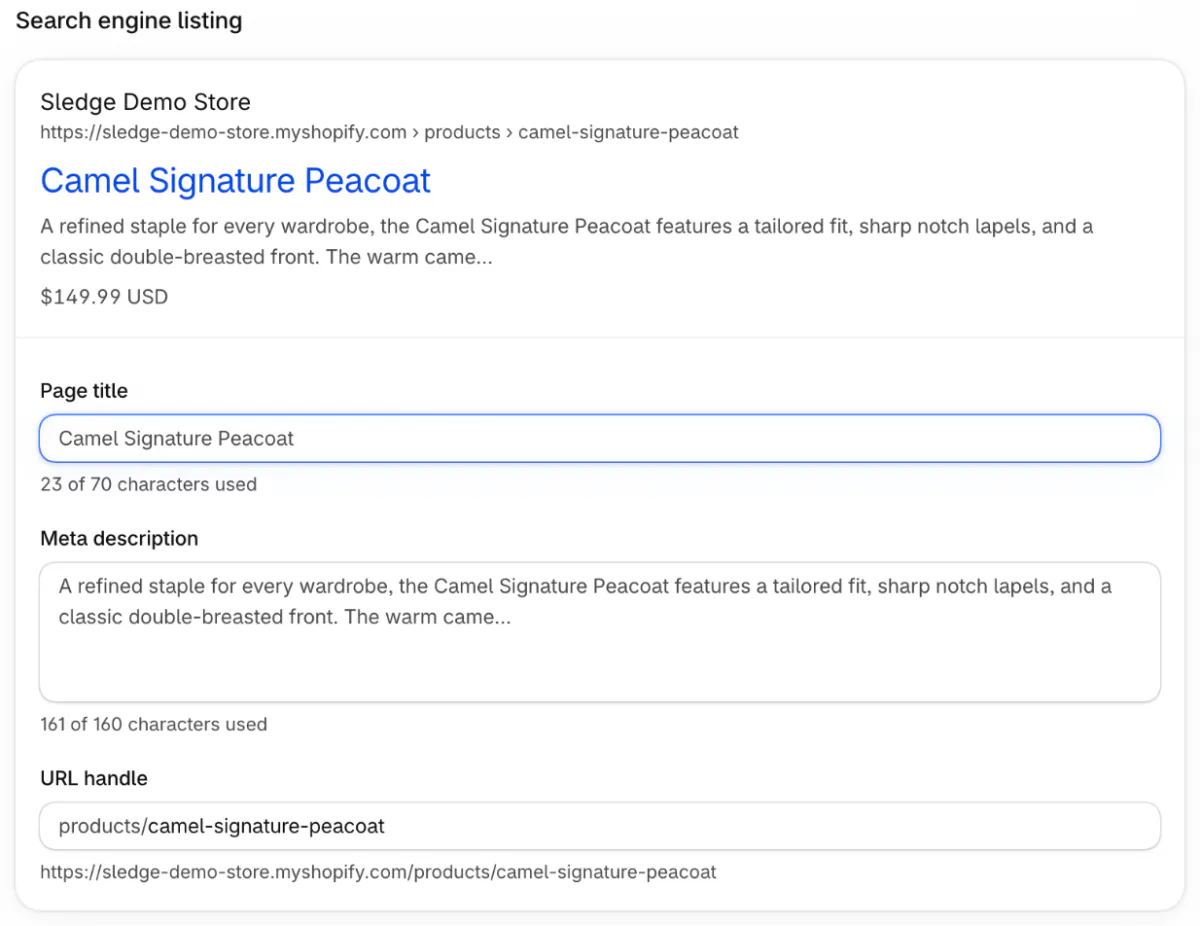
Collections work the same way under Products, then Collections. Your homepage's fields sit under Online Store, then Preferences, in the "Social sharing image and SEO" section.
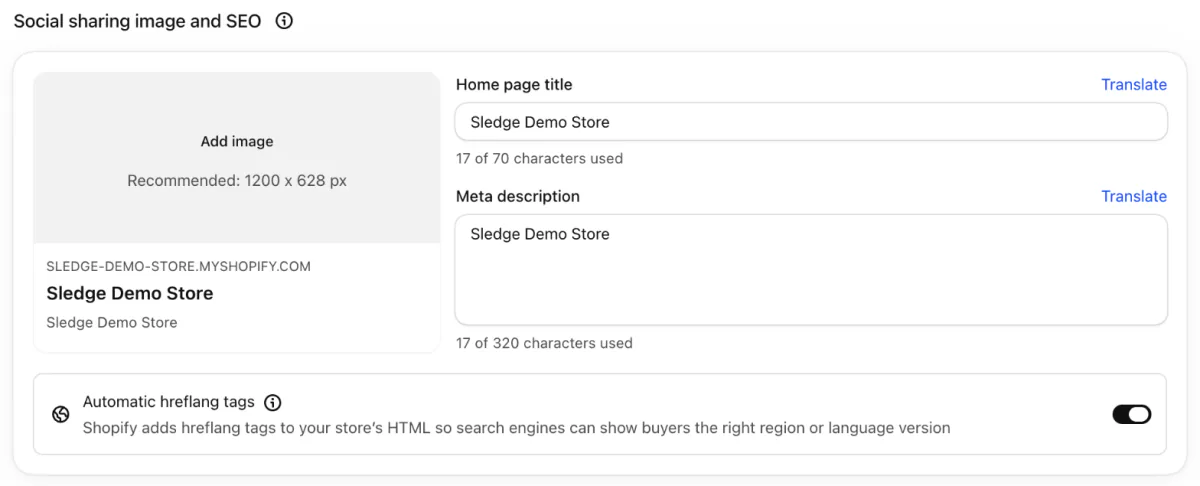
Shopify's Help Center advises titles of 60 characters or fewer and descriptions of about 160. The counters under the boxes read "of 70" for a title, "of 160" for a product's description and "of 320" for the home page's, so go by the advice, not the counter. Put the words a shopper types first. Search Console shows the searches that already bring people to your pages. Google may write its own title when yours repeats across pages or doesn't match the page.
Sample wording for a coat: the title "Camel wool peacoat for women" and the description "A double-breasted peacoat in camel wool, cut long to wear over knits."
Start with your homepage, your top collections and your ten best sellers. Our store audit shows how to find the pages shoppers land on.
Job 4: how do you add alt text to Shopify images?
Alt text is one line describing a photo, for shoppers who can't see it and for search engines.
- Go to Products and click the product.
- Click a photo to open its preview, and find "Alt text" under "Information".
- Type a line that describes the photo in the Alt text box.
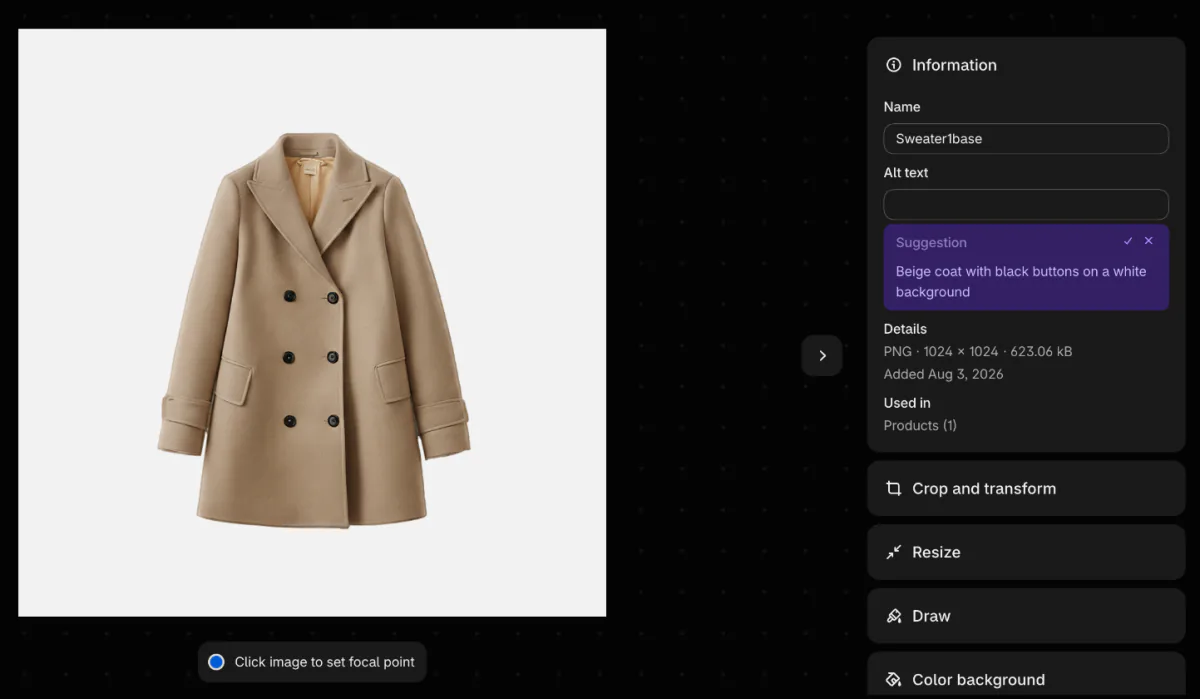
Shopify's Help Center says to click Save alt text once you've typed. On the store we checked, the preview showed no such button before any text went in, and we did not test saving, so reopen the photo afterward to check the line stuck. A Suggestion may appear under the box, with a tick and an X, and the Help Center says accepting one saves it.
Shopify recommends 125 characters or fewer. Describe what the photo shows, such as "Camel wool peacoat, front view, buttoned". Google's image guide says to skip keyword lists, which can look like spam.
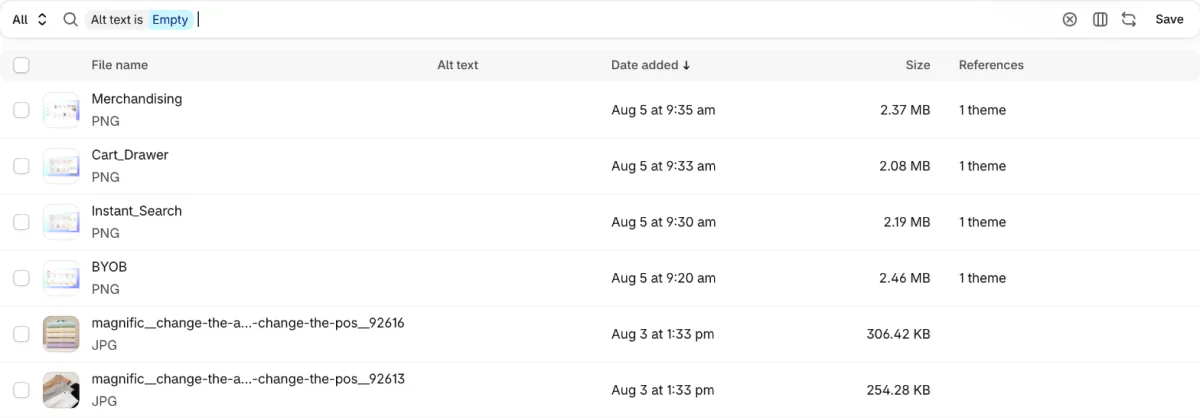
Name photo files before you upload them, because Google prefers short, descriptive names to camera codes. For many products, Shopify lets you upload alt text in a spreadsheet file. To find photos with none, go to Content, then Files, filter by Alt text and choose Empty.
Job 5: how do you redirect an old Shopify link?
When an address changes or a page goes, send the old address to the closest live page. If you change a product's web address, leave "Create a URL redirect" ticked and Shopify does the rest.

A deleted product shows Page not found, so add the redirect yourself under Content, then Menus, then "URL redirects". Send it to the closest product or collection, not the homepage.
Every click is in our guide to Shopify URL redirects, and a move from another platform is in how to migrate to Shopify without losing search traffic.
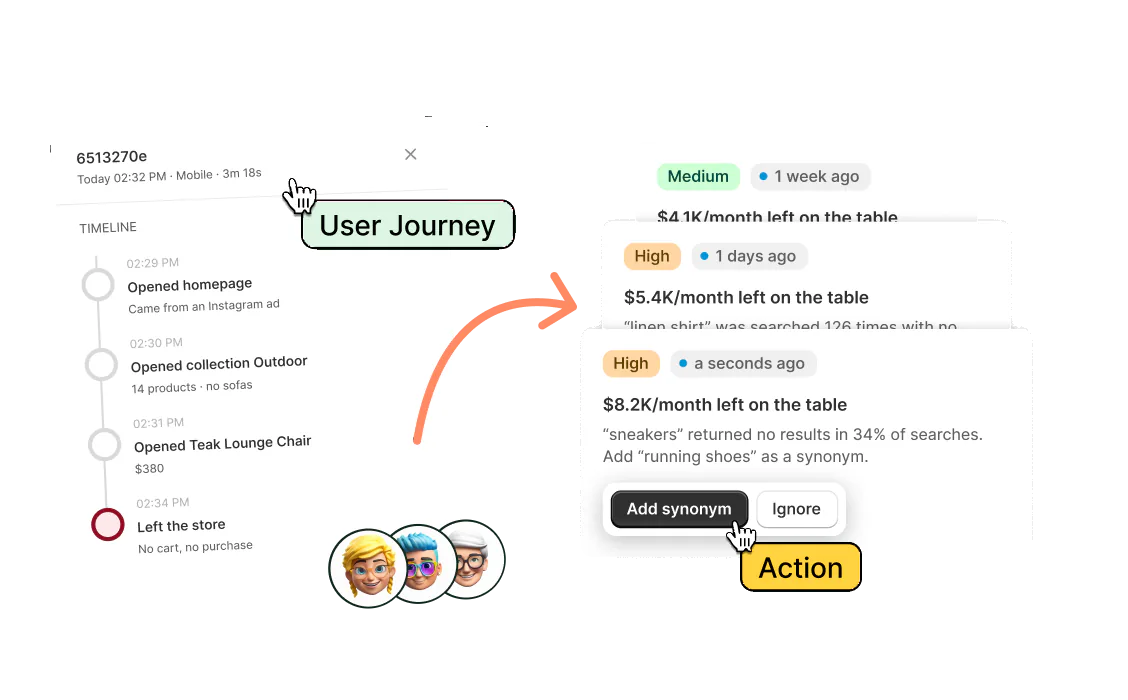
In Sledge, the Journey tab of Analytics flags a visit that opened your Page not found screen and ended without a sale as "Landed on a broken link", and shows the address it tried.
Job 6: can search engines reach every collection and product?
A page that no menu links to is hard to find. Shopify's Help Center asks for a menu link to every page, no page more than three clicks from the homepage where possible, and link text that names the page, like "red hat", not "click here". Edit menus under Content, then Menus.
Start with collections. Shopify's audit guide quotes a senior SEO lead at Shopify saying collection pages tend to rank above single product pages, and says a collection nothing links to can struggle to rank.
If an app shows your product grid a moment after the page opens, check what Google sees. In Search Console, enter a collection's address in the URL inspection box, click Test live URL, then View tested page, and look for a product's name in the page text. If it isn't there, ask the app's maker.
Job 7: should you rewrite supplier product descriptions?
Supplier copy reads the same on every store that uses it. Shopify's audit guide says Google doesn't automatically penalize ordinary duplicate content, but original product information gives your page something the others lack. Rewrite each best seller's description to say what it's made of, who it fits and how it differs.
Open Products, click the product and edit its description. Check that each collection's title and description fit the products inside it.
Job 8: how do you check your Shopify store's speed?
Shopify scores your speed from real shoppers' visits. Go to Online Store. The performance summary at the top rates "LCP P75" (loading speed) and "INP P75" (response to taps) as Good, Moderate or Poor over the last 30 days, and shows "Cumulative Layout Shift" (how much the page jumps as it loads) with a trend line. It fills in only once your store is public and can lag by up to 36 hours.

Click a score for its chart over time. Shopify marks app installs and theme updates on it, so a drop the week one went in points to your first suspect. If a score reads Poor, see our guide to improving Shopify store speed.
How do you run a Shopify SEO audit with this list?
An audit is the eight jobs run on your key pages, then checked in Search Console. Work them on your homepage, your top collections and your ten best sellers. Then open Indexing, then Pages, and compare what Google indexed with the pages you want found. Google says not every page gets indexed, and a page it has crawled but left out is common and not always a problem.
Repeat it at least twice a year, advice Shopify's guide credits to Semrush. After a fix, wait a few weeks, as Google advises, before you judge it. Links from other sites, and a Google Business Profile for a store with a shop front, sit outside this list. Shopify's SEO overview covers both.
FAQ
Questions, answered
-

14-day free trial
Explore Sledge on your store before you decide to commit.
-

No credit card required
Start improving your store with no upfront commitment.
-

Setup in minutes
Get Sledge running without a lengthy setup process.
-

Built to grow sales
Turn shopper behavior into actions that help you sell more.
What should a Shopify SEO checklist include?
Start with eight jobs: make the store public, connect Google Search Console and send your sitemap, write page titles and descriptions, add alt text to photos, redirect changed addresses, link every collection from a menu, write product copy in your own words, and check your speed report. Shopify already handles the sitemap and secure pages for you.
How do I do a Shopify SEO audit?
Run the eight jobs on your homepage, your top collections and your ten best sellers. Then open Search Console, go to Indexing, then Pages, and compare what Google indexed with the pages you want found. Shopify's audit guide cites Semrush advice to repeat this at least twice a year.
Why isn't my Shopify store showing up on Google?
Start with four causes: the store is still private, it is on a trial plan that search engines don't index, it is new and not found yet, or you moved from another platform and skipped the redirects. Search Google for site: followed by your web address. If nothing shows, send your sitemap in Search Console.
How long does Shopify SEO take to work?
Google says a change can show in a few hours or take several months, and suggests waiting a few weeks before judging it. Shopify says Google picks up new or changed pages within 48 to 72 hours, though that can't be forced and not every page is indexed. Change a few things, wait, then check Search Console.
Do I need an SEO app for Shopify?
Not for these eight jobs, since each one is a field or a setting in your Shopify admin or Search Console. An app can save time when hundreds of products need titles or alt text, though Shopify also lets you upload alt text in a spreadsheet file. Whatever you use, check the result in Search Console.
Google sent them. See where they leave.
Sledge doesn't write titles or alt text, redirect old links or move your rankings. Try it free for 14 days and Sledge Analytics flags visits that ended without a sale and says why, such as a broken link or a search that found nothing. Growth Intelligence turns on when you pick a paid plan and totals what its suggested fixes could add in one dollar figure, labeled "Est. potential".