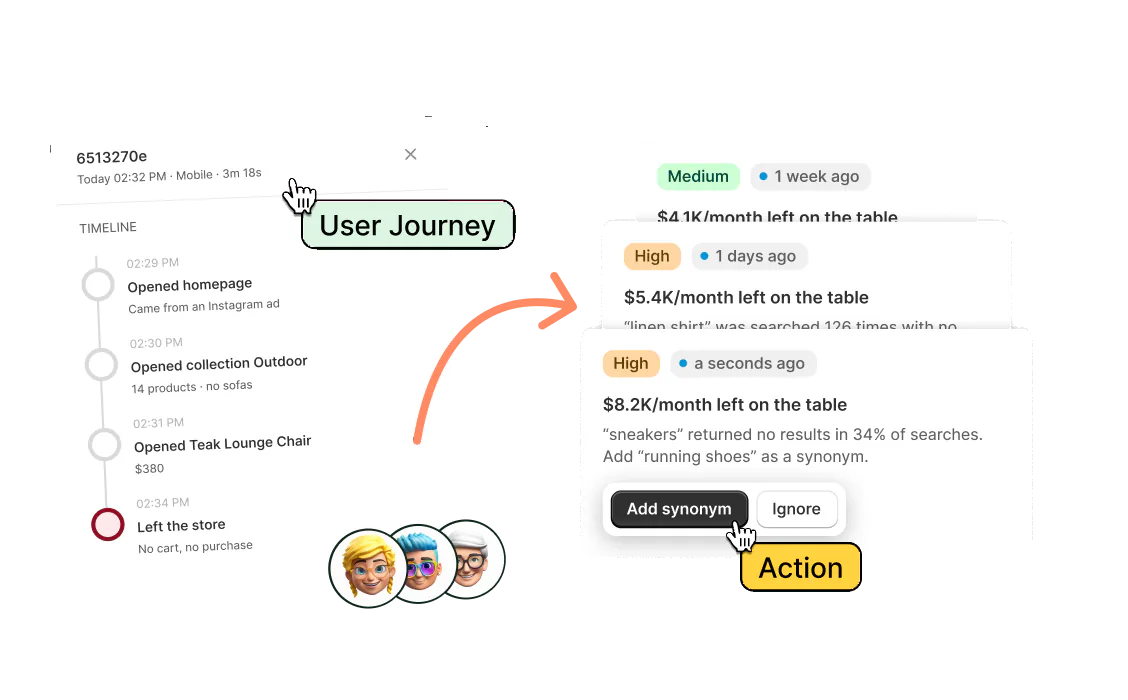
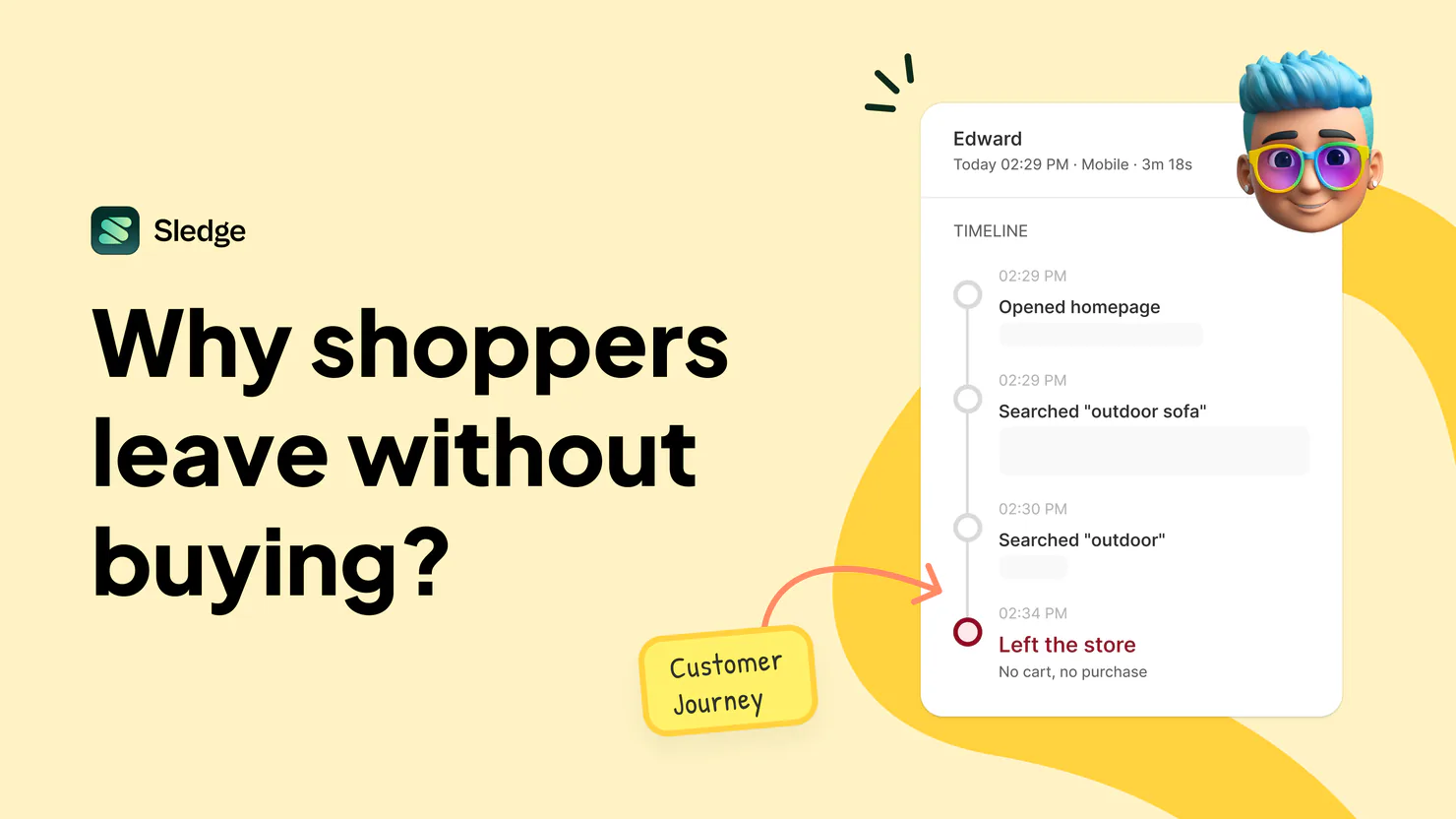
Shopify shows parts of a buyer's journey. Sledge Analytics lets you investigate individual visits, including those that end without a purchase, and flags visits when it can identify a likely problem. Here's how Shopify customer journey tracking works, what Sledge adds, and how to turn what you find into practical fixes.
Your Shopify store gets traffic. So why aren't more visitors buying? A shopper clicks your ad, opens a product, searches for another option, and leaves. You see the visit in your traffic report. But did they find the wrong product? Was their preferred size sold out? Did the link lead to a missing page? Without knowing what happened, you're left guessing which change might help.
What does Shopify show about the customer journey?
Shopify's order-level Conversion summary shows a buyer's visits in the last 30 days, including where the first visit came from. You can explore the conversion details and available session information to understand how that buyer reached your store.
Shopify also provides store-wide reports, such as Sessions by landing page, to help you understand traffic patterns.
These views are useful, but they answer different questions. Order-level conversion details focus on customers who placed an order, while store-wide reports show aggregated activity.
If you want to investigate a particular visit that ended without a sale, those reports may not give you the complete picture.
What does Sledge Analytics add?
Sledge is a Shopify app with tools for search, filters, merchandising, bundles, and the cart drawer. Its Analytics feature also records shopper activity as a timeline of individual visits.
You can investigate visits from buyers and non-buyers, including guest shoppers, and see actions such as searches, product views, filter use, and cart activity.
| What you want to know | Shopify order and traffic reports | Sledge Analytics |
|---|---|---|
| Where an order came from | Conversion details for available buyer journeys | Shopper and visit history |
| What happened during a visit | Available session and traffic details | A timeline of recorded shopper actions |
| What non-buyers did | Store-wide reports provide aggregate activity | Individual recorded visits, including guests |
| Why a visit ended without a sale | May require further investigation | Flags a visit when one of six supported reasons applies |
Sledge records visits without capping or sampling them. Your plan determines how far back you can review them: 30 days on Pro, 60 on Scale, 90 on Accelerate, and 120 on Ultimate. Certain detailed fields, such as a selected sold-out product option, are retained for 14 days.
One important distinction: Sledge provides event-based timelines, not session recordings or heatmaps. You see recorded actions in sequence rather than a video of the shopper's screen.
How to see the customer journey in Shopify using Sledge
You can go from an overview of shopper activity to an individual visit in five steps.
1. Open the Journey tab
In Sledge, go to Analytics and select Journey. The date picker defaults to Today, so expand the range to the last seven or 30 days if you want a broader view.
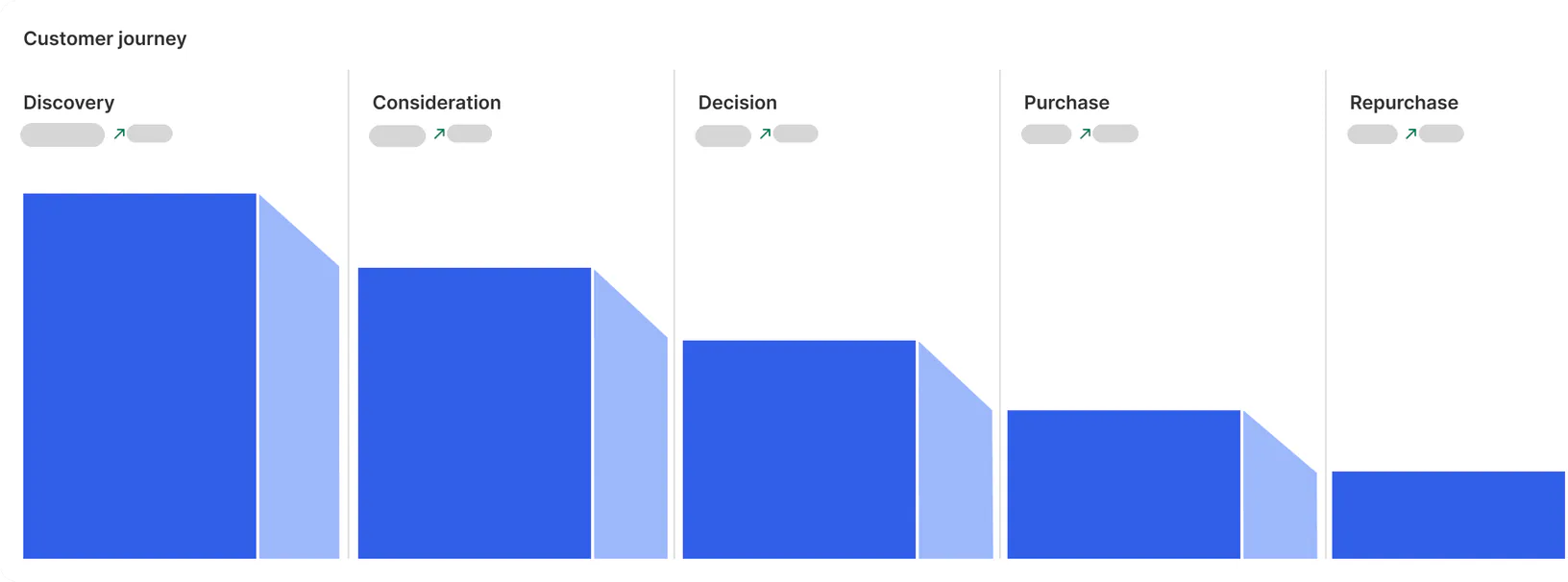
The Customer journey card shows shopper counts across five stages: Discovery, the stages that follow through the journey, and Repurchase. It also compares the selected period with the previous one.
Use this view to spot where shopper numbers drop off. Then investigate individual visits to understand what might be happening.
2. Find visits that ended without a sale
Open Sessions needing attention. The list highlights visits that ended without a purchase when Sledge can identify one of six reasons.
- Landed on a broken link: The shopper opened a page that led to your 404 page.
- Searched, found nothing: Their search returned zero results.
- Search found only a few results: The search returned just one to three products.
- Wanted option is sold out: The shopper selected an unavailable size, color, or other option.
- Left items in cart: The shopper added an item or opened the cart page but left without buying.
- Came back, did not add: The shopper returned to a product during the same visit but didn't add anything to the cart.
These flags are starting points for investigation, not proof of why someone decided not to buy. A shopper may leave for reasons the available data cannot reveal.
Click a row to open the visit, or select the shopper's name or visitor ID to explore their history.

3. Open the shopper's history
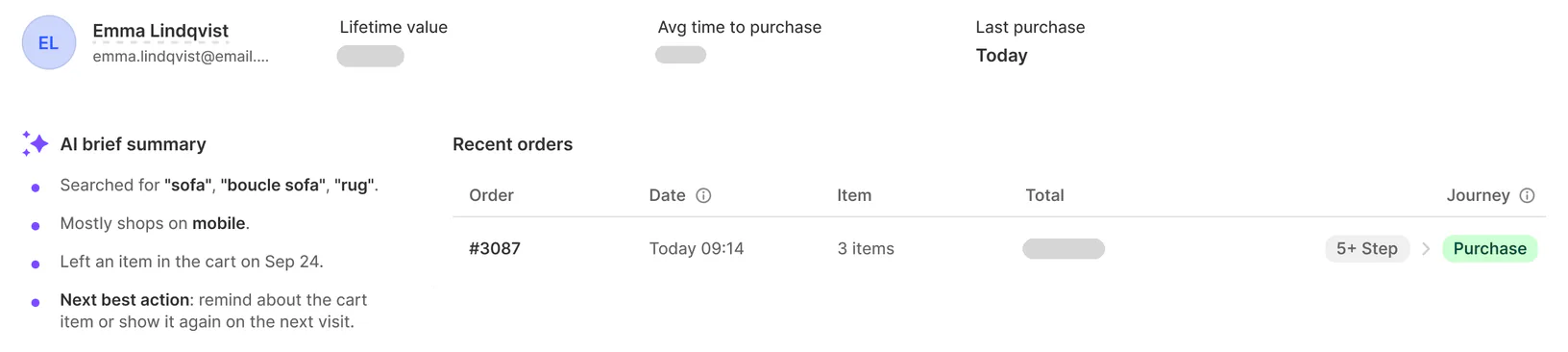
The shopper page brings together information such as lifetime value, orders, average time to purchase, and last purchase.
You can also review Product without purchase, Full session history, and Recent orders. The AI brief summary uses predefined rules to summarize the shopper's activity and provide a Next best action when a rule applies.
Keep one limitation in mind: Sledge identifies a shopper at the browser level. The same person browsing on a phone and a laptop may appear as two separate shoppers.
4. Read the visit timeline
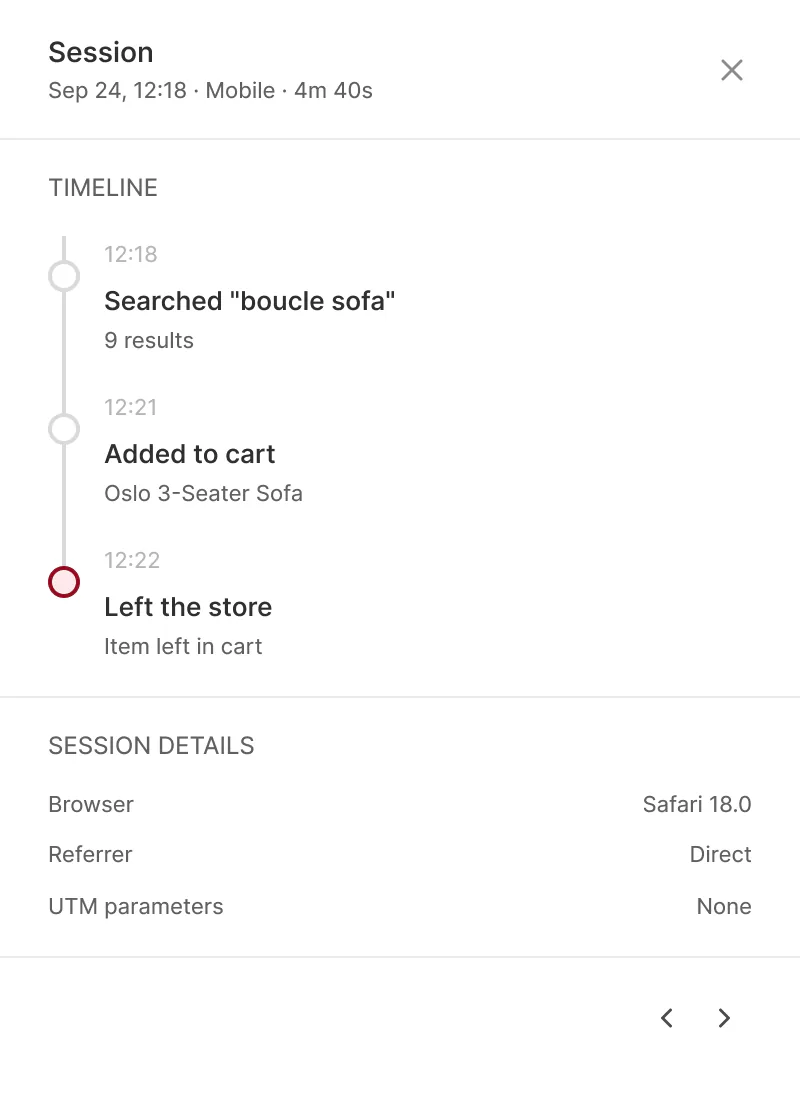
Open an individual visit to see its recorded actions in chronological order, with timestamps.
For example, a shopper might search for "boucle sofa," open a product, add it to the cart, and leave without completing a purchase.
Opened from the shopper page, Session details can also show the available device, browser, location, referrer, and UTM campaign parameters, along with products viewed during the visit.
This helps you connect what happened with where the visit came from. If a campaign brought the shopper to a broken product page, for instance, you can investigate the link instead of assuming the product itself was the problem.
5. Match the finding to a fix
Once you understand the recorded behavior, focus on the problem you can address.
| Flag | What to investigate |
|---|---|
| Landed on a broken link | Restore the page or redirect the old URL to a relevant live page |
| Searched, found nothing | Add search synonyms or suggestions for the terms shoppers use |
| Search found only a few results | Review synonyms, product coverage, and search relevance |
| Wanted option is sold out | Consider a back-in-stock alert for that product (Accelerate plan and up) |
| Left items in cart | Review cart friction and consider an appropriate reminder |
| Came back, did not add | Review the product information, availability, and purchase barriers |
For the supported flags, Sledge's Next best action can suggest a relevant fix. Recommendations are prompts for investigation, not a guarantee that a particular change will recover a sale.
How to find broken Shopify links that your ads still use
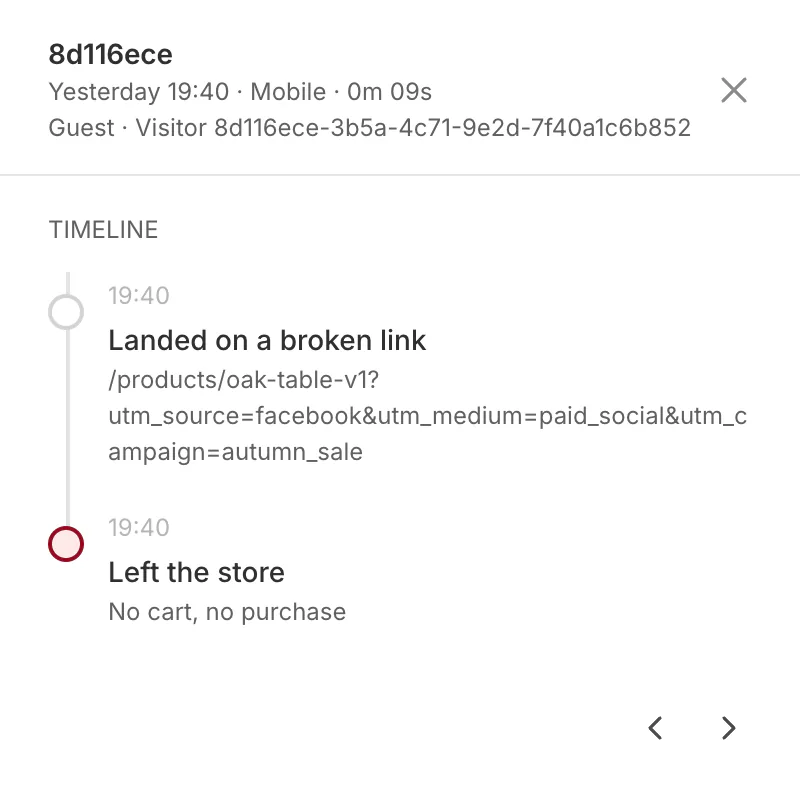
Consider a simple example: you ran a Facebook ad for a product, then changed the product's status to draft. The ad is still live, but shoppers now land on your 404 page.
The campaign can continue generating clicks without sending shoppers to a purchasable product.
In Sledge, look for visits flagged Landed on a broken link. Open one to inspect the attempted address and any available campaign tags. This can help you identify whether the traffic came from an ad, email, or social post.
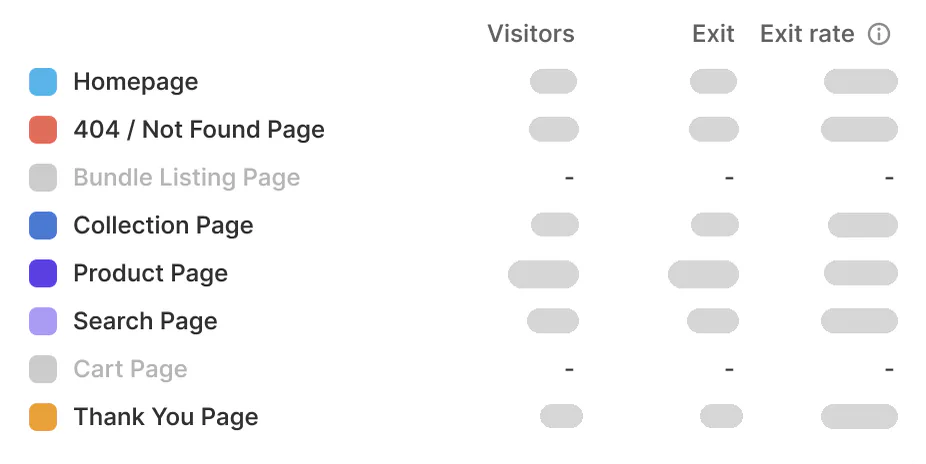
You can also review Where customers leave on the Journey tab to see activity involving your 404 page. The Signals tab can highlight an increase in broken-link visits when its conditions are met.
To fix the problem:
- Open Shopify's URL redirects under Content, then Menus.
- Find or create a redirect from the old product URL.
- Point it to the closest relevant live product or collection.
- Test the destination and update the original campaign link where possible.
Shopify documents its redirect process in its URL redirects guide.
A redirect can help recover visits sent to an outdated address, but it won't fix every conversion problem. Make sure the destination is relevant to the shopper's original intent.
What should you fix first when your Shopify store gets sessions but no sales?
Start with the problem that appears repeatedly in Sessions needing attention. Investigate a few individual visits to check whether they point to the same underlying issue before making a wider change.
For example, several zero-result searches may suggest missing synonyms or gaps in your product catalog. Repeated visits to a 404 page may point to an outdated campaign URL.
On any paid Sledge plan, Growth Intelligence can analyze store data across orders, searches, filters, and carts to identify potential improvements. It ranks suggested fixes as High or Medium and combines estimated monthly sales opportunities into an Est. potential total in the store's currency.
These figures are estimates, not guaranteed revenue. Pro checks weekly, while higher plans check more frequently, up to daily. Changes are not applied until you save them.
The goal isn't to fix every issue at once. It's to identify a recurring problem, make a targeted change, and review the results.
For more guidance, see what to change to increase Shopify sales.
FAQ
Questions, answered
-

14-day free trial
Explore Sledge on your store before you decide to commit.
-

No credit card required
Start improving your store with no upfront commitment.
-

Setup in minutes
Get Sledge running without a lengthy setup process.
-

Built to grow sales
Turn shopper behavior into actions that help you sell more.
How do I see the customer journey in Shopify?
Open an order's Conversion summary to review available buyer-journey details. For a more detailed view of recorded shopper actions, including visits that ended without a purchase, use Sledge Analytics to explore individual visit timelines.
Does Sledge track visitors who don't buy?
Yes. Sledge Analytics records visits from buyers and non-buyers, including guest shoppers. It flags visits that end without a sale when one of its supported reasons applies.
Does Sledge offer session recordings or heatmaps?
No. Sledge uses event-based timelines to show recorded actions, such as searches, product views, filters, and cart activity. It does not provide session-recording videos or heatmaps.
Why does my Shopify store get sessions but no sales?
Possible issues include zero-result searches, limited search results, unavailable product options, broken links, and abandoned carts. Visit-level data can help you investigate these issues, although it cannot establish every shopper's reason for leaving.
How can I find broken links in my Shopify ads?
In Sledge Analytics, look for visits flagged Landed on a broken link. Inspect the attempted URL and available campaign parameters, then use Shopify URL redirects or update the original campaign link to send shoppers to a relevant live page.
See what happened before the shopper left.
You don't need another theory about why sales are low. You need a clearer view of what shoppers actually did. Sledge Analytics helps you investigate individual visits, identify recurring problems, and decide what to fix next.