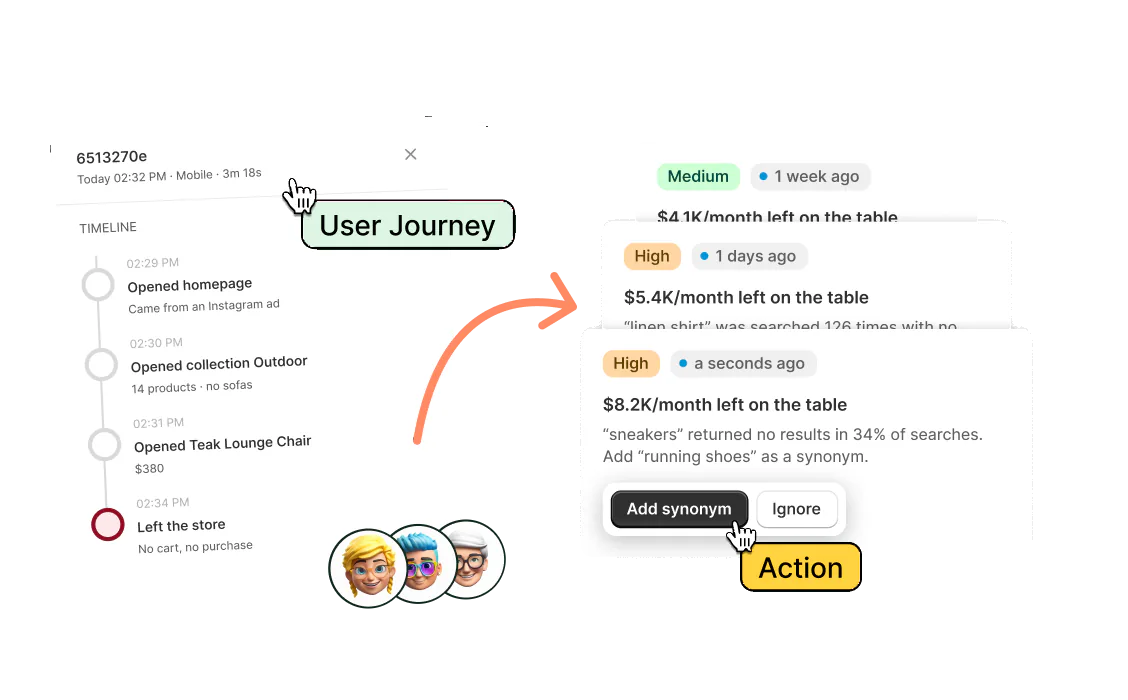

To create a discount code on Shopify, open Discounts in your admin, click Create discount and pick one of four types: Amount off products, Amount off order, Buy X get Y or Free shipping. Choose Discount code as the method, type the code and set its value. Set who can use it, how many times and when, and click Save.
The email goes out at nine with FALL20. By ten, the replies say the code doesn't work. It exists, it's active, and their carts clear the minimum. One setting on the form decided who could use it, and it wasn't everyone.
Which type of Shopify discount code do you need?
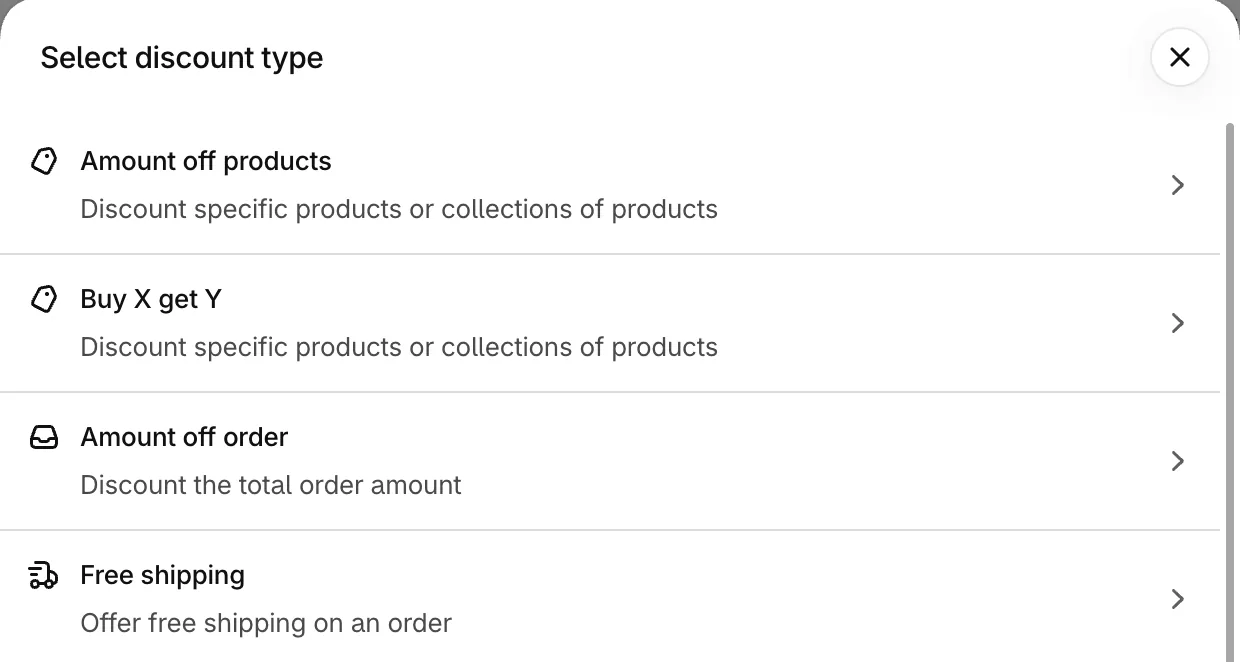
Pick the type first, because Shopify won't change it once the code is saved. Create discount lists four Shopify types, plus any that your discount apps add.
- Amount off products: a percentage or a fixed amount off the products or collections you choose.
- Amount off order: the same off the whole cart. Neither amount-off type takes anything off shipping.
- Buy X get Y: chosen items free or cheaper when the shopper buys others. Shopify never adds the items the shopper gets to the cart.
- Free shipping: to every country or only the ones you pick.
Not every offer needs a code. An automatic discount applies itself in the cart with nothing to type, and a bundle price on the product page needs no code at all.
How do you create a discount code in Shopify?
A Shopify discount code takes one form in Discounts, filled in from top to bottom. These steps follow Shopify's Help Center for an Amount off order code.
- In your Shopify admin, go to Discounts, click Create discount and pick a type.
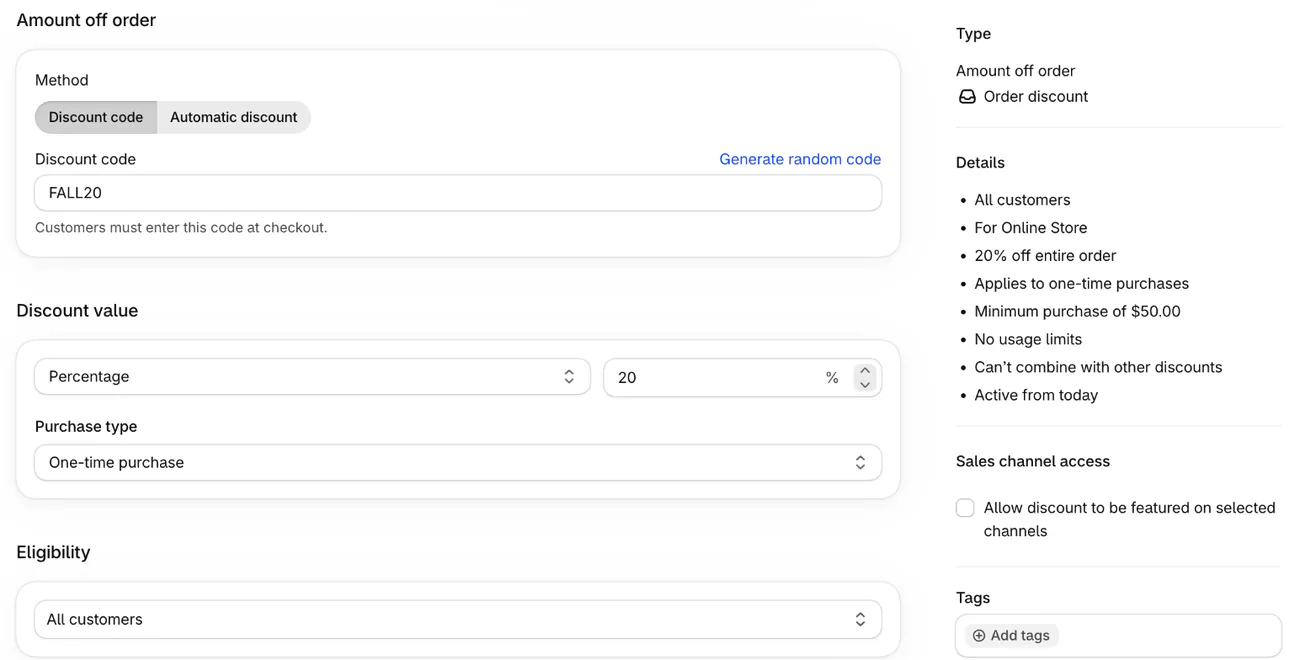
- Choose Discount code under "Method", which sets whether shoppers type a code or Shopify applies the discount for them. Type a code, such as FALL20, or click Generate random code.
- Under "Discount value", choose Percentage or Fixed amount and enter the number. A product code also asks which products or collections it covers.
- Pick a minimum under "Minimum purchase requirements" if the cart must reach one first: a purchase amount or a quantity of items.
- Choose who can use it under "Eligibility": all customers, specific customers, customer segments or markets.
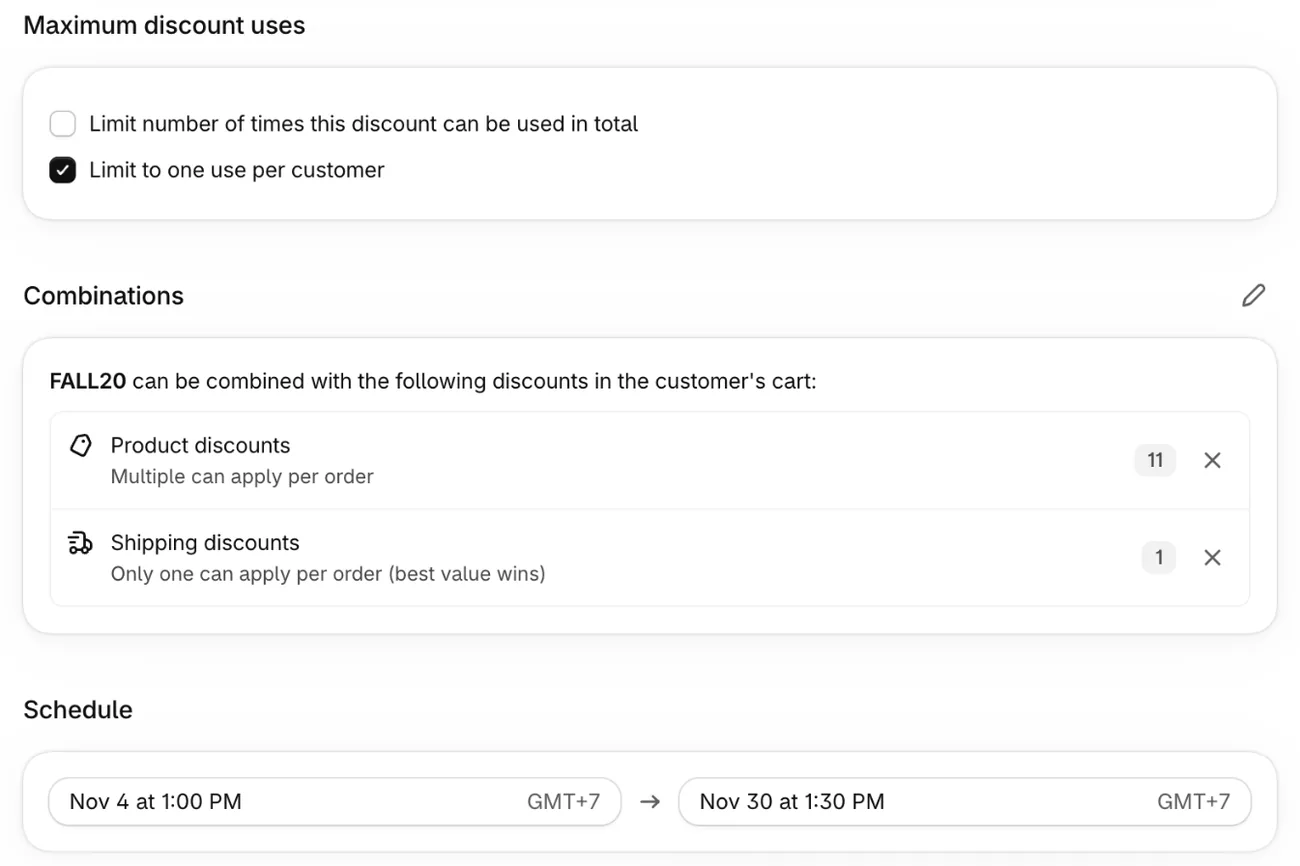
- Cap the uses under "Maximum discount uses": a total number, one use per customer, or both.
- Tick the other kinds of discount it may combine with under "Combinations".
- Set a start date under "Schedule", click "Set end date" if the code should expire, and click Save.
Steps checked November 4, 2026, in the Shopify admin and against Shopify's Help Center.
Buy X get Y asks what the shopper buys and what they get, in place of a value. The item they get can be free, or a percentage or amount off. Free shipping asks which countries it covers, and it can leave out shipping rates over an amount you set.
Sidekick, Shopify's assistant in the admin, can fill in an amount off or free shipping code from a sentence describing the offer. Nothing is saved until you click Save, so read the summary beside the form first.
What should you name a Shopify discount code?
Keep the code short, easy to spell and free of special characters. Shopify asks you to avoid them so the code is added correctly at checkout.
Generate random code suits a code the shopper copies from an email. A poster needs a word people can type from memory, like FALL20.
Running one offer in two places? Give each channel its own code. Open the first discount, click Duplicate, change only the code and click Save. Shopify's "Sales by discount codes" report, under Analytics and Reports, then shows how often each code was used, and so which channel worked.
Which settings stop a Shopify discount code from working?
Five settings can turn shoppers away from a code that exists and is active.
- Eligibility: a code tied to a customer segment applies only to existing customers, says Shopify's discounts FAQ. First-time shoppers join a segment only after their first order is complete. A welcome code is safer set to All customers with one use per customer.
- Minimum purchase requirements: only items the code covers count toward a minimum purchase. The amount counts product prices after any other product discounts, without shipping or taxes, so a $45 cart with $8 shipping misses a $50 minimum.
- Schedule: the start and end follow your store's time zone, printed beside each date, wherever the shopper is.
- One use per customer: "Limit to one use per customer" counts uses by email address or phone number. A shopper who used the code once is turned away, while a second email address gets past it.
- Combinations: two discounts apply together only when each one's setting allows the other. What stacks, what collides has the rules.
One code can name up to 100 specific customers, products and variants, and Shopify shows an error past that. The form makes one code at a time, so a set of unique codes, one per shopper, takes an app. Nothing on the form caps what a percentage takes off, so 20% off a $600 cart takes $120.
Before the email goes out, test the code as a shopper who should qualify. None of Shopify's checkout messages names the setting that stopped the code.
- "Enter a valid discount code" means no active code has that name, so check the spelling and the schedule.
- "FALL20 discount code isn't valid for the items in your cart" points at the cart, so check the products the code covers and its minimum.
- "Couldn't be used together" or "couldn't be used with your existing discounts" comes from Combinations, and Shopify keeps the best combination it can.
If you run Sledge bundles or volume discounts, they reach shoppers through automatic discounts Sledge keeps in your Discounts list. Tick Product discounts under your code's Combinations, and both can apply where Shopify's rules allow.
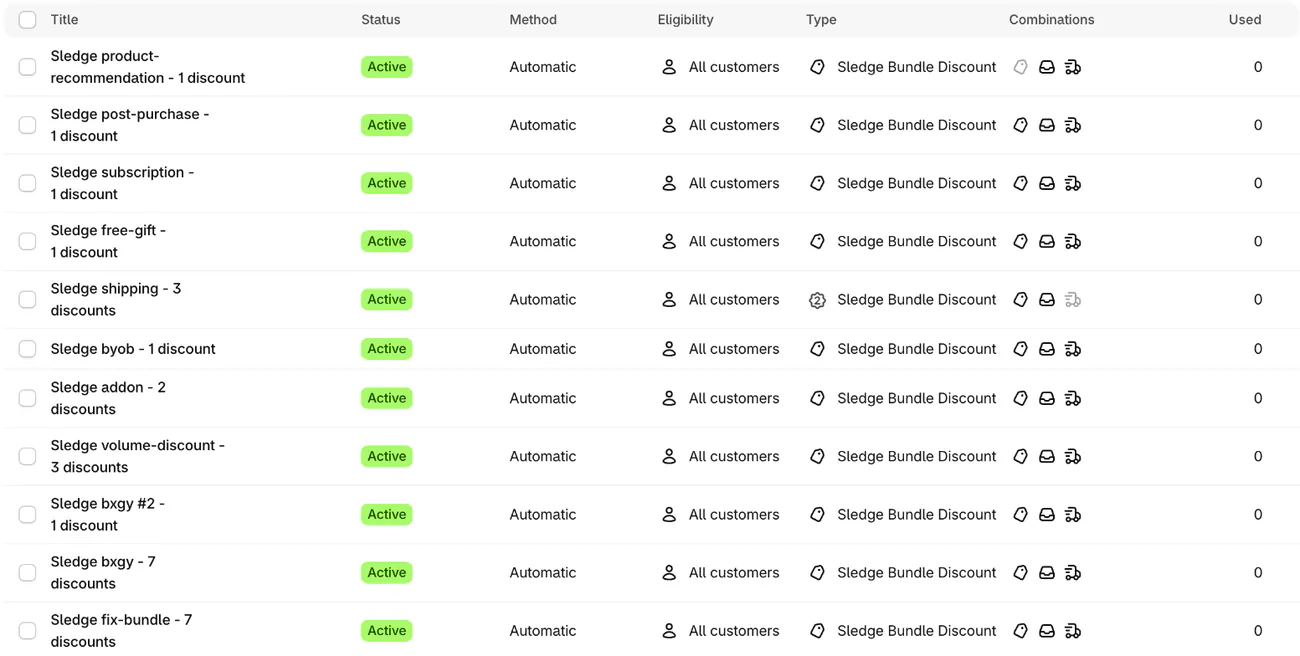
To pair a code with a gift, see one code with 10% off and a free gift. For two promotions in one week, read whether two Shopify promotions can run at once.
How do you share a Shopify discount code with shoppers?
Put the code where the shopper meets the offer: a cart reminder email, a sign-up popup or a post.
Entering a discount code before checkout covers the shareable link that applies a code for the shopper, and the box in the cart where they type one.
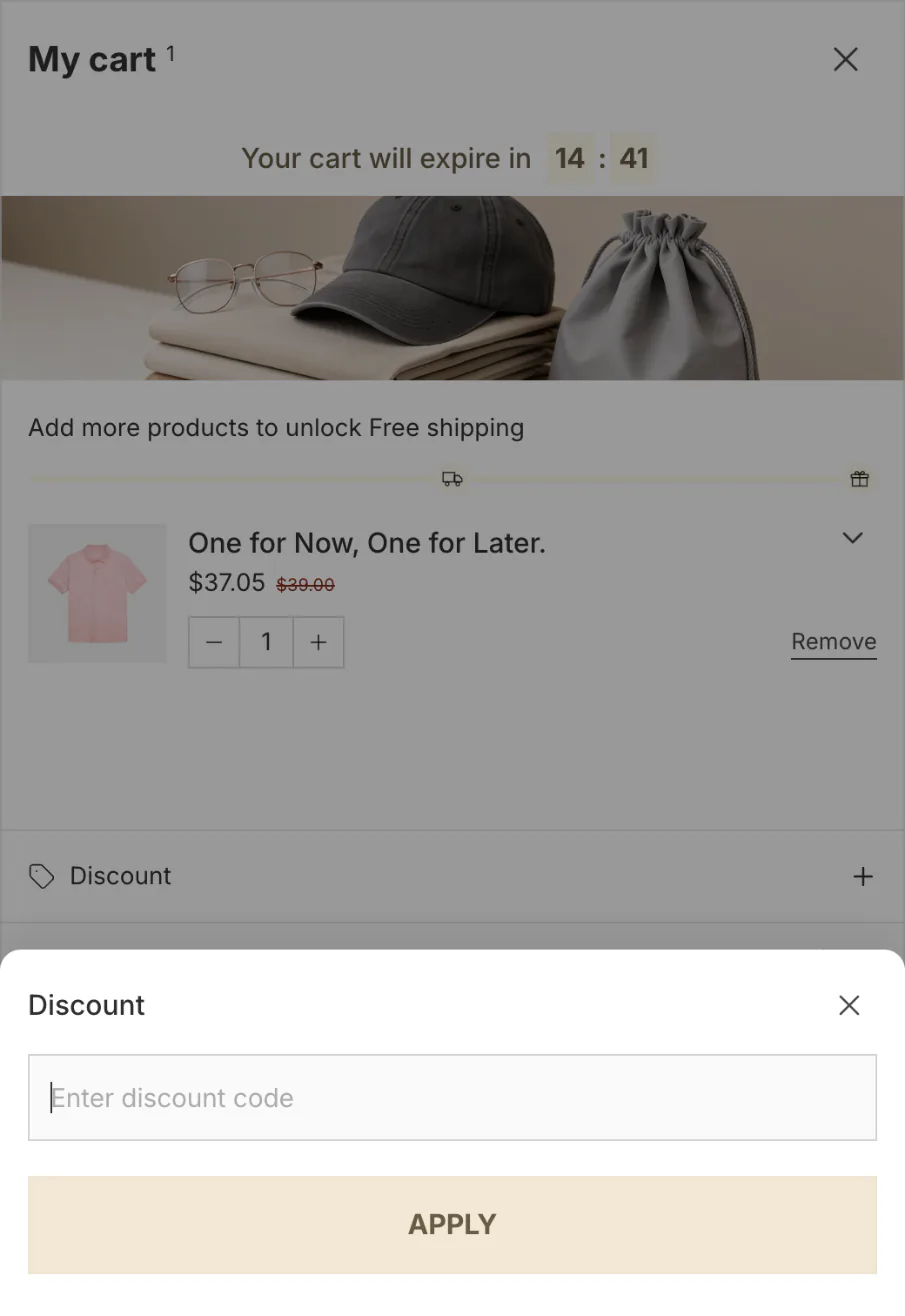
Sledge is a Shopify app with a cart drawer that takes discount codes on any theme. Its "Discount code" block, a Discount row in the drawer's footer that opens a box for the code, stays off until you switch it on. Shoppers then type the code there and see the lower total before they pay. Every paid plan includes the drawer and its box, and you can try the drawer on the 14-day free trial.
FAQ
Questions, answered
-

14-day free trial
Explore Sledge on your store before you decide to commit.
-

No credit card required
Start improving your store with no upfront commitment.
-

Setup in minutes
Get Sledge running without a lengthy setup process.
-

Built to grow sales
Turn shopper behavior into actions that help you sell more.
How do I create a discount code on Shopify?
In your Shopify admin, go to Discounts and click Create discount. Pick a type, choose Discount code as the method, then type a code or click Generate random code. Set the value, any minimum, who can use it, how many times, what it combines with and the dates. Click Save, then test it with a cart that qualifies.
Can I edit a Shopify discount code after I save it?
Yes, except its type. Shopify won't turn a saved code from Amount off products into Free shipping, so create a new discount of the type you want. Everything else, from the value to the end date, stays editable. Renaming a code, or switching it off and on, doesn't reset how many times it has been used.
What is the difference between a discount code and an automatic discount?
A shopper types a discount code, usually at checkout. An automatic discount applies itself in the cart and at checkout once the cart qualifies, and the shopper sees its title instead of a code. Codes suit an email or a partner. Automatic discounts suit a store-wide sale, and a store can run up to 25 of them at once.
How do I make a one-time discount code on Shopify?
Under Maximum discount uses, tick Limit to one use per customer, and each shopper can use the code once. Shopify tracks that by email address or phone number, so a second email gets past it. For a code that works once in total, also tick the limit on total uses and enter 1. A different code per shopper takes an app.
Why does Shopify say my discount code has already been used?
Either that shopper used it before, or an unfinished checkout is holding it. Shopify holds a code against its limit from the moment an order is submitted until payment goes through or fails, and a declined payment frees it. Look for that shopper in Orders first. If there is no order, send a new code with the same settings.
The code is live. Which carts still stop short?
Try Sledge free for 14 days and give shoppers a box for your code in its cart drawer, whatever your theme. Growth Intelligence turns on when you pick a paid plan. It reads your carts and orders, can flag where shoppers add to cart and stop short, and puts one dollar total, labeled Est. potential, on what its fixes could add.