The Shopify Search & Discovery app is Shopify's free tool for filters, product boosts and product recommendations. Install it, open it under Apps, and set up each one from its own section. It can't change how broadly search matches, and Shopify has retired synonyms, so lean on product boosts and your product wording.
You type "leather belt" into your own store and get the right belts, then hundreds of things that aren't. You open the free app to fix it, and the Synonyms screen you remember isn't there. The app can put the belt you pick first, but no setting clears out the rest.
What is the Shopify Search & Discovery app?
Shopify Search & Discovery is Shopify's free app for filters, product boosts, the types of result search returns, and recommendations on product pages. It also holds reports.
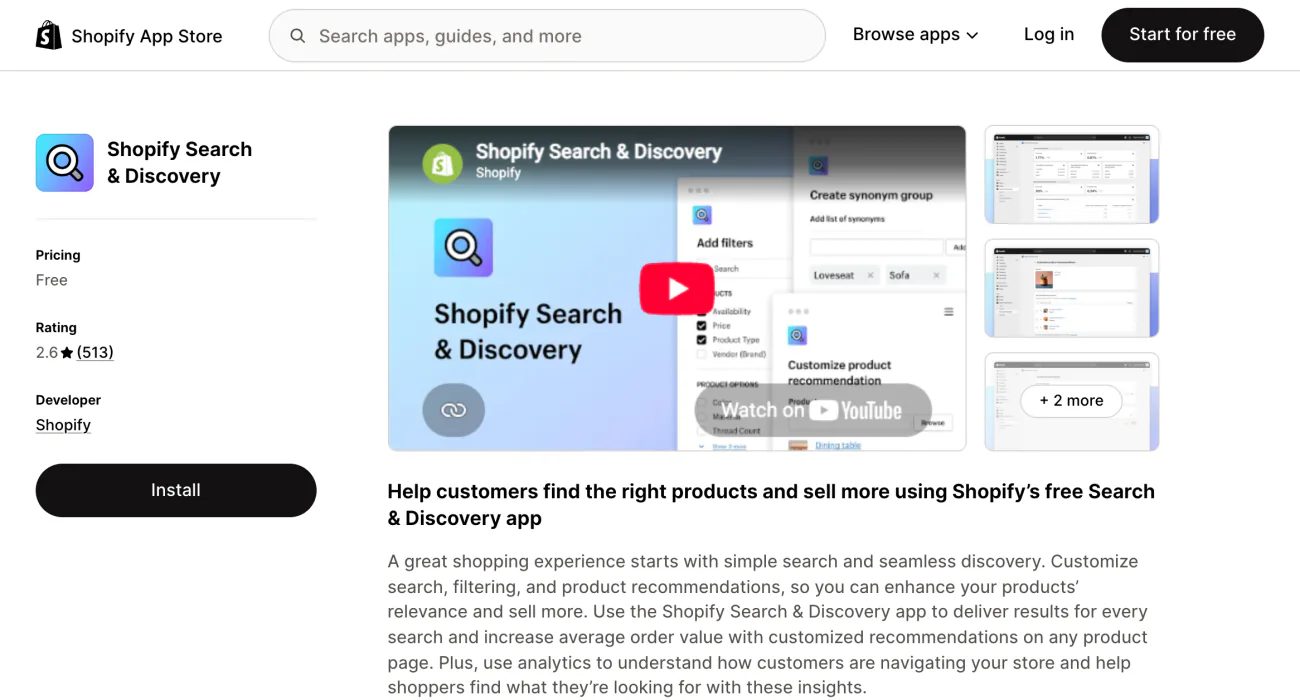
Search itself needs no app. Every online store gets search and typo matching with no setup.
Install the app from the Shopify App Store, then open it under Apps, Search & Discovery. Shopify's documentation covers each section.
It needs Shopify Network Intelligence on, under Settings, then Customer privacy. Turning that off uninstalls the app, and turning it back on doesn't restore it. Staff need the "Products" permission to edit boosts, recommendations and filters. Filters also need "Online Store Search and Navigation", and reports need "Reports".
What happened to synonyms in Search & Discovery?
Shopify has retired synonyms: you can no longer create or manage them in Search & Discovery. A synonym group told search that two words mean the same thing. The app's menu no longer lists synonyms, and the old page now carries a notice headed "Synonyms have been retired".
Shopify says search now matches common synonyms, like "sofa" and "couch", on its own. Synonyms you added earlier "aren't applied as exact rules, but they help teach search how terms connect". The notice also has a "Get my old synonyms" button.
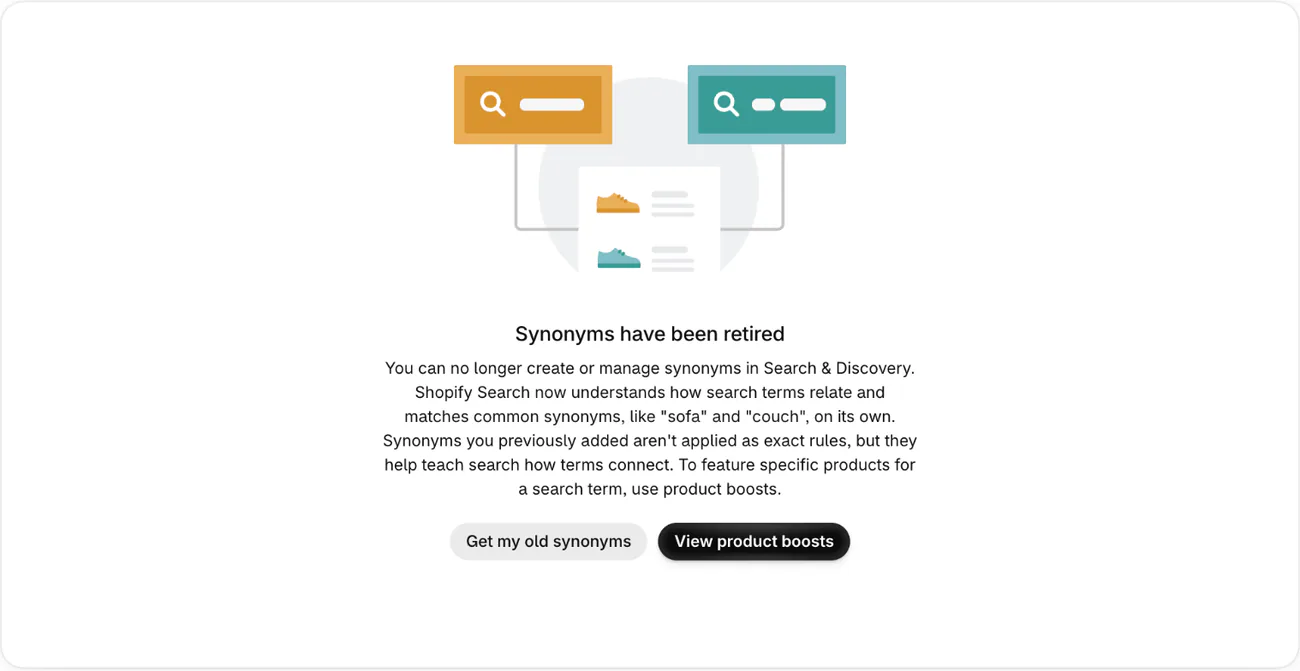
To feature specific products for a search term, the notice says to use product boosts. Your product wording is the other fix you control. Put the shopper's word in the title, product type or tags, or early in the description, because search reads only its first 10,000 characters. Then boost the right product for your top searches. Common misspellings and plurals need no boost.
How do you set up filters in Search & Discovery?
Check your theme first. Go to Content, then Menus, and look at "Collection and search filters". A message there means your theme doesn't support filters, so they'd save but never show. Dawn and Horizon have their own steps.
- In the app, click "Filters", then "Add filter".
- Click "Source", the store data the filter reads, and pick one.
- Click "Save", then drag your filters into the order you want.

The standard sources are Availability, Category, Price, Product type, Tags and Vendor. Size and color come from your product options. To show colors as swatches, you need a color field on your products and a theme that can draw them. For a custom detail such as fabric, look under "Product metafields", meaning fields you added to your products.
- Group values. Put Navy and Midnight under one Blue option for shoppers.
- Hide empty values. In the app's Settings, set "Empty values" to "Hide", so shoppers see only values with products behind them.
- Product missing from a filter? Give Shopify 24 to 48 hours to catch up. Next, make a small product edit and save it. Then contact Support.
How do you use product boosts?
A product boost lists a product you pick above the usual results when a shopper searches a term you choose. It's your stopgap when a search brings back the wrong things first.
- In the app, click "Product boosts".
- Click "Create product boost" and select your products.
- Type each search term, click "Add", then click "Save".
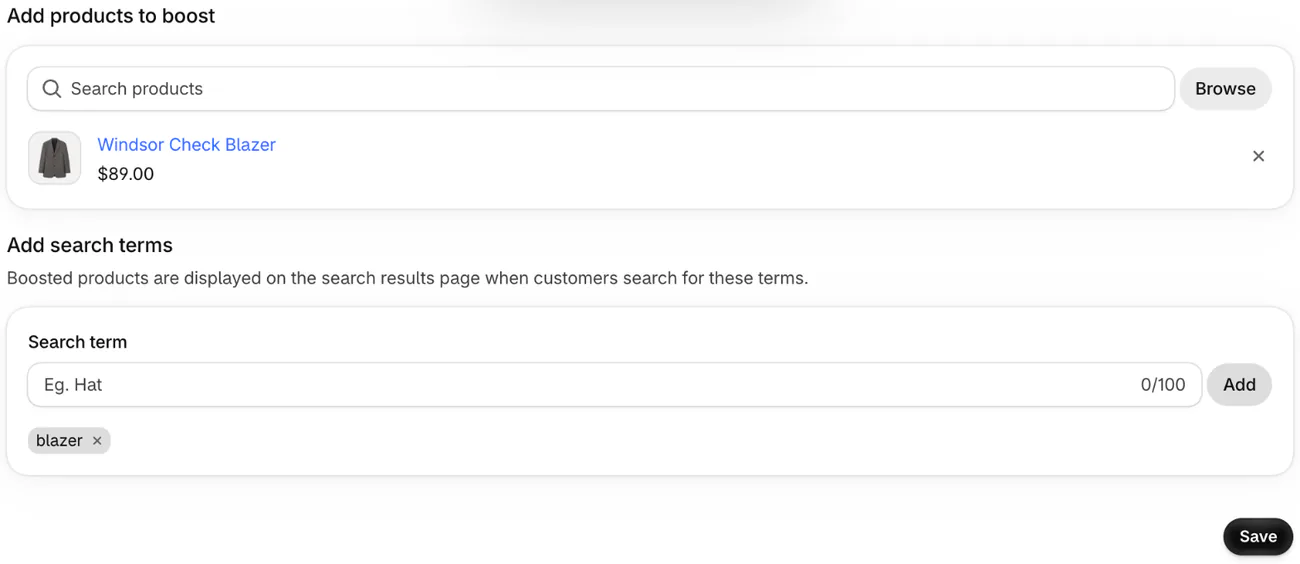
A search term can be several words. Boost only a few products per term, or other good results can slip down. A boost works only while the product is for sale, and it doesn't touch your Google ranking. Boosting is one part of searchandising, which also covers pinning a product, hiding one and sending a search to a page.
Can you change Shopify search results?
Partly. In the app's Settings, you choose whether search returns products, pages or blog posts, though your theme can override that. You also choose whether out-of-stock products show, hide or sit last, which is the default. That setting covers search only. A sold-out product can still sit in the first row of a collection page.
Shopify's help pages say no setting controls how broadly search matches, and you can't change how results are ordered. You can still steer them through your product wording and boosts.
Results look loose because search also matches by meaning, reading your title, description, product type, category and tags. Shopify also tests ranking changes, so the order can shift. Here is what control you have over semantic search.
Run your top 10 searches from the "Searches by search query" report, note the wrong results, and check those same fields. Then send Support the exact search, the product you expected, what came back and the time.
A developer's change to your theme can force exact matching. You get tighter results for the cost of their time, and the change then lives in your theme. You lose typo matching and matching by meaning on every search it touches, and boosts stop applying.
Searching by SKU? Shopify's help pages say a SKU matches in full, by its first 3 to 15 characters, or by a whole part set off by hyphens, slashes or spaces.
How do you add product recommendations?
Complementary products are what shoppers often buy alongside a product. Related products are similar items a shopper might buy instead.
- In the app, click "Recommendations", then "Add recommendations".
- Pick a product, add up to 10 complementary and up to 10 related products, then click "Save".
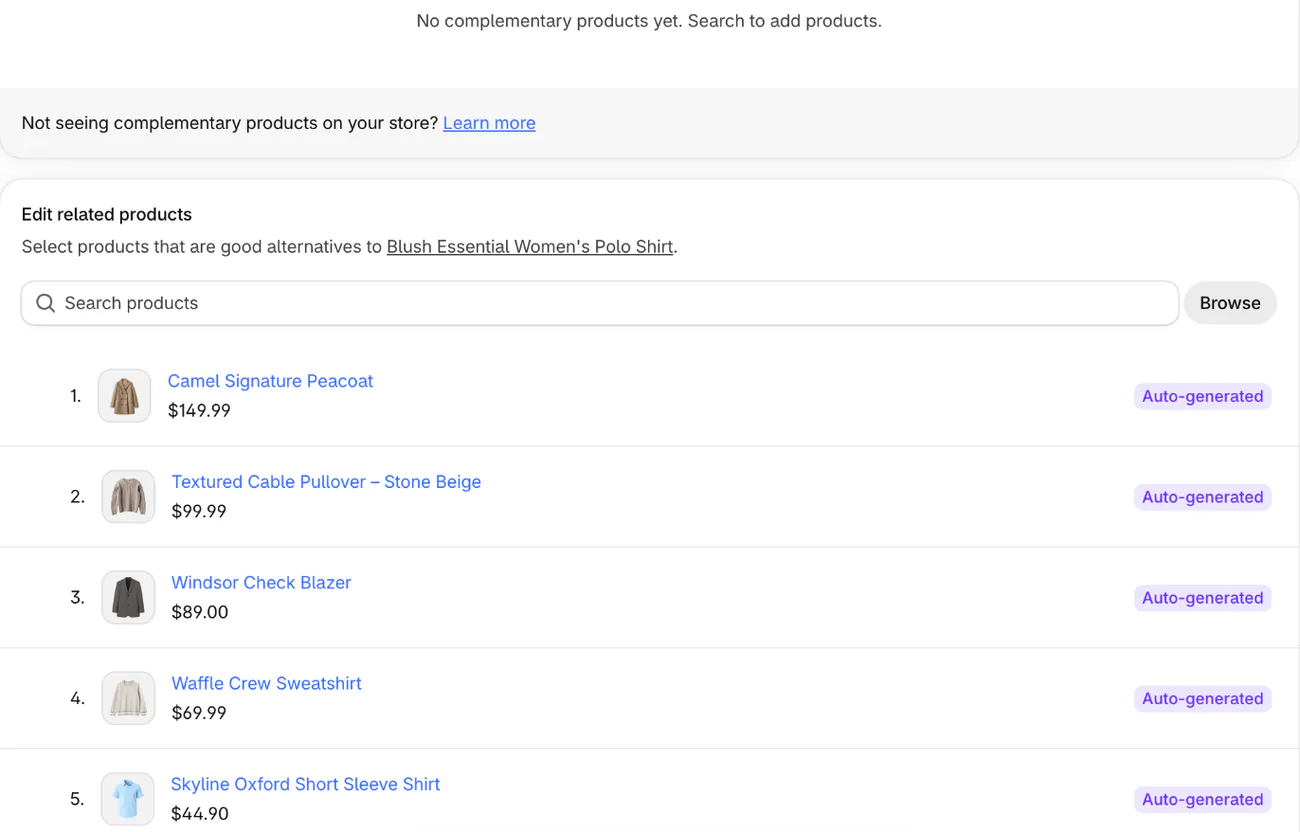
Nothing shows unless your theme has the recommendation sections on your product pages. A pick also stays hidden if it's priced at $0, a gift card, Unlisted, not Active and published, or already in the cart. So does a sold-out pick, unless it's a related product set to continue selling when out of stock.
Shopify generates related products for every product. You can't edit those picks, but you can hide them product by product. They change often, and the app's preview often differs from your storefront, so trust the live page. See the product recommendations guide and how to fix picks that miss.
What do the Search & Discovery reports show?
The app's home page has two tabs, and the detailed search reports sit under Analytics, then Reports.
- Search performance: pick a range of up to 3 months. You see search sessions and how many went on to click, add to cart and check out, plus "Query movement", your 50 most-searched words with what's rising and falling.
- Recommendation performance: click rate, purchase rate and "Top products with low recommendation click rate".
- Analytics, then Reports: "Searches by search query", "Searches with no results", "Searches with no clicks" and "Search conversions over time".
Search reports cover the results page only, so the dropdown under your search box, up to 10 results by default, isn't counted. Start with "Searches with no results", the words shoppers typed that found nothing. Then see how to fix zero-result searches and what else to track.
What are the limits of the Search & Discovery app?
You're halfway through moving tags into custom product details when the app stops at 25 filters.
| Part of the app | Limit |
|---|---|
| Filters | 25 for the store, 100 values each, none on a collection over 5,000 products |
| Product boosts | 10 search terms each |
| Recommendations | 10 complementary and 10 related per product |
| Reports | Up to 3 months in the app |
| Search matching | No setting for how broadly it matches, and no way to order results beyond boosts and where out-of-stock products sit |
Limits are as of November 2026, from Shopify's Help Center. See every filter limit and what to do about one filter list for the whole store.
Is Search & Discovery still worth installing?
Yes, if you want filters without paying for an app: Search & Discovery is free.
As of November 2026 the listing reads 2.6 from 513 reviews. Its breakdown puts 51% of ratings at five stars and 21% at one. Recent praise goes to the filters, the related products and how simple it is. Much of the anger since June is about Shopify's search, which runs with or without the app. So deleting the app shouldn't change how search matches.
When does your store outgrow Search & Discovery?
The free app covers you while your filters fit in 25 and your top searches find the right products. You outgrow it when a job needs a setting it doesn't have.
Sledge is a Shopify search app that helps shoppers find what they typed, even a misspelled product name or a full SKU.
| You want to | Search & Discovery | Sledge |
|---|---|---|
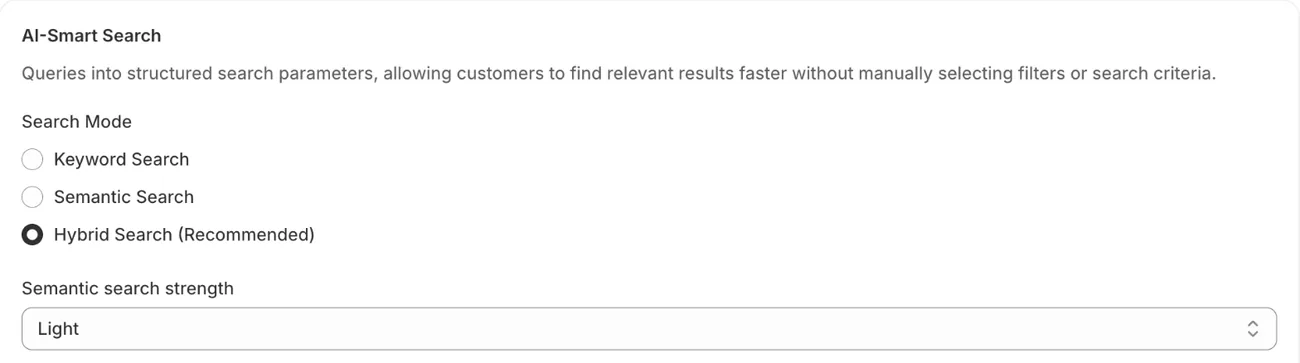
| Choose how search matches | No setting | "Search Mode": keyword, semantic (by meaning) or hybrid (both), on a paid plan |
| Decide which product details count most | No setting | "Field Priority" |
| Teach your own words | Retired by Shopify | "Manual Synonym": a search term, one way or two way, or a CSV file |
| Send a search to a page | Not listed in the app's help pages | "Redirect" |
| Control results for one search | Product boosts, 10 terms each | "Strategy" with "Specific keywords": pin, boost, demote or hide |
| Show different filters per collection | One set for the store, 25 at most | "Filter Group", assigned under "Applies to" |
| Pay | Free | From $29.99 a month, 14-day free trial |
Prices are as of November 2026.
By default, Sledge's typo matching covers product titles and vendor names, and a shopper has to type a SKU in full. The Pro plan stops at 10,000 products. The trial has no AI-Smart Search, the page that holds Search Mode, and no Growth Intelligence, which turns on when you pick a paid plan. And Sledge takes over from Shopify's search, so your Search & Discovery boosts stop counting where it runs.
See Sledge Search and Sledge Filters, or compare the best search apps for Shopify, Klevu alternatives, Searchanise alternatives, Algolia alternatives and Fast Simon alternatives.
FAQ
Questions, answered
-

14-day free trial
Explore Sledge on your store before you decide to commit.
-

No credit card required
Start improving your store with no upfront commitment.
-

Setup in minutes
Get Sledge running without a lengthy setup process.
-

Built to grow sales
Turn shopper behavior into actions that help you sell more.
Is the Shopify Search & Discovery app free?
Yes, it is on our list of eight Shopify apps that stay free on a live store. Shopify makes it, and the App Store lists it as Free. Filters, product boosts, recommendations and reports all come with it. Your store needs Shopify Network Intelligence switched on, under Settings, then Customer privacy. Filters and recommendations also need a theme that supports them, which you can check first.
Do I need the app for Shopify search to work?
No. Search works on every online store with no setup, typo matching included. The app adds the controls: filters, product boosts, recommendations you pick, and reports. Shopify describes that matching as part of online store search, so deleting the app shouldn't change how search matches words.
Does Search & Discovery still have synonyms?
No. The app's notice reads “Synonyms have been retired”: you can no longer create or manage them. Shopify says search now matches common synonyms on its own, and that old ones aren't applied as exact rules but help teach it how terms connect. To feature a product for a search term, use a product boost.
Why does Shopify search show unrelated products?
Because search matches by meaning as well as by words. It reads your titles, descriptions, product types, categories and tags, so a loose word in any of them can pull a product in. No setting narrows it. Tidy those fields for your top searches, and boost the right product for each one.
What can't the Search & Discovery app do?
It can't change how broadly search matches, it can't order results beyond boosts and where out-of-stock products sit, and its filters are one list for the whole store. Some search apps can, where they run. In Sledge, for example, “Search Mode” offers keyword, semantic or hybrid matching on any paid plan, and keyword is the default.
See which searches are costing you sales.
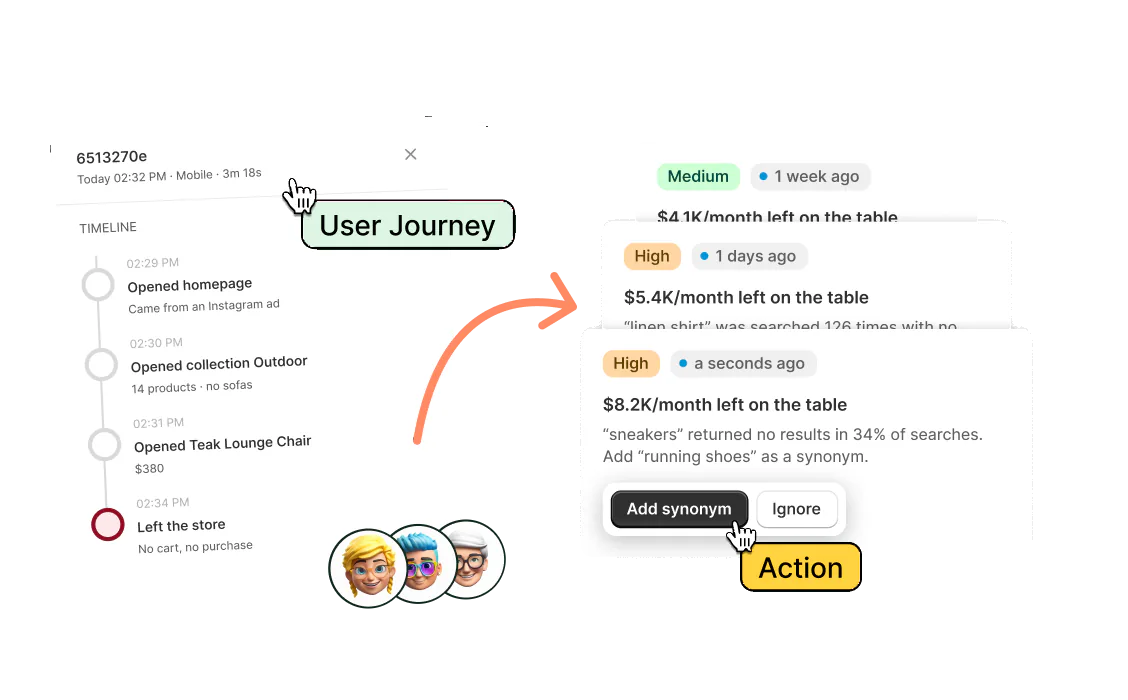
Install free. On a paid plan, Growth Intelligence reads your store's searches and lists fixes, such as one for searches that find nothing. One total, labeled "Est. potential", puts a dollar figure on the sales its fixes could add each month.