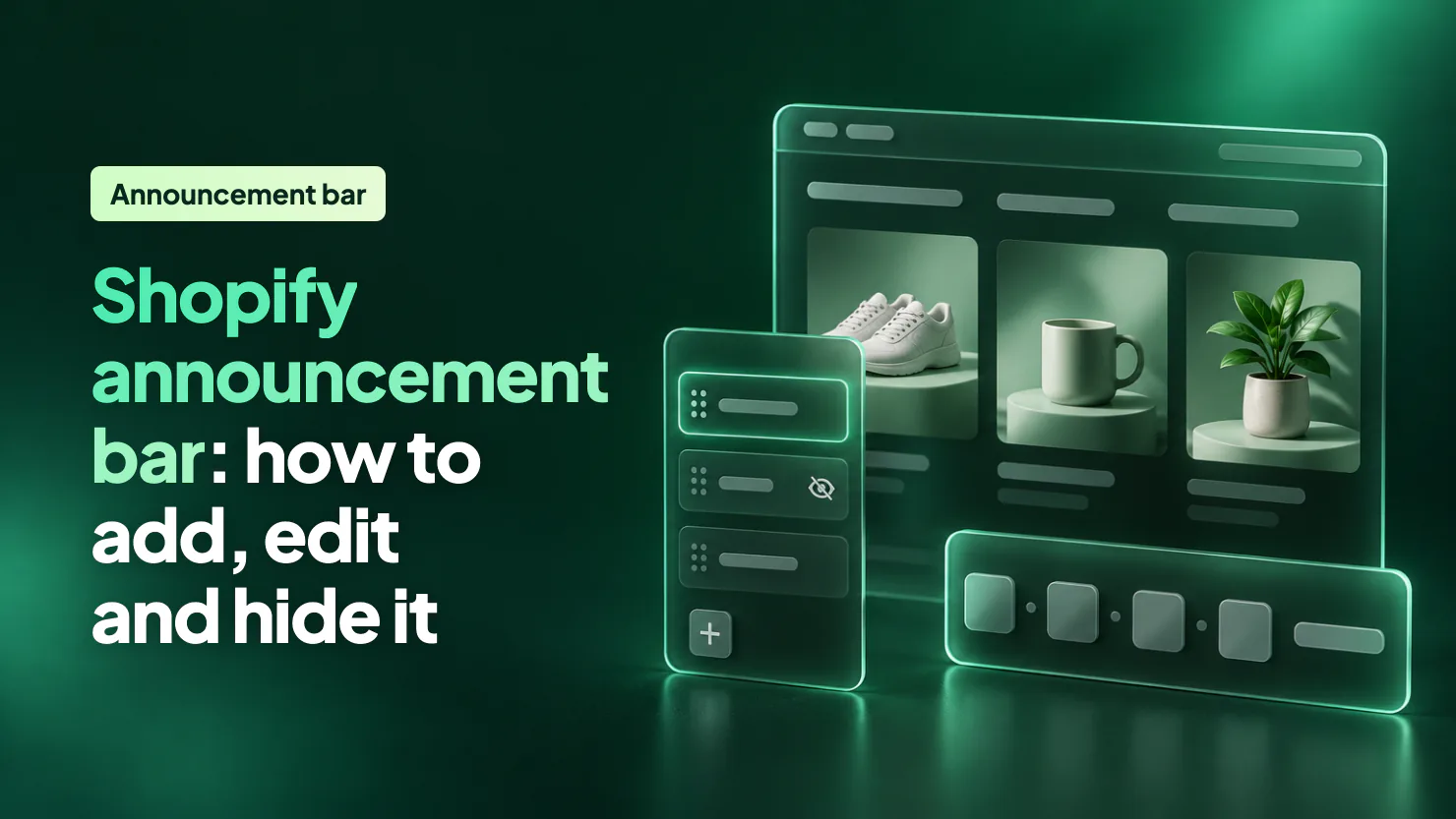
To add a Shopify announcement bar, open Online Store, click Edit theme, select Announcement bar in the Header group, add an announcement, type your text and an optional link, and save. Edit it in the same place. Hide it with the eye icon on the announcement. Dawn and Horizon both have one; some themes have none.
You change the line to Free shipping this weekend, the editor shows it, and the live store still says last month's sale. The bar may be fine and the change went somewhere else.
How do you add a Shopify announcement bar?
An announcement bar is a section in your theme's header, so you add it in the theme editor and no code is involved. Shopify's Help Center says a theme can have one such section, holding up to 12 announcements.
- In your Shopify admin, open Online Store, then Themes.
- Click "Edit theme" on the theme you want to change. The editor's top bar shows an "Active" tag when it is your live theme.
- In the list of sections, under Header, click "Announcement bar".
- In Horizon, click "Add block", which adds an item to the section, and pick "Announcement" from the list. In Dawn, Shopify's Help Center says to click "Add Announcement".
- Type your line in "Text". If shoppers should go somewhere, fill "Link" with a web address or pick a page of your store.
- Click "Save".
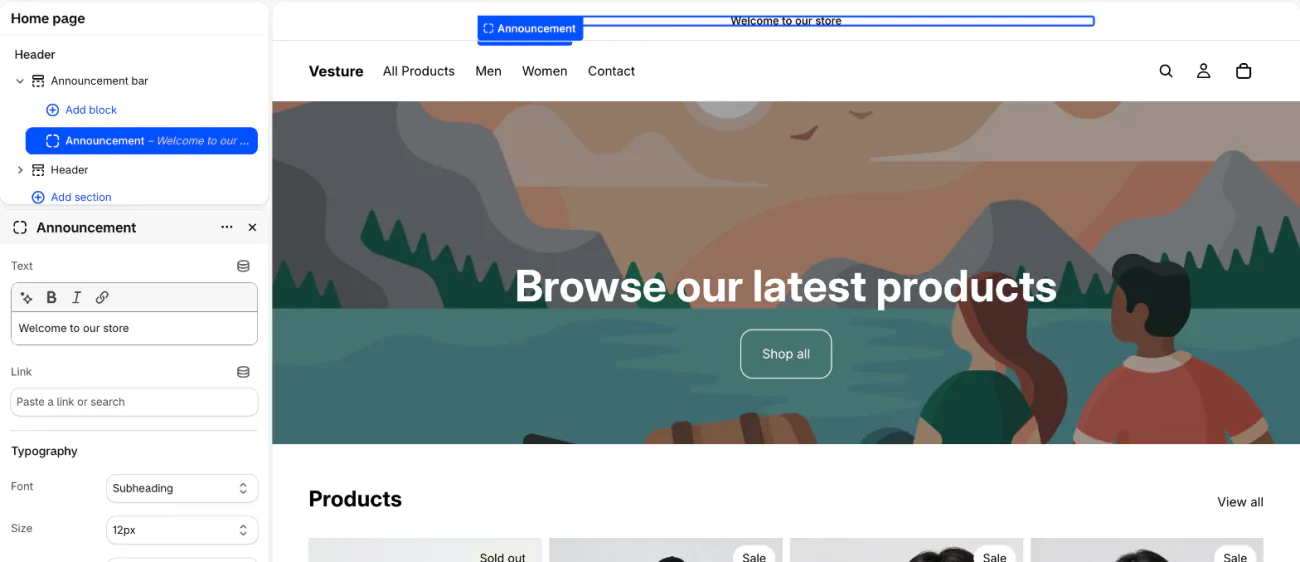
If "Announcement bar" isn't in the list, look for "Announcement banner", the name some themes use. If neither is there, your theme has none. Check its documentation, pick a theme that has one, or search the Shopify App Store for "banner message" or "announcement bar".
If your theme has the bar, Sidekick, Shopify's assistant in the admin, can add an announcement for you from the theme editor. Try a prompt such as "Add an announcement that says free shipping over $50".
From Shopify's Help Center page on adding an announcement bar, read November 23, 2026.
How do you edit the text, color and size of the announcement bar?
Edit the bar where you added it: click the announcement, change Text or Link, and save. Color, size and height depend on your theme, and Dawn and Horizon differ on all three. The table lists what each editor lets you change in the current releases, Dawn 16.2.0 and Horizon 4.5.0, as of 23 November 2026. The Horizon labels were also read in a Horizon 4.1.5 editor that day.
| What you change | Dawn 16.2.0 | Horizon 4.5.0 |
|---|---|---|
| Words | Text and Link | Text and Link, plus Font, Weight, Letter spacing and Case, which can set the text in capital letters |
| Color | A Color scheme menu for the whole bar | Background color for the bar, Text color on each announcement. A "Color scheme" menu instead means a Horizon older than version 4 |
| Text size | No size box. The text follows your heading size, set by Scale under Headings in Theme settings, Typography, which resizes every heading | Size on each announcement, from 10 to 184 pixels in 4.5.0 |
| Height and width | No setting | Padding, the space above and below the text, set by Top and Bottom from 0 to 100 pixels, and Section width, Page or Full |
| Several announcements | Up to 12. Tick Auto rotate announcements and set Change every, from 3 to 10 seconds | They rotate on their own. Time to next announcement sets the pause, from 2 to 10 seconds |
| Pinned while scrolling | No setting. Sticky header pins the header only | No setting. Sticky header pins the header only |
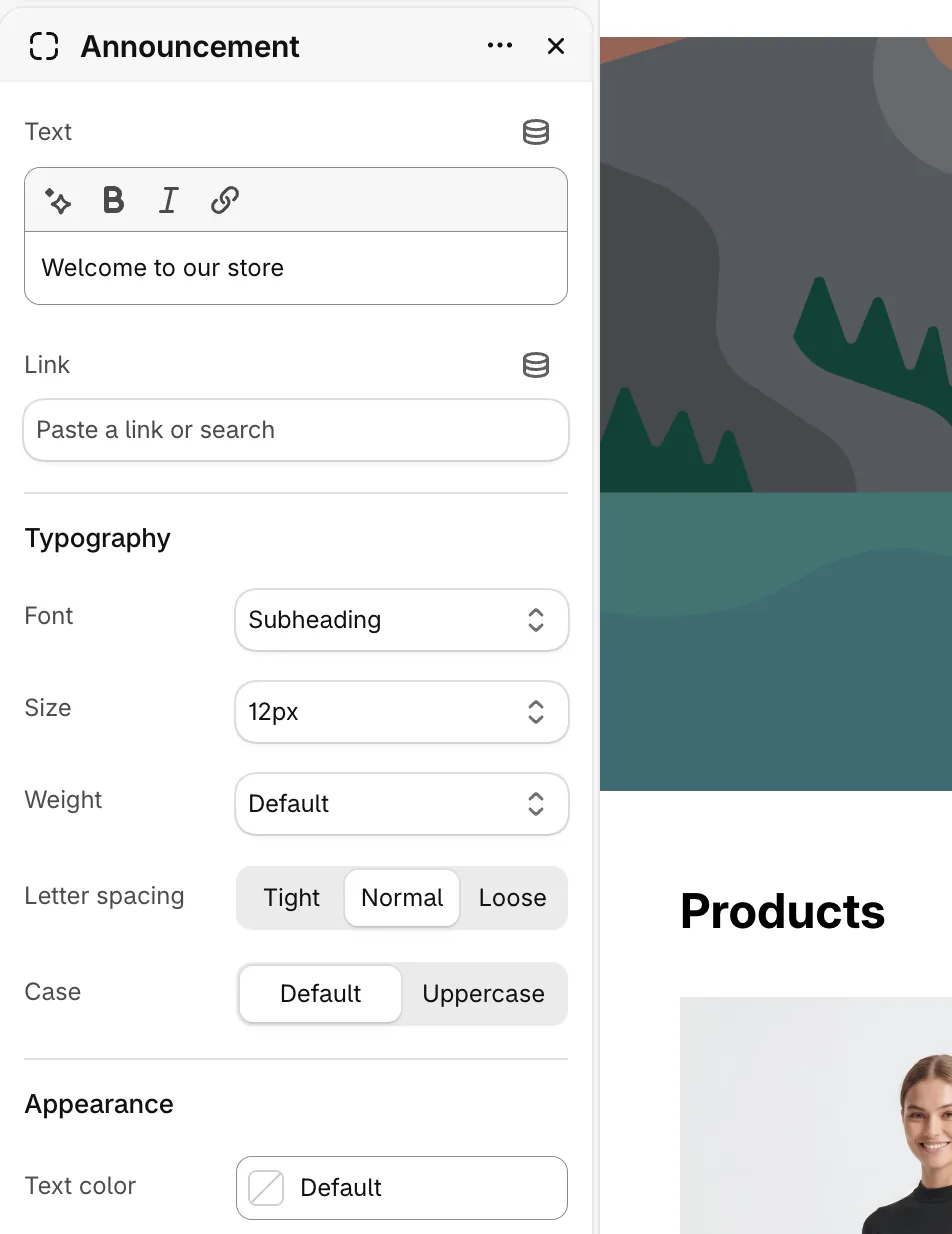
Horizon changed its color settings in version 4, released in June 2026. To see which version you have, open the three-dot menu at the top right of the editor. Its foot names the theme and its version.
In Dawn, pick another scheme in the "Color scheme" menu, or change the scheme itself under Theme settings, then Colors. A scheme change recolors every section that uses it.
The bar holds words, not a picture. For a picture banner, Shopify banner size has the sizes to upload.
How do you hide or remove the announcement bar?
Hide an announcement to keep it, remove it to delete it.
- Open "Edit theme" as above, then click "Announcement bar" to list its announcements.
- Hover over one and click the eye icon to hide it. Click the icon again to show it.
- To delete it for good, click the announcement and choose "Remove block", Shopify's name for removing an item from a section. In Horizon, Remove block sits at the foot of the announcement's settings. After you save, a removal can't be undone.
- Click "Save".
The bar has no end date, so a sale line stays until you hide it. Shopify Rollouts can undo a theme change on a date, and how to schedule a Shopify sale banner has the steps.
Why is your announcement bar not showing?
Before you blame the bar, check that your change reached the live theme. Any of these can cause it, so go in order:
- You edited a draft. Your live theme carries an "Active" tag in the editor's top bar, and a draft carries "Draft".
- You did not save. The "Save" button at the top right turns grey once your change is saved.
- The announcement is hidden by its eye icon, or its Text is empty. Dawn prints nothing for an announcement with no text.
- Text and background share a color. In Dawn, check the Color scheme. In Horizon, compare Text color with Background color.
- Your browser shows a saved copy. Open your store in a private window.
- Your theme has no bar, as the first section above describes.
- An earlier change to your theme may hide the bar on phones. Compare with an unedited copy of the theme, or ask whoever made the change.
What should an announcement bar say?
One message, one link, short enough for a phone. Shopify's Help Center names shipping delays, new or updated policy pages and promotions as things to announce.
| Goal | A line you could write |
|---|---|
| Shipping | Free shipping on orders over $75 |
| A sale | Sale ends Sunday at midnight |
| A delay | Orders to Canada ship two days later this week |
| A launch | The autumn candles arrive Friday |
| Gift cards | Gift cards are live, sent by email |
With several announcements, the bar shows one at a time. Drag the most important one to the top of the list.
Can a Shopify announcement bar show a countdown?
Not in Dawn or Horizon, whose bars show words; a countdown bar shows how long is left and can take itself down at the end.
Sledge is a Shopify app, and its Global Countdown puts a bar across the top of your store with a title, a subtitle and a clock that ticks. The bar can carry a button or be clickable all over, and either way you can add a close icon. You set when it starts and ends, so you do not edit the theme on the last day of the sale. It can show in every country or only the ones you pick.
| What it does | Your theme's bar | Sledge's Global Countdown |
|---|---|---|
| Shows | Text and a link | A title, a subtitle, a ticking clock, and an optional button or close icon |
| Starts and ends | When you edit it, or on a date through a Shopify rollout | On the dates you set under Active dates |
| Messages | Several, shown in turn, up to 12 in Dawn | A countdown, with no rotating set of messages |
| Who sees it | Every shopper | All countries, or the countries you pick |
- Install Sledge from the Shopify App Store.
- In the theme editor, open "App embeds", the list of apps your theme can run, switch on "Sledge Core", which turns Sledge on in your store, and click "Save".
- In Sledge, open Tools, then Promotion, then "Global Countdown", and click "Add Global Countdown" if the form has not opened by itself.
- Fill "Title" and "Subtitle". Set "Call to action" to "Button", "Make entire bar clickable" or "No call to action". A button asks for "Button text" and "Link", a clickable bar asks for "Link", and both show a "Close icon" box to tick if shoppers should be able to close the bar.
- Under "Active dates", choose when the timer starts and tick "Has end date" to set when it stops. Under "Countdown", pick a "Timer type": "Countdown to date", "Fixed minutes", or "Daily recurring timer", which starts each day at an hour you pick.
- Under "Country", choose "All countries" or "Specific country". Under "Surfaces", where the bar shows, leave "Global" on.
- Click "Save".
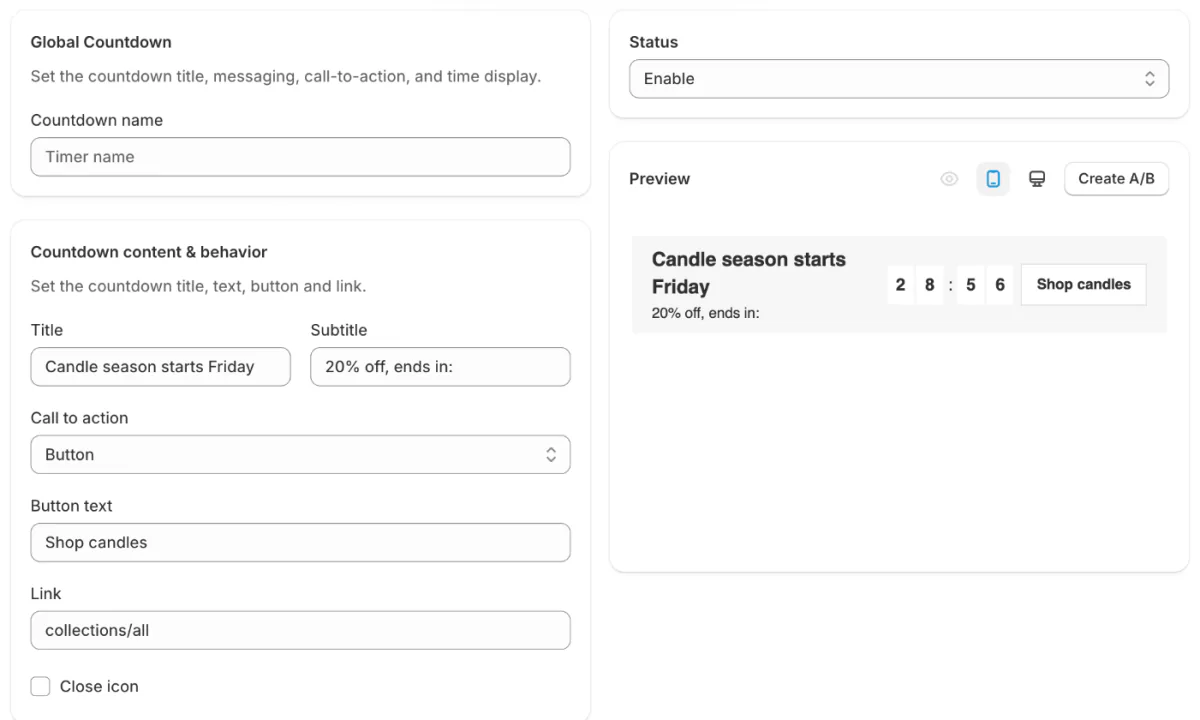
Sledge does not rotate messages or run a text-only bar, so keep your theme's bar for those. Sledge promotions covers Sledge's banners and timers beyond this bar, and the Dawn and Horizon countdown guides cover the other routes in each theme.
FAQ
Questions, answered
-

14-day free trial
Explore Sledge on your store before you decide to commit.
-

No credit card required
Start improving your store with no upfront commitment.
-

Setup in minutes
Get Sledge running without a lengthy setup process.
-

Built to grow sales
Turn shopper behavior into actions that help you sell more.
Does every Shopify theme have an announcement bar?
No. Dawn and Horizon do, but some themes call it an announcement banner and some have none. Open Online Store, click Edit theme, and look for Announcement bar in the list of sections or in the Header settings. If it is missing, pick a theme that has one or download a banner app from the Shopify App Store.
How many announcements can the bar hold?
Shopify's Help Center says a theme can have only one announcement bar section, holding up to 12 announcements. Dawn follows that limit. With more than one, the bar shows them in turn: in Dawn you tick Auto rotate announcements, and in Horizon it rotates on its own.
Can you make the announcement bar sticky?
Not in Dawn or Horizon. Both have a Sticky header setting, but it applies to the header section with your logo and menu, and the announcement bar has no pin setting of its own. A pinned bar needs a developer's change to your theme, which a later update may not keep, or a banner app that offers it.
How do you make the announcement bar move or slide?
Add two or more announcements and let them rotate. In Dawn, tick Auto rotate announcements and set Change every, from 3 to 10 seconds. In Horizon, two or more announcements rotate on their own, and Time to next announcement sets the pause, from 2 to 10 seconds in version 4.5.0. Neither bar scrolls like a ticker.
Do you need code to change the bar's color or font size?
Not for color, and not for size in Horizon. Horizon has a Size menu on each announcement, from 10 to 184 pixels in version 4.5.0, and Background color and Text color pickers from version 4. Dawn has a Color scheme menu and no size menu, so sizing only its bar takes a developer's change, which a later theme update may not keep.
When do you need an announcement bar app?
When your theme has no bar, or you want what its bar lacks, such as a ticking clock or a message for some countries only. Search the Shopify App Store for banner message or announcement bar. Sledge's Global Countdown covers the clock, its own start and end dates, and countries, but it does not rotate messages.
Need the bar to tick down?
Sledge doesn't run a text bar or rotate messages, so keep your theme's announcement bar for those. Its Global Countdown adds a bar with a ticking clock that starts and ends on the dates you set, for every country or only the ones you pick. Try it free for 14 days. Growth Intelligence turns on when you pick a paid plan, and its suggested fixes add up to one dollar figure, labeled Est. potential.