Sometimes because the dropdown has less room. But Shopify also treats the dropdown and the results page as different types of search, so they do not always use exactly the same information. In our September 2026 tests on Shopify's own Dawn and Horizon demo stores, the dropdown showed the top of the same product list as the results page, in the same order. Dawn shares ten places among every kind of result. In our September 2026 Horizon test, the dropdown showed up to eight products. Everything below that waits for Enter.
A shopper types a word from your product description. The dropdown offers a few products, and the one she wants is not among them. She presses Enter, and there it is, in the second row. A shopper who picks from the dropdown never sees that row.
Are the dropdown and the results page the same search?
Shopify calls the dropdown predictive search: the suggestions that appear under the search box while a shopper types. Shopify's troubleshooting page treats the dropdown and the results page as two separate searches, each set to its own kinds of results, such as products, collections and pages.
In practice they agree more than that suggests. We typed purse into Shopify's Dawn demo store. In our September 2026 test, the dropdown showed 9 products, and they were the first 9 of the 27 on the results page, in the same order. Same list, less room in that test.
Why does the dropdown miss a product the results page finds?
Shopify's help page says the dropdown reads four product details by default: the title, the product type, the variant name (such as size, color or material) and the vendor, which is the brand. In our September 2026 tests, Dawn and Horizon used that default. The results page reads those four plus the description, the tags, the SKU and the barcode.
In our September 2026 tests on the Dawn and Horizon demo stores, the dropdown also found products by a word only in the description, a word only in a tag, a full SKU and a barcode. Treat that as a test result, not as a rule that every Shopify store will behave the same way. So do not rely on Shopify's list or ours. Type the word into your own store and look.
If the product has the word and still appears only after Enter, the usual cause is room.
Why does the dropdown only show a handful of products?
The dropdown has a fixed number of places, and your theme decides how they are shared. Dawn, a free Shopify theme, uses Shopify's default of ten places in total. Suggested search terms (the words offered at the top of the dropdown), collections, pages and products all share those ten.
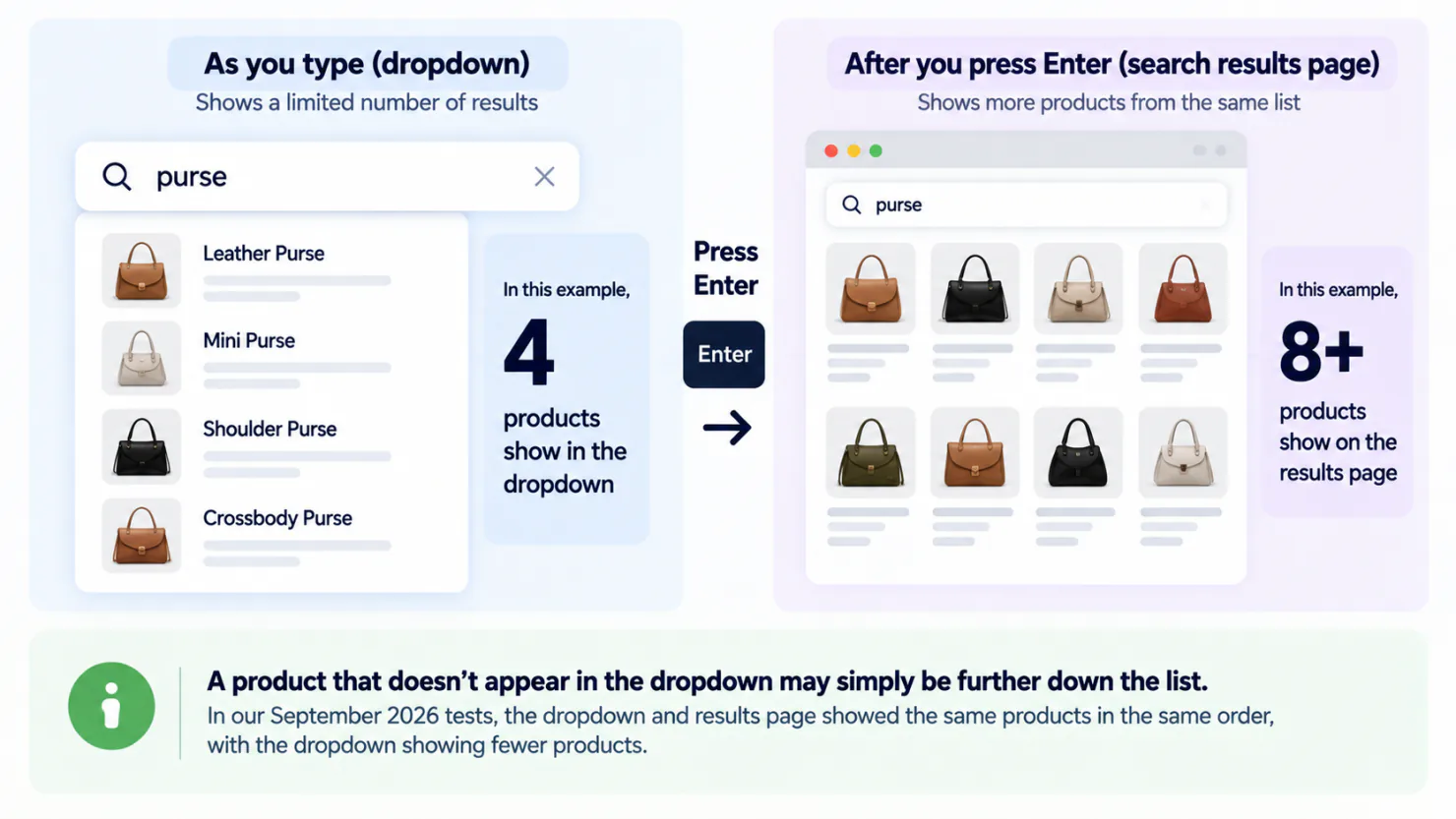
So on Dawn, two suggested terms and four collections leave four places for products. Product 5 appears only after Enter. In our September 2026 Horizon test, each kind of result was counted separately, so collections took no product places. The dropdown showed at most eight products in that test.
Shopify can show up to 25,000 matching products on the results page, one page at a time. Shoppers move through them page by page. Blog posts and pages such as About share at most two places, and only on page one of the results. So your Shipping page shows after Enter only if it ranks in that top two.
Does meaning matching run in the dropdown?
Semantic search is Shopify's name for matching by meaning. In Shopify's own example, a search for christmas party shoes finds red pumps, though neither christmas nor party appears on them. Semantic search reads descriptions and product images. It runs on the results page by itself when your store has fewer than 200,000 products and is on a Grow, Advanced or Plus plan. It does not run when your store's language is Japanese, the one language Shopify names as unsupported.
Shopify's help page says semantic search does not apply to the dropdown. Our tests found dropdown matches that looked like meaning matching anyway. Search your own store with the loose words your shoppers use, and see what the dropdown offers. A product has to match before search relevance can decide how high it sits.
Does a misspelled word work in both places?
Typo tolerance means search still finds a product when a shopper gets a letter wrong. Shopify documents the same rule for both searches. One letter can differ, or two letters can be swapped, and the first four letters must be right. The difference shows when nothing matches. The results page then tries again, more loosely, on the title and product type only. Shopify documents no second try for the dropdown. Why Shopify search misses misspelled words covers the letter rules.
Dropdown or results page, side by side
| Question | The dropdown, as a shopper types | The results page, after Enter |
|---|---|---|
| What Shopify's help page says it reads | Title, product type, variant name (such as size, color or material), vendor | Those four, plus description, tags, SKU, barcode |
| What our September 2026 tests found | Also matched a word only in the description or a tag, a full SKU and a barcode | Also matched those description, tag, SKU and barcode words |
| How many results | Dawn: ten places in total, shared with suggested terms, collections and pages. Horizon: up to eight products | Every matching product, page by page, up to 25,000; at most two pages or blog posts |
| Meaning matching | Shopify's help page says it does not apply | Runs by itself on Grow, Advanced and Plus, under 200,000 products, except in Japanese |
| A small typo | One letter wrong or two swapped, first four letters right | Same rule, plus a looser second try when nothing matches |
| Order of results | Set by Shopify, with fully sold-out products last by default; in our tests, the top of the results page list | Set by Shopify, with fully sold-out products last by default; you can also boost chosen products |
Can you make the two agree?
Shopify's free Search and Discovery app gives you three settings to try.
The first is result types. In the app's Settings, "Predictive search results" chooses which kinds of results the dropdown shows. On Dawn, switching off collections and pages frees places for products and suggested terms. On Horizon it adds no product places, because Horizon already counts each kind separately. Your theme can overrule this one setting, so change it, then search your own store and check.
The second is synonyms. A synonym group links the word a shopper types to the word your products use, so a search for one also finds the other. Search and Discovery allows 20 synonyms in a group and 1,000 across your store, and you write and maintain every group yourself. Setting up Shopify search synonyms shows each screen.
The third is a product boost, in the same app. Pick a product and up to ten search terms, and Shopify lists it above the usual results for those terms. Shopify documents boosts for the results page and does not say whether they reach the dropdown. Beyond that, Shopify says you cannot change how results are ordered. Deciding which product leads a search is a separate job, and the merchandising guide covers it.
A developer can change your theme so the dropdown gives products their own places, up to ten. What you get: more products before Enter. What it costs: paid development work, plus maintenance when the theme changes. What it risks: a theme update can conflict with the custom change. Shopify keeps your custom changes in an update when they do not conflict, and tells you when they could not be kept.
Sledge is a Shopify search app with no cap on synonyms, in a group or across your store, on every plan. On Pro and up, Sledge search also lets you choose how it matches: by keyword (the words typed), by meaning, or a blend of the two. Shopify's semantic search gives you no such choice. Typo tolerance covers your product titles and brand names.
How do you find out what the dropdown is hiding?
Not from Shopify's search reports, "Searches with no results" and "Searches with no clicks" included. Shopify says they cover the results page only. A shopper who picks from the dropdown, or gives up there, never appears in them.
So look for the hidden products on purpose
- Take your five best sellers. For each one, type a whole word a shopper might use that is not in the title, such as the material, the style or the occasion. Write down what the dropdown offers.
- Press Enter, or tap Search on a phone keyboard, and write the results page list beside it. On Horizon, if the dropdown shows only one result, Enter opens that product, so pick a word with more matches.
- Mark every product that appears only after Enter. Shoppers who stop at the dropdown will not see those.
- Check how far down each marked product sat. If it was below the dropdown's last place, the dropdown ran out of room. Shopify suggests checking that the title, description and product type use the words shoppers type.
A product missing from both lists has a different problem. Shopify leaves two things out of both searches: any product with its status set to Unlisted (still for sale, but reachable only through its own link), and words too common to search, such as "the" or "and". Run the check again after a catalog change, because new products bring new words.
FAQ
Questions, answered
-

14-day free trial
Explore Sledge on your store before you decide to commit.
-

No credit card required
Start improving your store with no upfront commitment.
-

Setup in minutes
Get Sledge running without a lengthy setup process.
-

Built to grow sales
Turn shopper behavior into actions that help you sell more.
Is instant search the same as predictive search?
Almost. Instant search is the general name for the dropdown that opens while a shopper types. Predictive search is Shopify's own version of that dropdown. With no search app installed, your dropdown is predictive search, as long as your theme supports it and Shopify offers it in your store's language. Shopify's help page says it reads the title, product type, variant name and vendor by default. Our September 2026 tests found it matching descriptions, tags, full SKUs and barcodes too.
Does Shopify's typo tolerance work in every language?
Nearly. Shopify's language table shows typo tolerance for every language it lists except Japanese, which uses a different kind of matching. Some languages, such as Chinese, Korean and Arabic, are not in that table. Suggested search terms in the dropdown are English only for now, per Shopify. Typo tolerance also skips alternate spellings: if a shopper types grey and your products say gray, link the two words in a synonym group.
Do Shopify's synonyms reach a SKU or a barcode?
No. Shopify says synonyms do not match on a product's SKU or barcode. Say a synonym group links a shopper's name for a product to its model number. If that number lives only in the SKU or barcode, the group finds nothing. Put the model number in the product title too, and the synonym can match it there.
Can you import a synonym list into Sledge?
Yes. Sledge imports synonyms from a spreadsheet file, with a sample template to fill in, and exports the groups you wrote the same way, up to 10,000 rows. Each group works one way or both ways. On Pro and up, Sledge also builds a starter set from your own catalog on its first run. Those rows sit on their own tab, where you switch each one on or off or delete it, but you cannot open one to edit it.
Can Sledge read a search like red dresses under $50?
On paid plans, once you switch it on. Sledge reads a sentence like that as filters: color and price, plus a size when the shopper names one. Each plan includes a set number of these searches per billing cycle. A search Sledge cannot read runs as your normal search. On the results page, if the filters it reads match nothing, Sledge searches again without them. Sledge's instant search does not search again that way, so it can still come back empty.
What does a shopper see when a Sledge search returns nothing?
On the results page, three blocks are on by default: search tips, suggested search terms and your best sellers. Suggested terms come from your popular searches until you add your own suggestion list. Sledge's instant search has its own switches for suggested terms and popular products. A search redirect is separate and acts first: pick a word and a page, and pressing Enter on that word opens your page instead of running a search.
Where do you see the searches that came back empty?
In Sledge, under Analytics, on the Signals tab, which lists the searches that returned nothing and the terms shoppers use most. Growth Intelligence, the advisor built into Sledge, reads the same data and names each fix with a dollar estimate: weekly on Pro, twice a week on Scale, daily on Accelerate and Ultimate.
Find the searches that cost you sales, priced in dollars.
Install free and start the 14-day trial, with no cap on synonyms from day one. Choosing the matching mode needs Pro or higher. On Pro at $29.99 a month, Growth Intelligence reads your own orders and searches every week, then names the next fix in dollars.